Broadcast schedule
Build a schedule from VOD assets, repeat a series episode by episode, or add a live source. You can change the current broadcast without restarting the stream. Each scenario below includes saving, verification, and cancellation.
Choose your task:
- Build a VOD schedule.
- Repeat a series episode by episode.
- Add a live source — with a limitation of the verified version.
- Edit the current broadcast.
Prepare the playout
You need a playout and access to its stream. For VOD scenarios, upload the assets and wait for their technical data to appear. For live, you need a local stream with working video and audio. Configure a transcoder on the playout stream so that you can verify the broadcast in a player, not just the saved grid.
Open Playout and select the playout. In the editor:
- the grid shows slots at absolute times;
- Now and next shows the saved schedule;
- Asset library contains VOD assets, and Available live contains local streams.
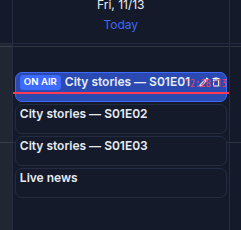
Changing a slot creates a draft. The button in the slot window saves only this draft. To send the schedule to the server, click the general Save above the grid. Then verify the broadcast: a successful server response alone does not prove that the player shows the intended content.
Build a VOD schedule
Build a sequence of films or other videos with exact broadcast boundaries.
- Drag an asset from Asset library to a free time, or click an empty place in the grid.
- Fill in Programme title, Start, and Duration. Dragging snaps the time to a 5-minute step; in the slot window, set the time to the second.
- Select the asset in Content. Add a description, genre, and age rating for the programme guide. If needed, select a Slot filler.
- Click Create or Save in the slot window. Repeat for the following videos. For a continuous broadcast, the next slot must start exactly when the previous one ends.
- Click the general Save.
Check Now and next and open the stream preview. At the scheduled time, the player must show the selected video, and EPG must show the slot title and time. If the slot is scheduled for the future, the current broadcast will not change until it starts.
Before the general save, cancel the operation with Undo in the notification, or reload the page to discard the whole draft. After saving, roll back with another edit: delete the extra slot or restore the previous values and click Save again.
Repeat a series episode by episode
There is no automatic repeat rule: each episode and each repeat occupies a separate slot.
- Prepare VOD assets for all episodes.
- Create the slots in the required order. For a daily repeat, set each slot's own date and time.
- Give episodes viewer-friendly titles, such as
City stories — episode 1. Season and Episode help the operator distinguish slots but are not passed to EPG. - Save each slot in the draft, then click the general Save.
Check the order in Now and next and the episode titles in EPG. At the slot boundary, the previous episode is trimmed and the next one starts on schedule, even if its file is longer than the slot.
Cancellation and rollback are the same as for VOD: Undo works with the draft, while a saved order is restored by editing or deleting extra slots and saving again.
Add a live source
Set the live duration manually: a stream has no predetermined end.
- Verify that the local live stream works and plays independently of the playout.
- Drag it from Available live to a free time, or select it in the Content of a new slot.
- Set the title, start, and duration. Save the slot, then click the general Save.
- Check not only Now and next and EPG, but also the video frame in the preview or viewer's player.
The verified version has a live-air limitation: a saved live slot can appear in Now and EPG while the actual output remains on filler. Do not rely on saving alone before a live event. If the player still shows filler, replace the live slot with a VOD asset and save the schedule again.
Before the general save, remove the live slot from the draft with Undo. After saving, you can restore the VOD broadcast only with another edit and the general save.
Place and move slots
Dragging VOD to a free place creates a slot. Dragging an existing slot changes its start and leaves its previous time empty. You can always check exact values in the slot window before the general save.
If the new position is occupied, the editor places the slot immediately after the occupying one. Overlapping following slots move forward; a free interval absorbs part of the shift. Another operation cannot silently move the on-air slot.
Insert a slot between programmes
Drag an asset between two slots, or create a slot in the window with the required start and duration. Check the number of shifted slots and their new times in the notification. Then click the general Save and compare the order in Now and next.
If the calculated shift is wrong, click Undo in the notification before the general save: the draft positions return. After saving, reverse the shift by editing the affected slots again.
Edit the current broadcast
Open the slot with the on-air badge. The window warns that the changes affect the current broadcast.
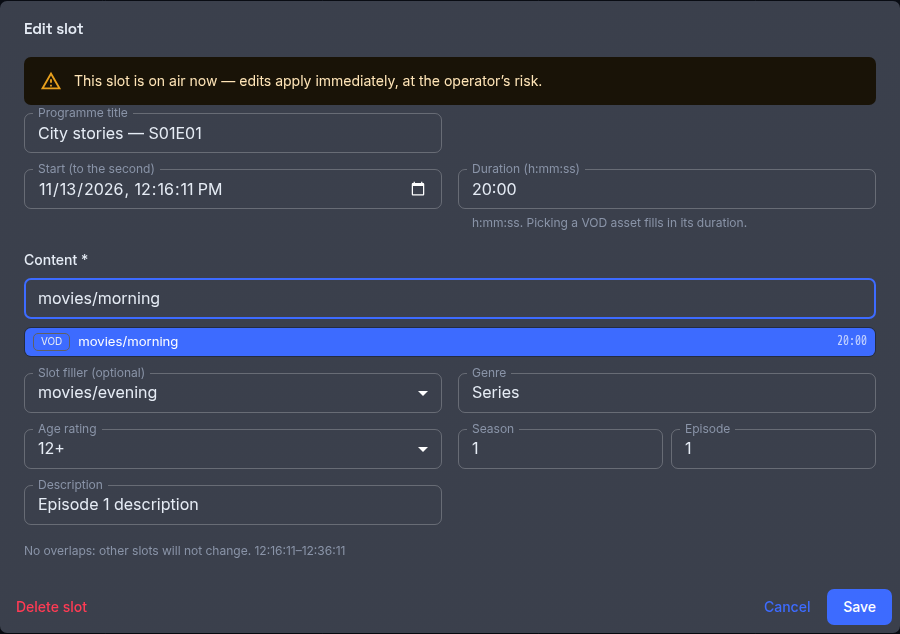
The warning in the screenshot describes the consequences for the current broadcast after the general Save. The button in the slot window only records a draft and does not apply the edit on the server immediately.
- Change the content, title, or metadata and save the slot window. To replace the video itself, you can also drag another VOD asset onto the current slot and confirm the replacement.
- Check the draft. Drag replacement keeps the slot start and duration but changes the title to the asset identifier; other metadata remains. Edit the title in the slot window if needed.
- Click the general Save. You do not need to restart the stream.
- Compare the video frame and EPG. An open storefront can keep the previously loaded programme; reload it to verify the new data.
Editing a future slot does not change the current broadcast. Delete a slot as a separate route:
- Open the slot and choose Delete slot in its window or on its card. Confirm the deletion.
- Click the general Save.
- For the current slot, verify that filler replaces the content and its event is removed from EPG. For a future slot, verify that its event is removed; filler will cover the freed time when it arrives.
- To roll back a saved deletion, recreate the slot with the original content, start, duration, and metadata, then click the general Save again. Verify that the content and EPG event return.
Before the general save, use Undo in the notification. After saving, there is no rollback button: restore the previous asset, title, or deleted slot with another edit and click Save again.
Replace the current slot content
Dragging an asset onto the current slot requires separate confirmation because the viewer will see the picture change after the general save. This action does not change the slot boundaries. Before confirmation, you can close the dialog without changes; after it, Undo works until the general save, and afterwards only another edit can reverse the change.
How slot duration affects the broadcast
For the exact schedule, EPG, and filler limits, see Operator-relevant limits.
Slot boundaries control the broadcast, not the file duration:
- Content longer than the slot — playback is trimmed at the slot end, and the next slot starts on schedule.
- Content shorter than the slot — after the natural end of the file, the slot filler plays, or the playout filler if none is set. The next slot does not move.
- A gap without a slot — the playout filler plays and no EPG event is created.
These cases differ from a technical asset failure. A natural VOD end produces no asset error; for unavailable content, check the stream state and the source.
Verify saving and warnings
Verify changes in sequence:
- The general Save completes without an error, and the grid shows the intended slots.
- Now and next matches the saved schedule.
- The preview or viewer's player shows the expected content, not filler.
- EPG contains the intended title, time, description, genre, and age rating.
Do not create overlaps manually: the server rejects such a schedule. A warning that a slot is longer than its VOD asset means that filler covers the remainder. For a live warning, always check the actual frame: an EPG event does not prove a live broadcast.
Cancel a draft or restore a saved schedule
Available actions depend on the stage:
- The slot window is still open — close it without saving.
- The operation is already in the draft — click Undo in the notification; the server schedule does not change.
- You need to discard the whole draft — reload the editor without the general save.
- The general save is complete — there is no server-side rollback. Edit the slots again and save a new version.
What's next
- Playout — the output stream, filler, and continuous-broadcast verification.
- Channel from VOD — the path from files to subscriber playback.
- Programme guide — how the viewer receives EPG.