VOD transcoding
An uploaded file can be served as it is, or laid out into a quality ladder — several files of different size and bitrate plus a descriptor for the player. How to lay it out is defined by an asset template; the work itself is a job, and it runs on the streamer that holds the original. The outputs land in the same asset next to the original.
The VOD section keeps two tabs for this: Asset templates and Jobs. The progress of one asset is visible in its card, the whole picture — on the dashboard.
Asset templates
The Asset templates tab is the catalog of ladders. The columns: Name, Description — the renditions in words, for example 720p H.264, 360p H.264, and Assets — how many assets are bound to the template.
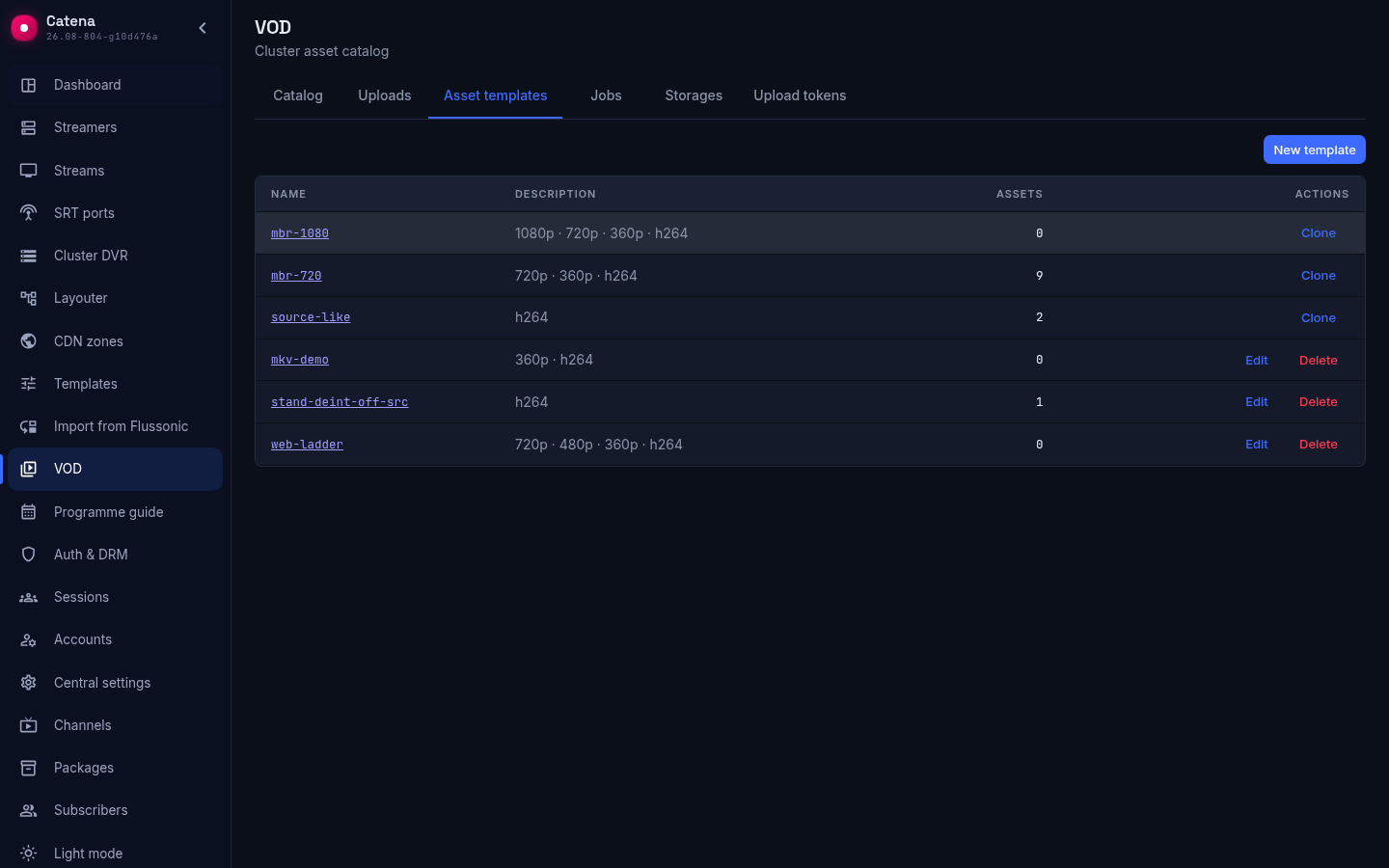
The system templates (mbr-1080, mbr-720, source-like) are neither edited nor deleted; their only action is Clone, which opens the form of your own template with a copy of the ladder. Your own templates have Edit and Delete; the New template button opens a form with a single rendition.
A template bound to assets can be deleted too: the confirmation names their number, after the deletion the assets are left without a template, and their files are not touched. The next upload into such an asset offers to pick a template again.
The template form
The template form is the ladder, rendition by rendition. Name is how the template appears in lists. Original is what to do with the source after processing: keep or delete after processing. Then the renditions: each has its resolution (the Height field), Codec and Bitrate, and each rendition is one output file; the encoder preset, the GOP length and the frame structure are set for the whole ladder. The Add rendition buttons offer the usual resolutions, Other… — any resolution, original as is — a rendition without resizing. The audio rule is one for the whole ladder: every audio track of the original is re-encoded to AAC and put into every output with its language label kept, so dubs and translations are not lost. The Copies on other servers field is not part of the ladder: it orders copies of the asset on other streamers and is described in VOD copies and balancing; for a transcoding template it stays at no copy.
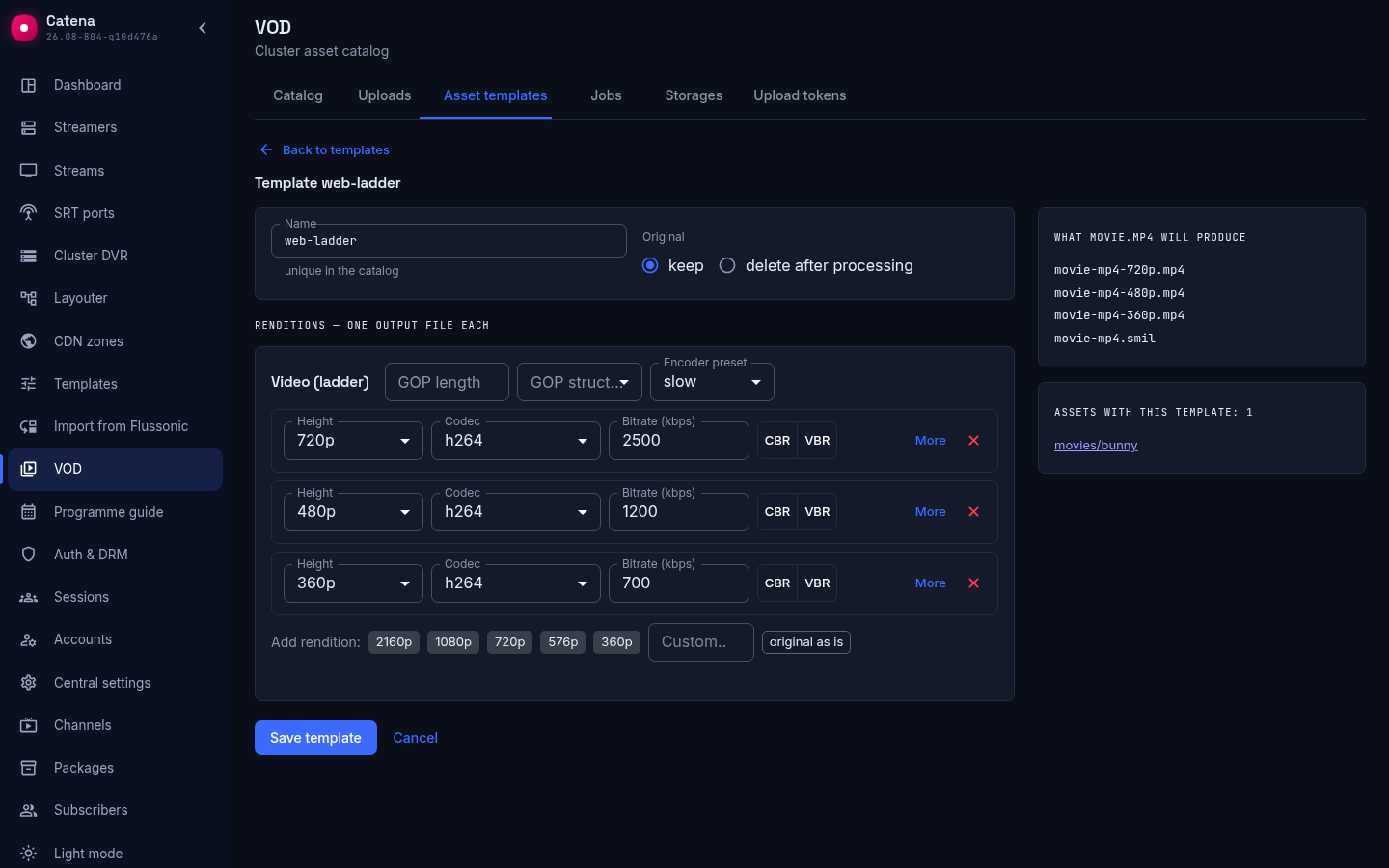
Output names are not typed in: they are built from the source name and the rendition resolution. The card What movie.mp4 will produce on the right shows the result for the example: movie-mp4-720p.mp4, movie-mp4-360p.mp4 and the descriptor movie-mp4.smil. The dot in the source name becomes a dash, so movie.mp4 and movie.mkv in one asset produce different outputs and do not overwrite each other.
Two renditions with the same resolution and the same codec are not saved by the form: that is one file under two names. Renditions differ by resolution.
The Copies on other servers field sets how many more streamers should hold the asset; the copies are made by the same job after the ladder, and central picks the streamer for the copy. Details in VOD copies and balancing.
Below stands the card Assets with this template — links to the cards of the assets it is bound to; past a hundred, the card shows the first hundred. A template created via API follows the same rules: the server accepts only such a ladder, so every template opens in the form.
Uploading with a template
A template is bound to an asset at upload: the upload preview has the Asset template field next to the name of the new asset. Every video file carries the By template mark; unmarked, the file is stored as it is, without a job. An upload into an asset with a template follows its template, there is nothing to choose; an asset without a template offers to pick one right in the preview.
The job appears by itself as soon as the upload finishes. There is nothing to submit by hand.
Jobs
The Jobs tab is the registry of work on every streamer. Above the list is the summary by status: queued, dispatched, running, cancelling, error.
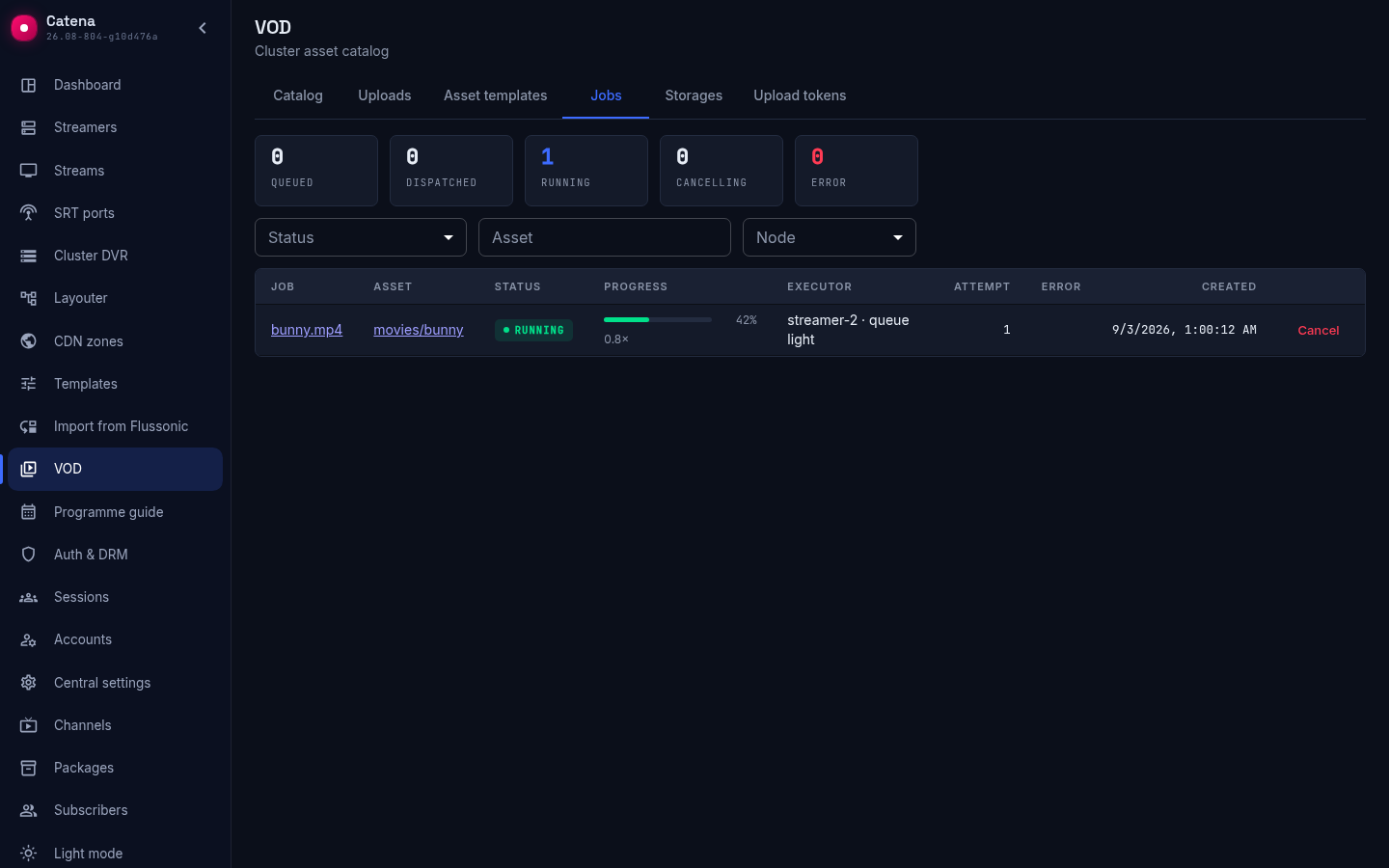
The columns: Job — the source file, the link opens the job card; Asset — the key, the link opens the asset card; Status; Progress — the percentage and the speed relative to real time; Executor — the streamer and its queue; Attempt; Error — in words; Created — when the job was submitted. On a queued job the Error column names the reason for waiting instead: the streamer is offline or does not run jobs, its queue has no room, an attempt failed and will be retried, there is no streamer, room or copy acceptance for the copy. On a running job that waits for the target streamer to accept the copy files, the same column says executor finished, waiting for outputs to upload.
Job statuses:
- queued — waiting for an executor;
- dispatched — accepted by a streamer, waiting for its turn there;
- running — encoding;
- cancelling — the cancel was sent to the executor, waiting for its confirmation;
- done;
- error — the attempts are exhausted or the source is unfit;
- cancelled.
By default the list shows active and errors; finished and cancelled jobs open through the Status filter, and the all option shows the whole registry. The Asset filter takes an asset key, Node — the executing streamer, Reset clears every filter.
Row actions:
- Cancel on a queued job closes it at once, on a running job turns it into cancelling until the streamer confirms. On a failed job Cancel removes the record from the registry.
- Retry is offered for errors that a new attempt can fix: the streamer was unreachable, the disk ran out of space, the encoder crashed. Source errors — the file cannot be read, the format is not supported — are not fixed by a retry, and the button is not there.
Finished and failed jobs are kept for seven days and then leave the registry on their own. The Clear button removes them earlier: it appears when the list is filtered by done, error or cancelled and, after a confirmation, removes every job of that status. The jobs of a deleted asset leave together with it.
The job card
The job card opens by the source name in the list. The header carries the file, the status and the Back to jobs link.
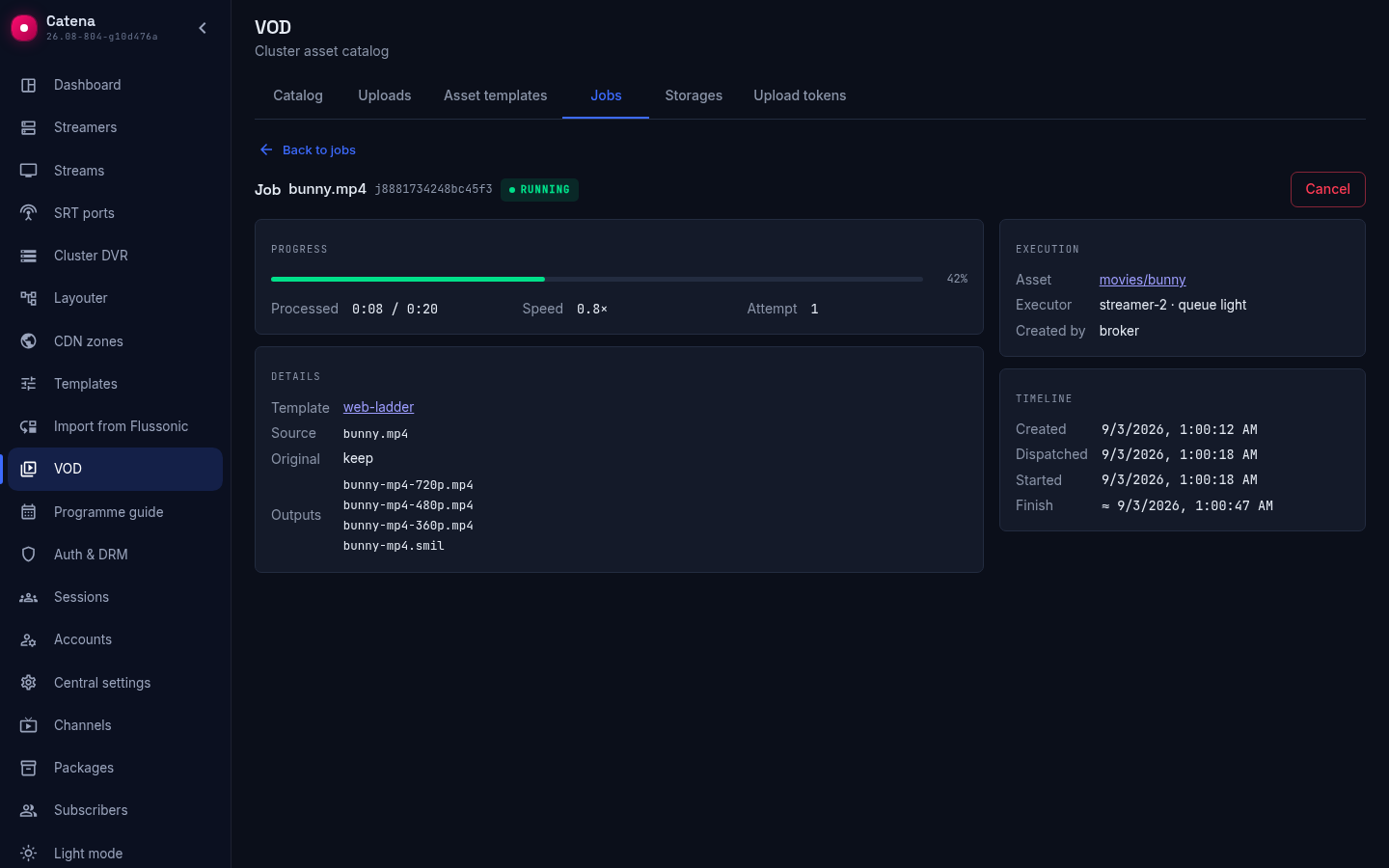
The Progress block — the progress bar, Processed relative to the file duration, Speed and Attempt; while a copy uploads, Uploaded and Upload speed stand in place of the processed time and the speed, and a finished job with a copy shows both. The Details block — the template, what happens to the original after processing, the source, the outputs and, on a job with a copy, the Uploads row with the number of copies; on a failed job the executor's full message stands here too. The Result block appears once at least one output is ready or the job carries a copy, and lists the ready files, the player descriptor and the copy uploads: the streamer, the files and the state — pending, uploading, uploaded, copy skipped. A queued job shows the reason for waiting instead of the progress; a job with a copy shows the copy upload chip next to the status while uploading, and if there was nothing to copy — the copy skipped mark with a hint why. On the right, Execution — the asset, the executor with its queue and who created the job, and Timeline — when it was created, dispatched and started; Finish on a running job is an estimate from the current speed, marked with ≈, on a finished job the actual time, on a failed or cancelled job the row is called Stopped. A cancelled job shows no outputs and no result: it produced nothing.
An asset at work
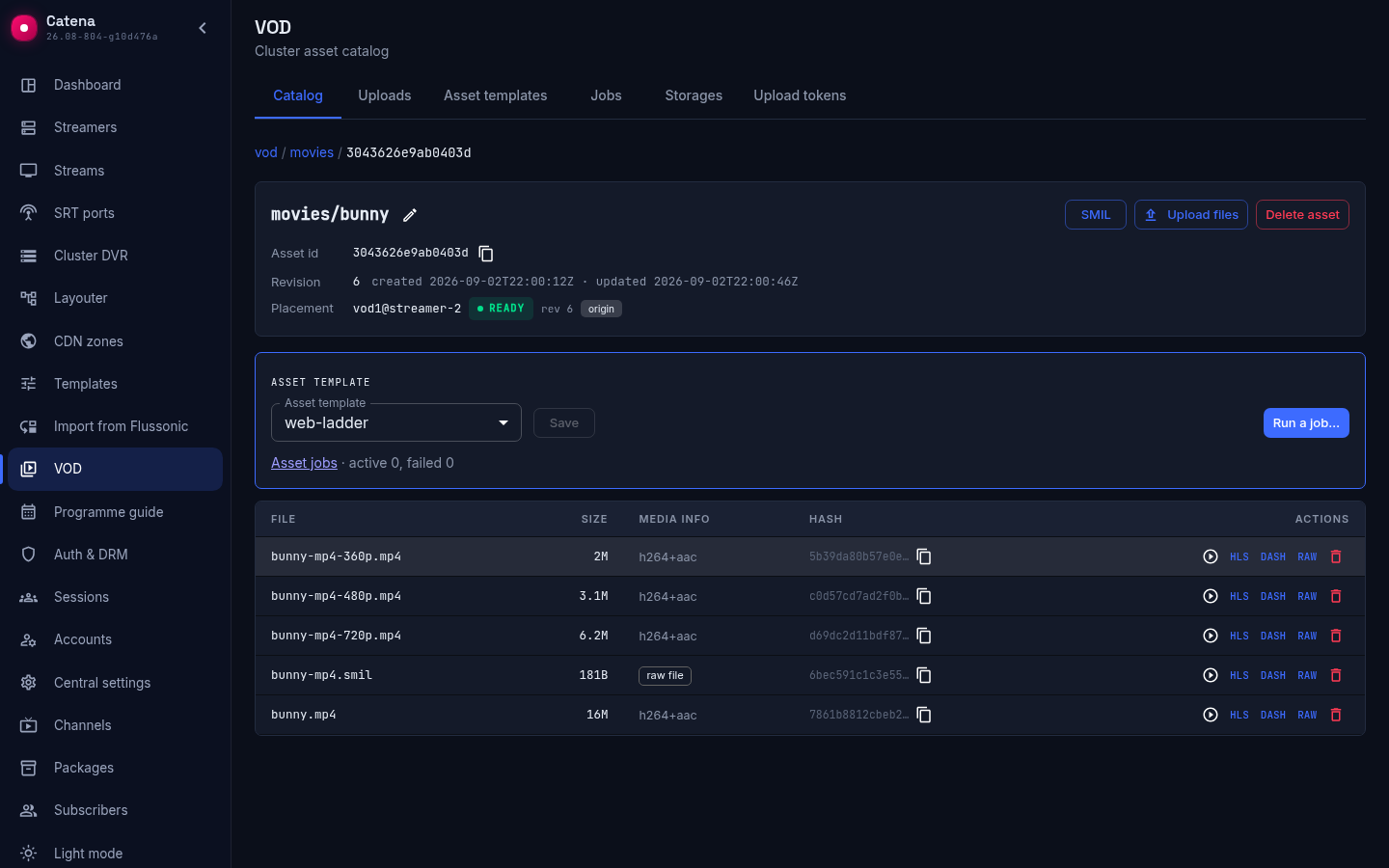
In the asset card the Asset template block shows the bound template. Save changes only the template and submits no jobs. Run a job… opens the choice of originals: the marked ones are processed anew by the current template, and the outputs are rebuilt. The Asset jobs link opens the registry filtered by this asset with every status, finished ones included; next to it — how many of its jobs are active and failed.
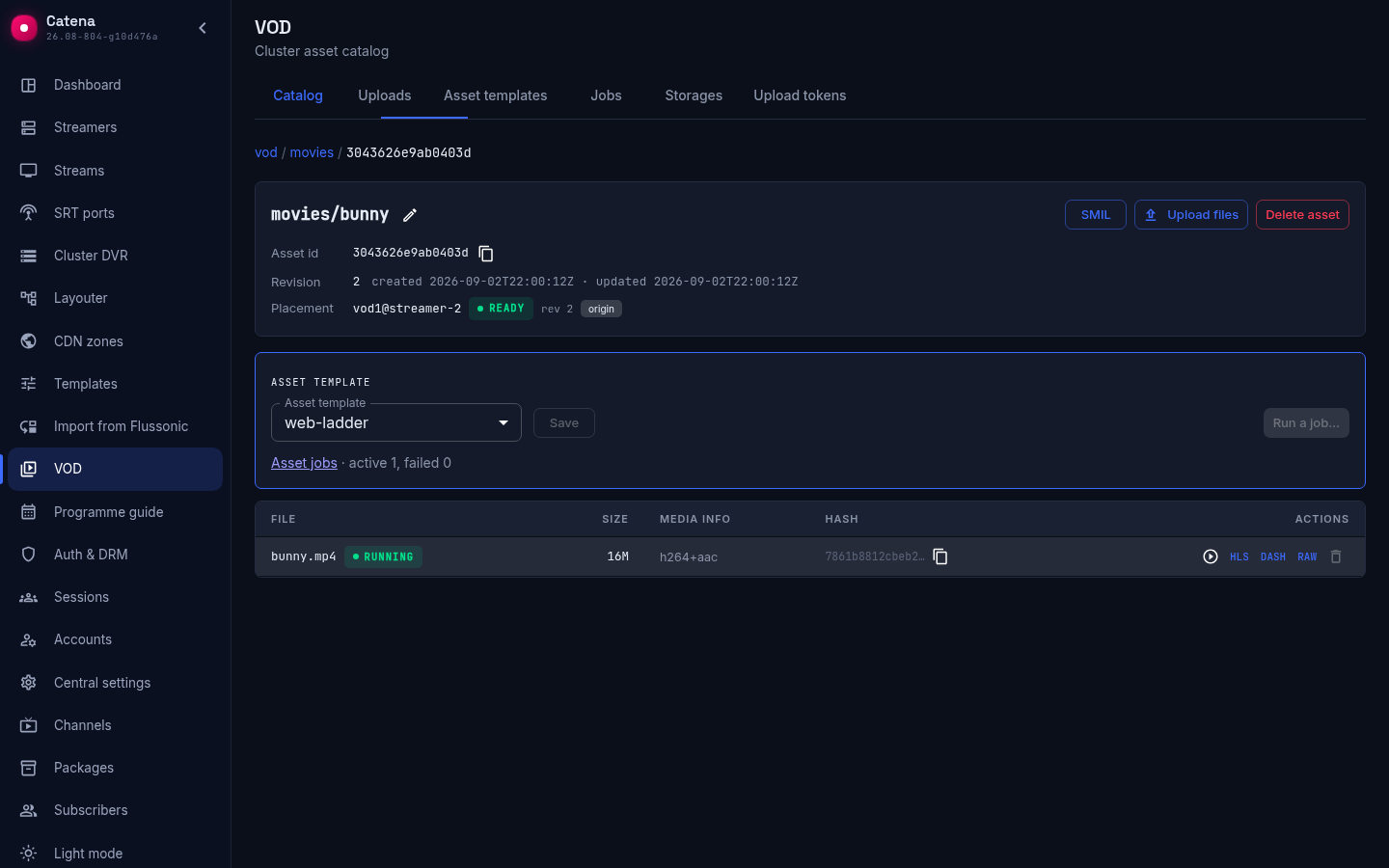
While the job runs, its original comes first in the file list and is highlighted, and its Delete is disabled: the file is being processed. After the job finishes, the outputs and the descriptor sit in the list alongside the other files, without marks; the .smil descriptor is the player's entry point for the whole ladder.
The dashboard
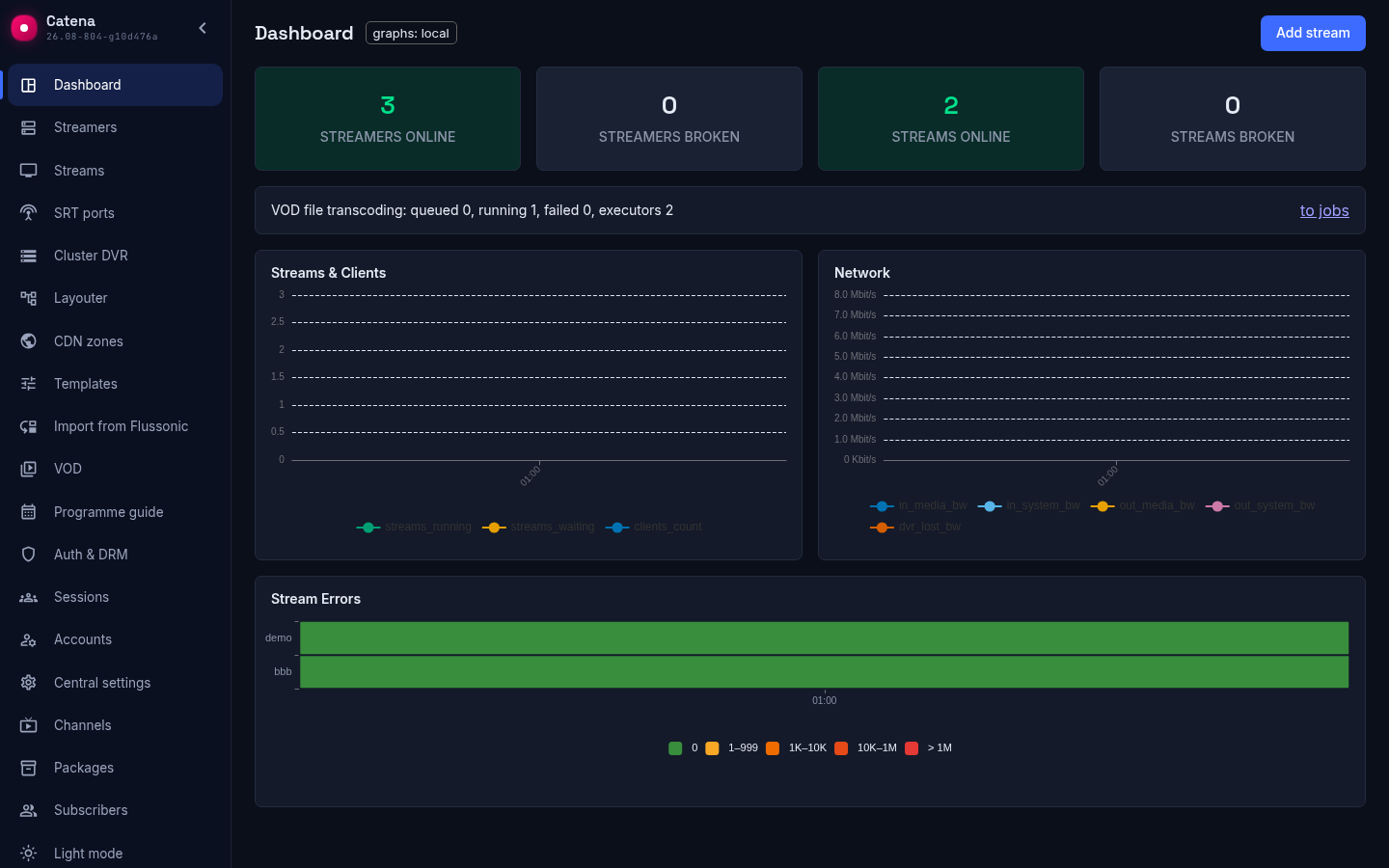
On the dashboard the VOD file transcoding row shows how many jobs are queued, running and failed, and how many streamers can execute them; the to jobs link opens the registry. The executor of a particular job is always the streamer that holds the original; copies to other streamers are uploaded by it as well, see VOD copies and balancing.
A job via the API
The console submits jobs only by the asset's template. A one-off job for particular files, with another template or with a plan of your own is submitted through the API:
curl -X POST 'http://<central>/central/api-v4/vod/jobs' \
  -H 'Authorization: Bearer <key>' -H 'Content-Type: application/json' \
  -d '{"asset_id": "<asset id>", "files": ["movie.mp4"], "template_id": "mbr-720"}'
- files — which originals to process; without the field, every original of the asset.
- template_id or plan — a template or a plan right in the request; it is not bound to the asset, and the asset's template does not change.
- target_asset_id puts the outputs into another asset, trim cuts a fragment.
A plan of your own is not bound by the ladder shape: its descriptor, output names and track set are arbitrary. Such a job appears on the Jobs tab like any other.
The registry via the API — GET /central/api-v4/vod/jobs with the asset_key, status (one status or several separated by commas, e.g. queued,running) and node filters; a record carries the reason for waiting as a code (wait_reason) and in words (reason). DELETE /vod/jobs/{id} on a done, failed or cancelled job removes the record, DELETE /vod/jobs?status=error — every record of that status.
What next
- VOD uploads — the upload preview, the dock and the storages.
- VOD catalog — the asset card, playback and deletion.
- VOD copies and balancing — copies of the asset on other streamers and viewer distribution.