The DVR archive
The archive turns a stream from "live only" into an nPVR: the viewer rewinds, catches up with the start of a show, watches yesterday's episode. Recording is done by the streamer the stream runs on, or by a DVR streamer of its namespace when there is one; this page prepares the disks, turns recording on and shows how to make sure the archive is really being written and played.
Prepare the streamer's disks
The archive storage is a streamer setting, not a stream one. Open the streamer from the registry, the DVR block of its settings:
- Archive root — the directory the archive disks are mounted into.
- Disks — one per physical device: child directories of the root.
- Check mounts before writing — on by default: a directory without a mount of its own is reported as "not mounted", and the streamer refuses to write the archive onto the system root partition — a reliable way to take the machine down together with the archive. Turn it off only deliberately.
The disks are assembled like this: mount every disk as a child directory of one common directory — /storage/dvr/disk1, /storage/dvr/disk2, /storage/dvr/disk3 — set the common directory as the Archive root, and list every disk as its child directory:
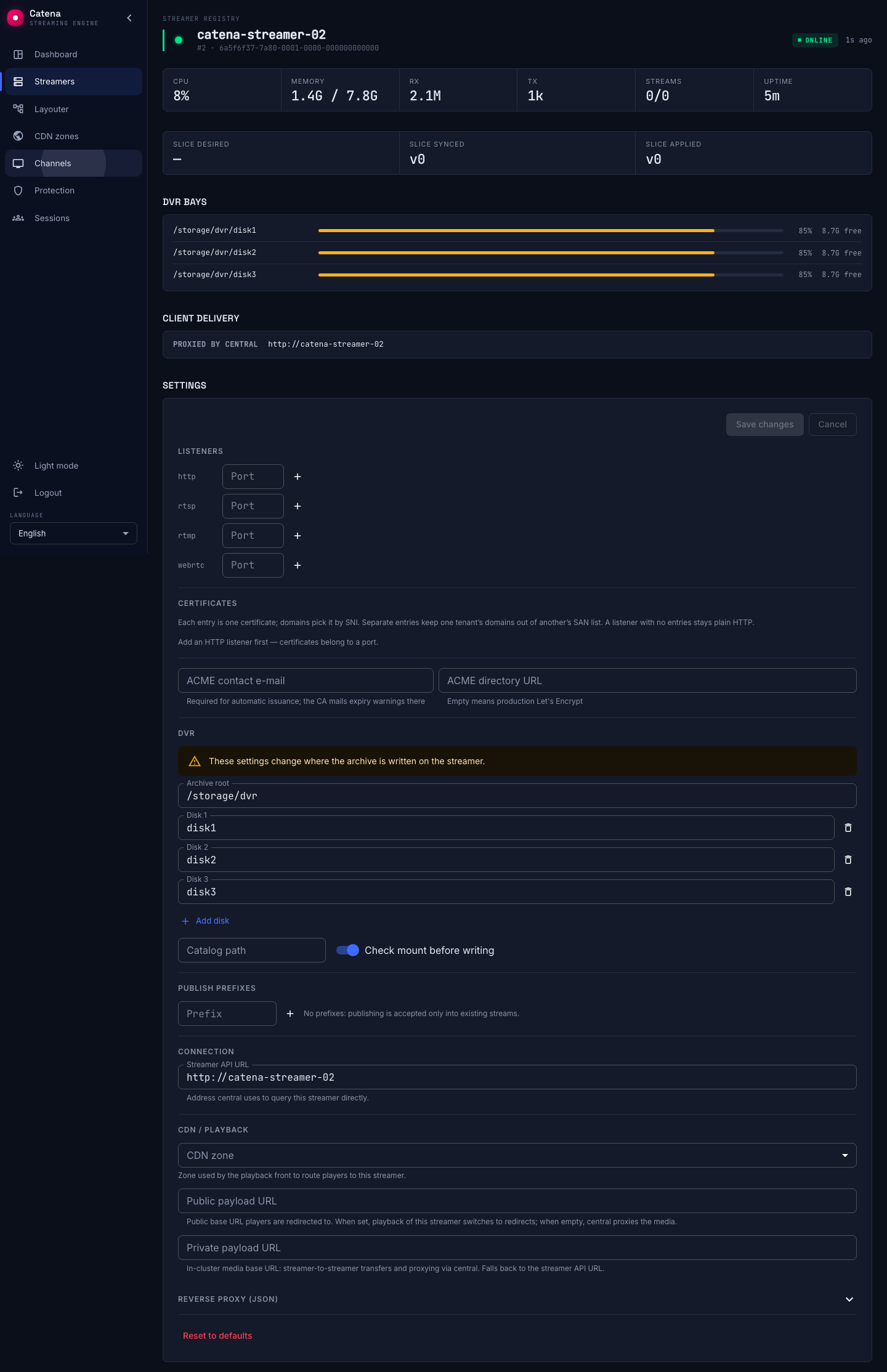
Press Save changes — central delivers the storage to the streamer, and the apply indicators show when it took effect. Without a configured storage, recording will not start no matter how many streams ask for it.
The local streamer of a single-machine installation is no exception: it opens from the same registry, and its storage is configured in the same DVR block of the console.
JBOD over RAID
Catena's archive subsystem is an application RAID: the streamer itself spreads the recording across independent devices, itself notices a dropped disk and keeps writing to the remaining ones. That is why the disks are handed to it individually — JBOD: each with its own filesystem and its own mountpoint, as in the assembly above. Losing a disk costs exactly that disk's share of the archive: the other disks keep writing, and the DVR indicator turns red in the streamer registry.
We do not recommend hardware or software RAID under the archive — and we promise you will run into problems with those engineering choices. Archive writing is a continuous stream for all of the machine's streams at once, and under that load an array behaves worse than the sum of its disks: degradation or a rebuild of a single disk slows the whole array down, and write delays and skips grow on every stream at the same time. That is exactly how archive overload looks on the write chart of the DVR tab: the skip and delay curves rise for all of the machine's streams at once.
Enable recording
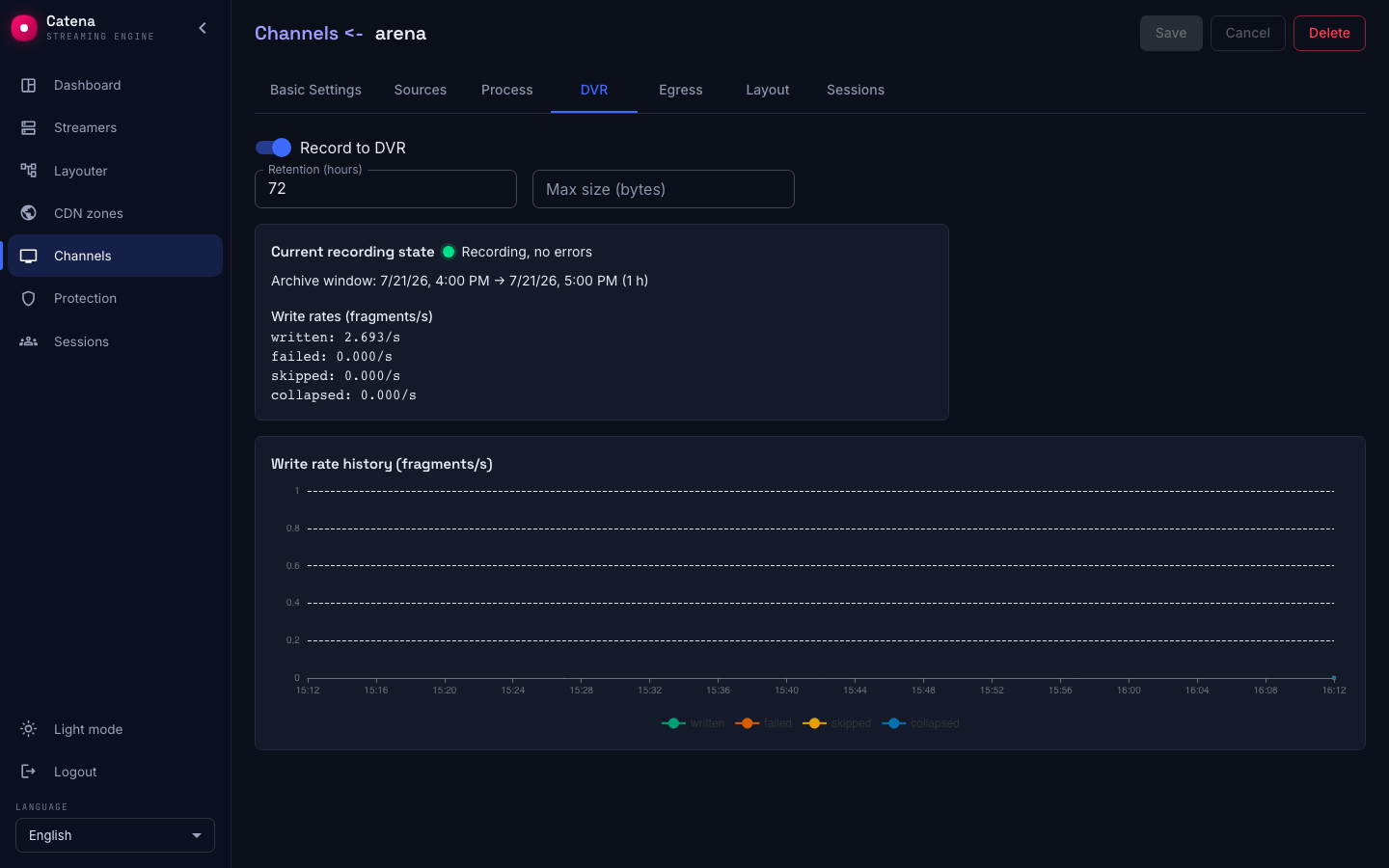
Open the DVR tab on the stream's page:
- Record to DVR — turns recording on.
- Retention depth (hours) — how many hours of air to keep; whatever falls out of the depth is erased automatically.
Switching Record to DVR off does not erase the archive at once: the streamers keep what was recorded for another day and erase it piece by piece, and recording switched back on continues the former archive. Erasing by depth does not stop on the streamer a stream was moved away from either — see Archive remains.
Press Save. Within a minute or two the same tab shows the Current recording state: an indicator with the verdict and the archive window — from the start of recording to now. When the streamer reports extended statistics, the hours with data (with gaps, if recording was interrupted), the archive size, the live write rates and the write chart — the history of those rates together with errors and skips — show up here too.
Cache a remote archive
The same tab carries a second switch — Cache the archive. It is not a recording setting but an independent property: the stream's archive reads settle on the streamer's cache disks, and a repeat request for the same part is served locally, with no trip to the source.
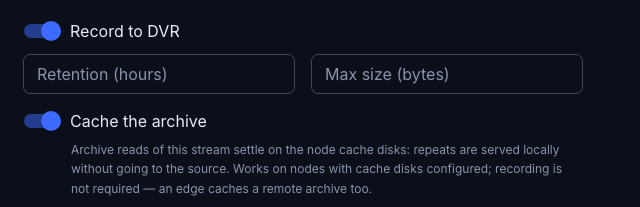
Recording does not have to be on for this, and that is the whole point: an edge caches someone else's archive while recording none of its own. The typical layout is an origin that records the archive and edges closer to the viewers keeping what is actually watched.
Caching only works where the streamer has cache disks configured. A stream with caching enabled on a streamer without them is not an error: the cache simply does not work, and a warning goes to the log. That is normal in a cluster, where one stream document spreads across different machines.
How much the cache has taken and what share of requests it serves — in the Cluster DVR section.
Watch the recording
In the stream list, the DVR column of an archived stream shows how much is actually recorded, plus a health indicator:
- Green — recording runs, no errors.
- Yellow — recording is degraded (fragments written late or skipped), or DVR is configured but recording does not run.
- Red — write errors: data is being lost right now.
- Dash — the stream has no archive configured.
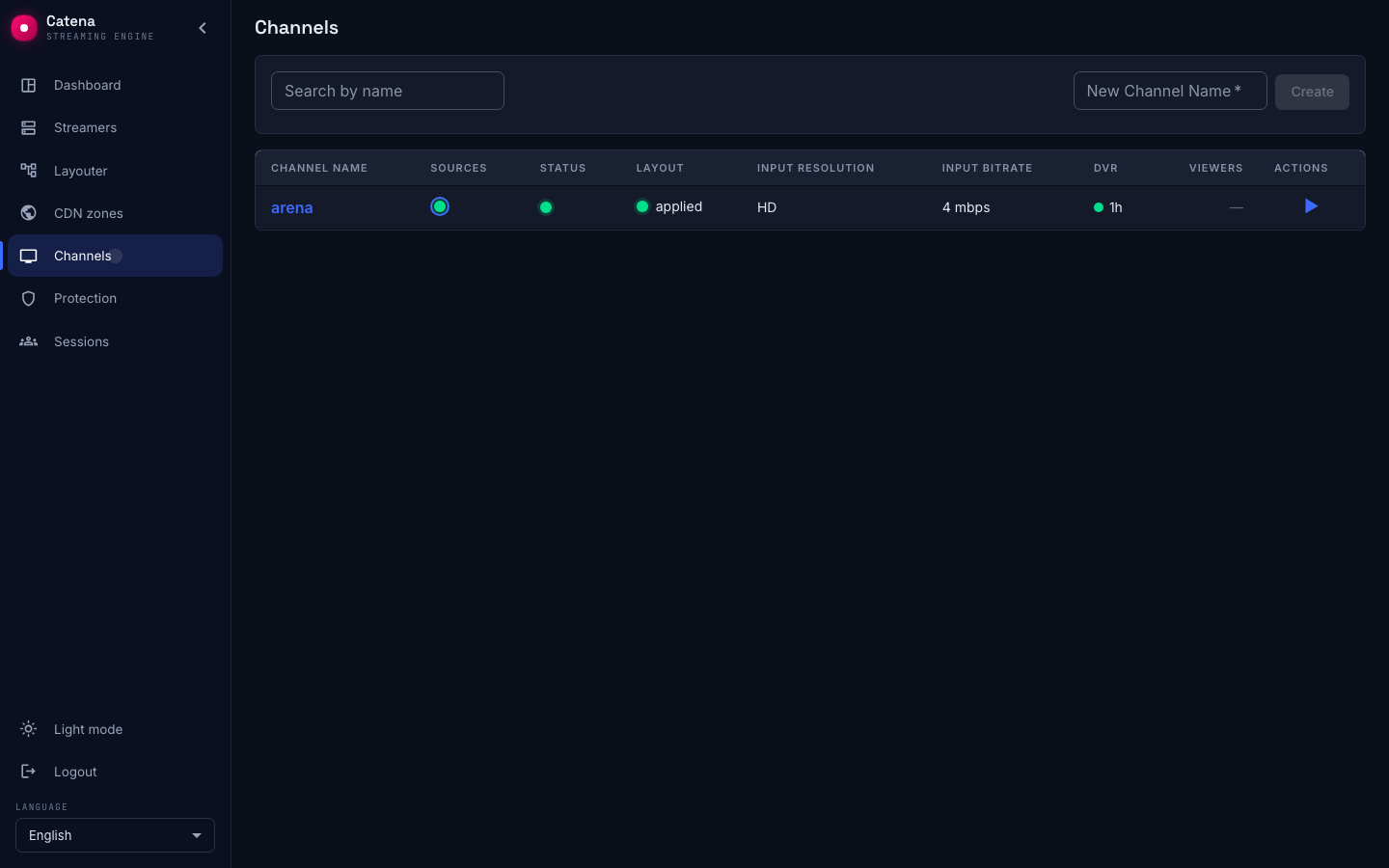
Disk health lives on the streamer's side: when a disk falls out or fills up, the DVR indicator in the streamer registry turns red.
What the viewer gets
The archive is served by the same HLS addresses as the live air — the player needs nothing special:
- Rewind:
/streaming/v/<name>/rewind/<seconds>/index.m3u8— the same stream shifted into the past by the given number of seconds.rewind/3600is an hour ago. - Recorded ranges:
/streaming/dvr-ranges/<name>— JSON with the list of recorded intervals. Archive timelines in players are built on it: you can see what is recorded and where the gaps are. - Preview clip:
/streaming/dvr-preview-mp4/<name>/<utc_ms>— a short MP4 around a moment in time (UTC in milliseconds). Handy for editorial and moderation UIs: show a piece of the archive without spinning up a player. It is assembled from the thumbnails written into the archive — set up previews with "Store previews in DVR" enabled, or the address will answer that there are no frames.
If recording does not run
- "DVR is configured but not recording". Either the stream is off air — there is nothing to write — or the streamer has no archive storage configured, or the namespace has a DVR streamer and the record on it was not created. Check the stream status, the DVR block in the streamer settings and the stream's Layout tab.
- "Archive write errors — data is being lost". The disk is full, gone, or not mounted. Look at the DVR indicator and the disk settings in the streamer registry.
- The archive window is shorter than the retention. That is normal right after enabling: the window grows with the recording and only reaches the depth after that many hours.
How much space is used across the cluster
The archive capacity of every streamer at once, the split of used space into live and orphan, the fate of deleted streams' archive, and the index rebuild are on the Cluster DVR page.