Channels
The Channels section is the storefront side of Catena. A channel here is not what gets broadcast but what the subscriber sees: a title, a number in the list and membership in packages. Broadcasting is the job of a stream, and that is a separate entity.
The distinction matters, because the two words mean different things:
- Stream — the operational unit: sources, transcoder, archive, placement on a streamer. Lives in the Streams section.
- Channel — the storefront content asset: title, number, packages. Lives in the Channels section.
The link between them is weak, by stream name. A channel with no stream is a legitimate state: broadcasting is not set up yet, while the slot in the lineup is already reserved. A reference to a stream that does not exist is not an integrity error either, but a storefront state, and it is labelled right in the list: Stream not found on this installation. Several channels may sit behind one stream.
The subscriber service is three sections working together: channels, packages and subscribers. By itself it does not protect playback: admitting a viewer is still the job of Auth & DRM.
Create a channel
On the Channels screen, type a title into New channel title and press Create. The channel page opens.
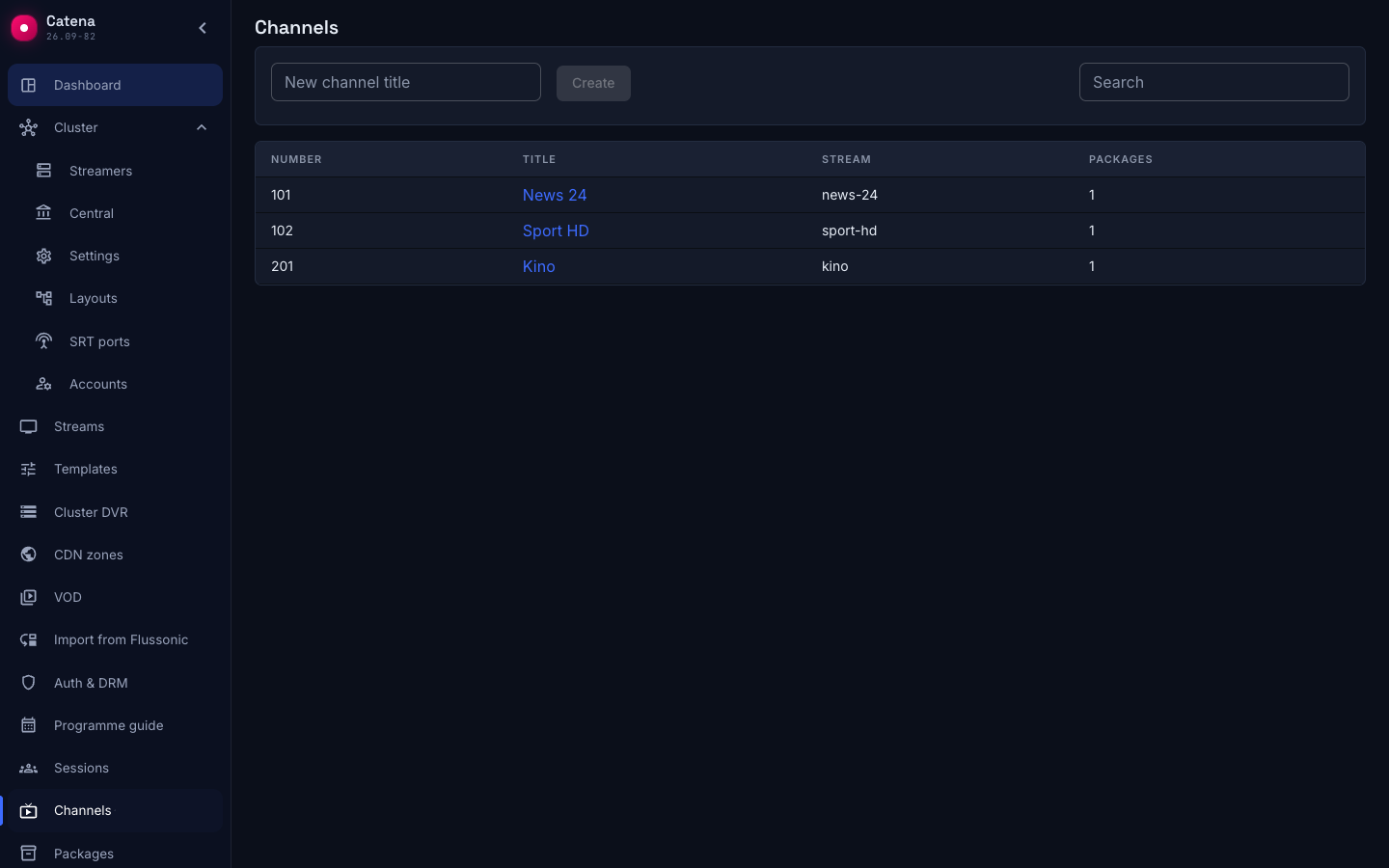
The list shows four columns: Number, Title, Stream and the number of packages the channel belongs to. The search field filters by title and by stream name. A long list is extended with Load more.
Channel settings
The Settings tab:
- Title — what the subscriber will see.
- Number — the position in the channel lineup.
- Stream — a pick from the streams of the installation; the field may be left empty.
- Packages — which packages the channel belongs to. The composition is edited from the package side.
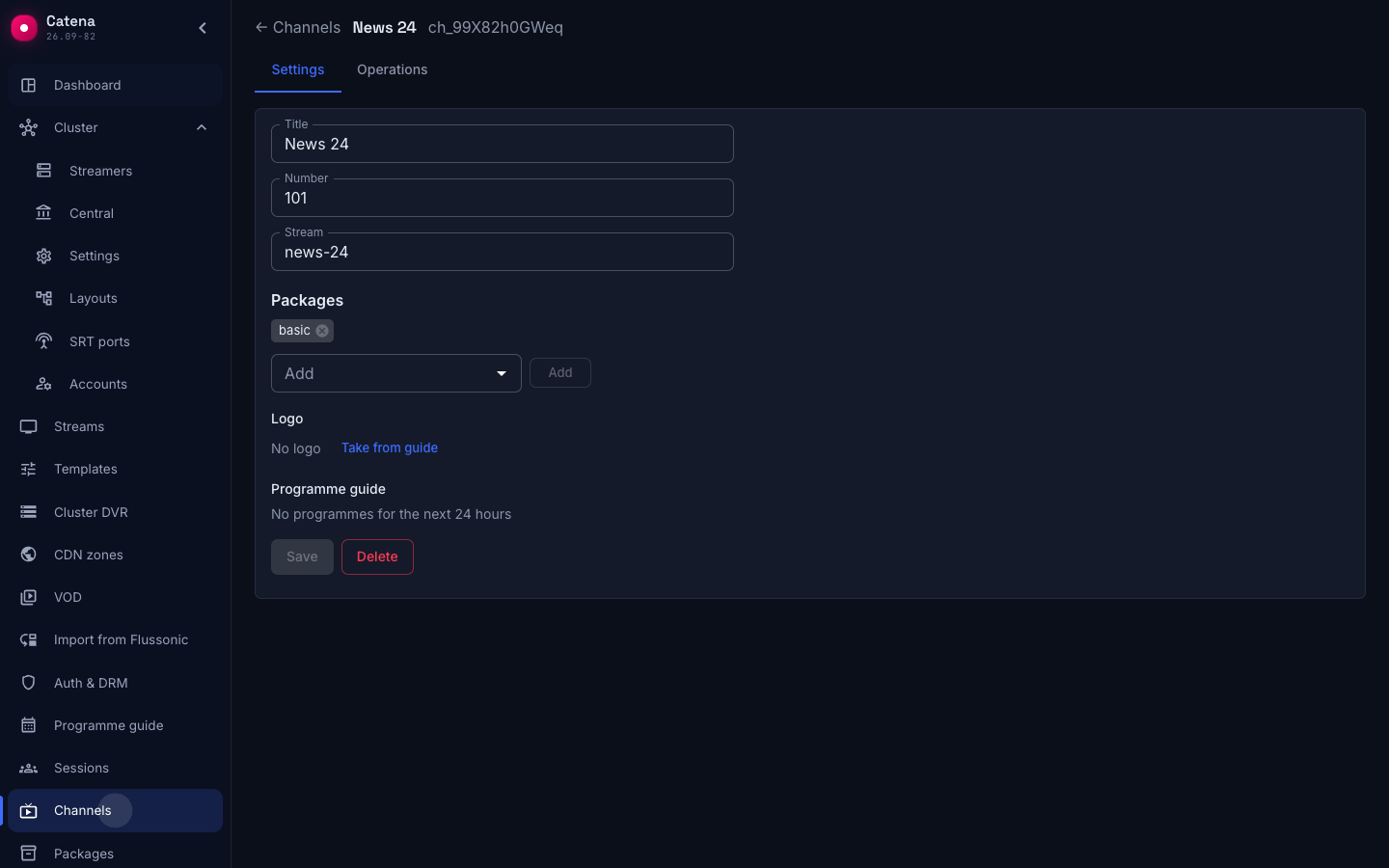
Save stores the edits, Delete removes the channel; package membership and subscriptions are cleared by cascade.
If somebody else changed the same record in parallel, the save is rejected with Someone else changed this record — reload and retry. Re-read the page and make the edit again: overwriting somebody else's change blind is not possible.
Operations log
The Operations tab shows what was done to this channel: the operation type, the time and the details. The log entry is written in the same transaction as the change itself, so a change without a trace in the log cannot happen. The log has no retention: the business audit is kept whole.
Channel operation types: channel_create, channel_update, channel_delete, plus package_channel_link and package_channel_unlink — adding the channel to a package and removing it from one.
What next
- Packages — group channels into something to subscribe to.
- Subscribers — who gets what.
- Create a stream — set up the broadcast a channel will point at.