Creating and managing a stream
A stream is what you serve to the viewer: sources, processing, archive and playback under one name. Central stores the stream's configuration; the stream runs on a streamer — which one, central decides by itself. This page walks the life cycle: create, find it in the list and read its state, edit, disable, delete.
Create a stream
On the Streams screen, type a name into New Stream Name and press Create. The stream is created enabled, and its page opens — it has no sources yet; adding them is your next step.
The name is also an address: it becomes part of the playback URL, /streaming/v/<name>/index.m3u8. Stick to Latin letters, digits, hyphen and underscore; spaces and special characters do not belong in a URL.
The full walk from an empty installation to a playing stream is in the Quick start.
Find it in the list
The Streams screen shows every stream of the installation, one row per stream, statistics re-read every few seconds. The Search by name field filters the table as you type, the Status filter — by the indicator's value.
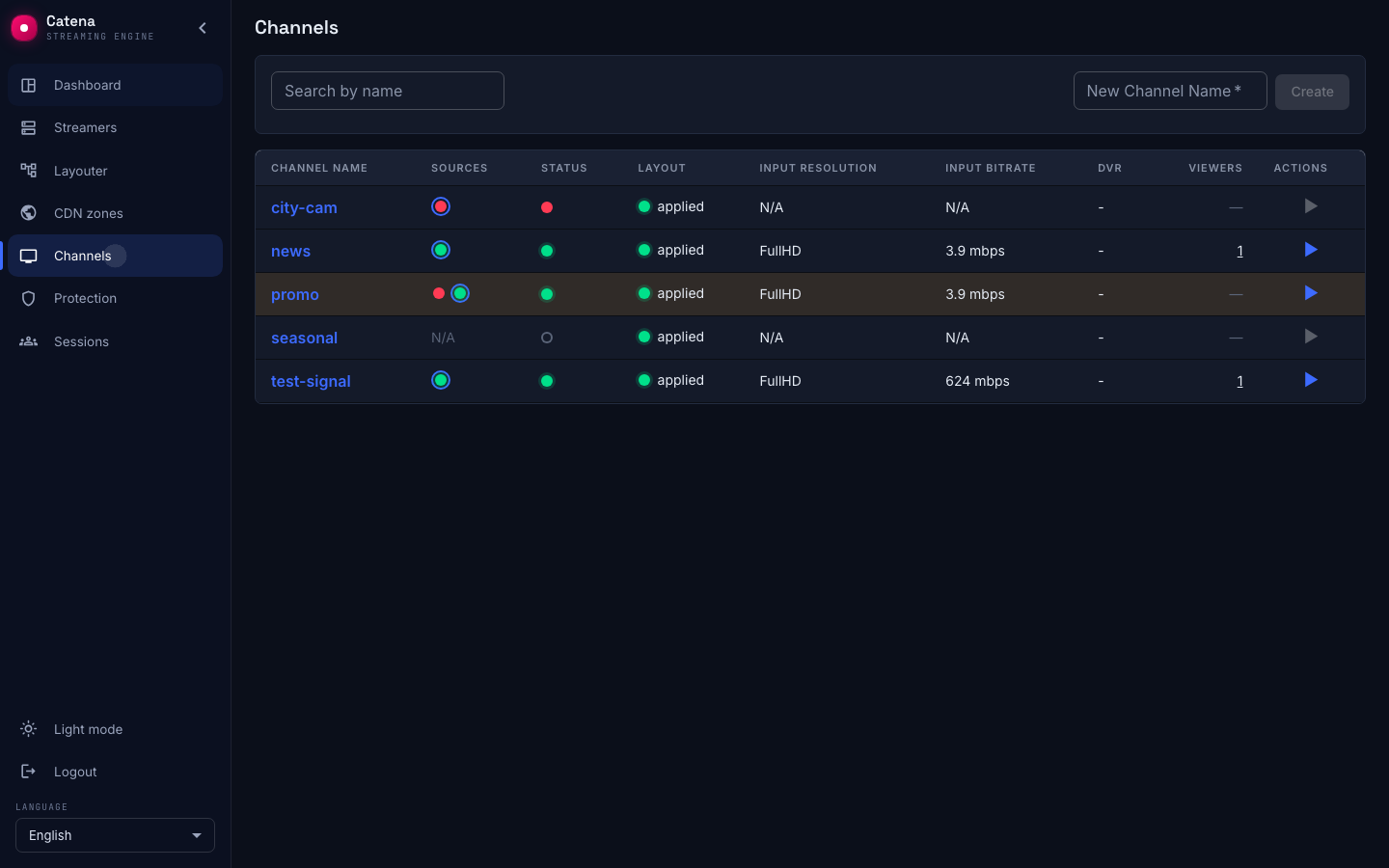
| Column | What it shows |
|---|---|
| Stream Name | A link to the stream's page |
| Sources | The input chain: one dot per source, in priority order |
| Status | The stream's state indicator, see below |
| Template | The template the stream is configured with; a link to it |
| Transcoder | The output codecs, when transcoding is configured; the chip is filled while the transcoder is working |
| Input Resolution | The class of the active input: SD, HD, FullHD, 4K |
| Input Bitrate | The measured bitrate of the active input |
| DVR | How much archive is actually recorded, with a recording health indicator |
| Viewers | The stream's active sessions; zero shows as a dash |
| Actions | ▶ opens the stream in the built-in player in a new tab |
In the source chain the dot's color is the input's health:
- Green — the source is working.
- Hollow green — a verified standby.
- Yellow — the source has degraded.
- Red — the source is dead.
- Hollow gray — never checked yet.
The active input is ringed. Clicking a cell leads to the matching tab of the stream: the chain — to sources, DVR — to the archive, the viewer count — to sessions.
Which stream runs on which streamer is decided by the layouter. Whether its decision has reached the streamers, and why the stream is exactly where it is, is shown by the Layout tab of the stream page — see Placement status.
Statuses
The indicator in the Status column is merged across every streamer that takes part in handling the stream.
- Green — running: the input receives data.
- Blue — idle: the stream is not working, and that is expected. It waits for a viewer, waits for a publisher, or has no inputs.
- Yellow — waiting: the stream is starting, the input is opening or waiting for the first frames. This lasts no longer than the input timeouts: then the stream turns red.
- Red — error: the stream is not working because of an error. The error is of one of two kinds. The first — the streamer could not take the source: the reason is shown by the source chain in the same row. The second — the stream is not placed as configured: the layouter did not create an assignment, the assigned streamer is offline, or the streamer rejected the configuration. The reason is named by the banner in the header of the stream page, see Placement status.
- Gray — unknown: the streamers send no data about the stream, and there is no visible reason for an error. This is how a stream looks that the layouter has not placed yet, or that the assigned streamers have not reported yet.
The words no data instead of the indicator: there are no statistics about the stream at all. The stream is disabled or was only just created.
A stream can run on several streamers at once: one captures the source, another records the archive backup copy, a third serves the stream on an edge. Every streamer reports its own status of the stream, the role does not matter here, and the list shows the worst of them. Example: on the ingest streamer the stream is running while on the dvr backup streamer it is still starting — the stream is yellow in the list; an error on any of them — red.
Separate from the indicator is the amber highlight of a whole row: the stream is alive but not running the way it was meant to — the active input has degraded, or the stream fell back from its primary source to a lower-priority one. A red dot at the head of the source chain is the failed primary. How the switching works and how to tune it is on the input failover page.
How edits apply
Clicking a stream's name opens its page: tabs with the settings, and in the header — Save, Cancel, Delete.
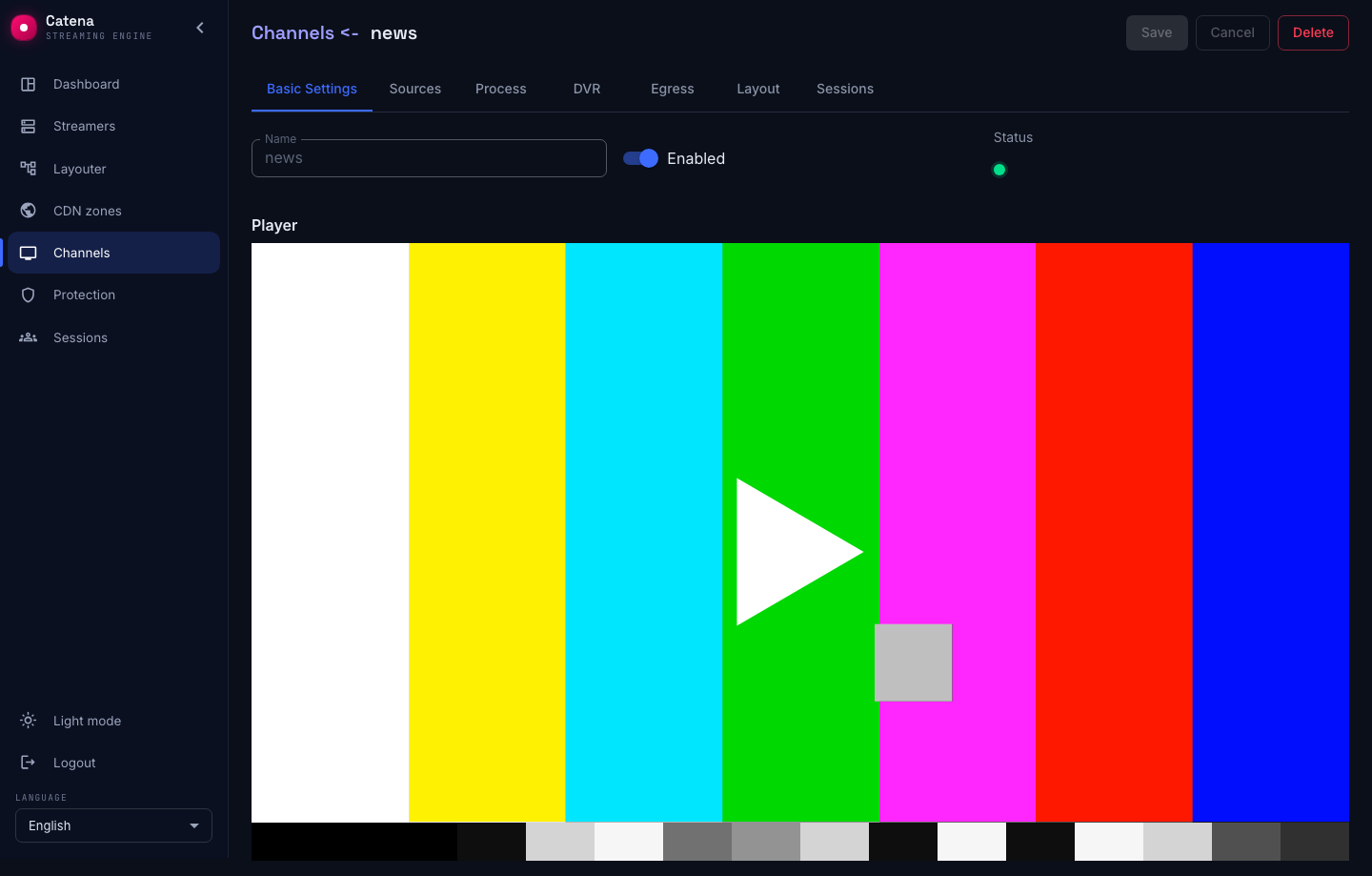
- Edits on any tabs accumulate in the browser until you save. A tab with unsaved changes carries a dot.
- Save is only active when there are changes, and submits them all at once. If some value fails validation, the page names the exact field, and nothing is applied.
- Cancel rolls back everything unsaved.
- A saved configuration does not take effect instantly: central delivers it to the streamer, and a few seconds later the stream runs the new way.
While you have no unsaved edits, the page re-reads the configuration from central every few seconds — a change made by a colleague shows up on its own. The background sync never overwrites your unsaved edits.
Disable without deleting
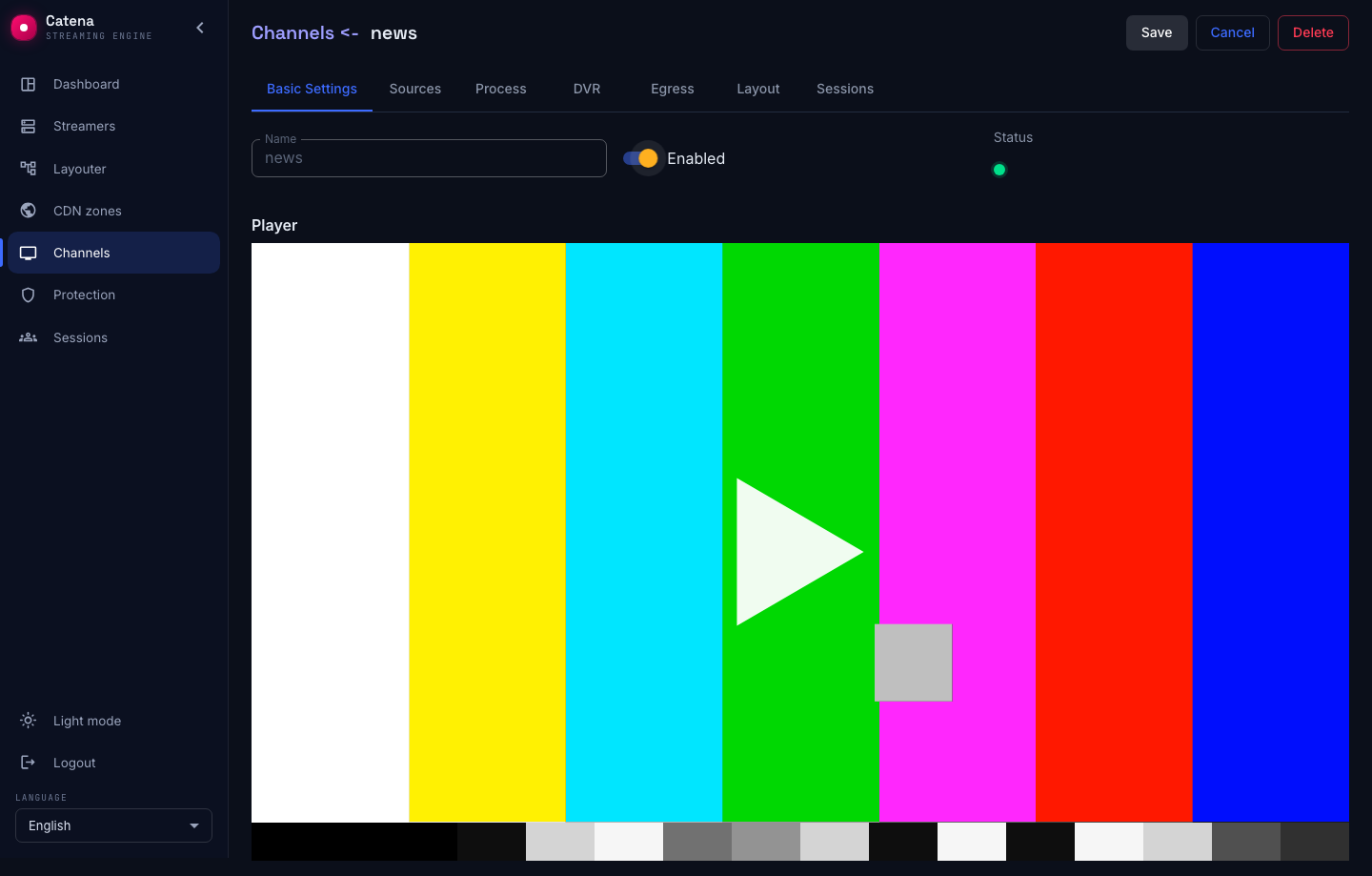
The Enabled switch lives on the basic settings tab. A disabled stream stops: sources are not ingested, viewers get nothing, and in the list the indicator gives way to "no data". The configuration stays intact — switch it back on and the stream comes up the same.
The switch is an edit like any other: without Save the stream keeps running.
Delete
The Delete button in the header of the stream page, with a confirmation. Central removes the stream from the configuration, the streamer stops ingesting and serving. The stop is not instant: for a few more seconds the streamer may keep serving the stream while it winds down.
The archive of a deleted stream stays on the streamers' disks for another day: the streamers report it to central, which assigns cleanup to it as an orphan, and the streamers erase it. A stream created under the same name within that day gets the old archive as its own.
What next
- Stream templates — move shared transcoder and archive settings into defaults instead of editing every stream.
- Source diagnostics — how to read input health, timeline drift and source errors.