Channel from VOD
We will build Movies 24 from two films: upload the files, place them in a playout schedule, and grant access to a subscriber. Finally, we will check picture, sound and the programme guide in WebTV.
Every configuration step takes place in the Catena console. The WebTV address and subscriber credentials are needed only for the final check.
Prerequisites
- An installed Catena and operator access to VOD, Playout, Streams, Channels, Packages and Subscribers.
- Two video files with sound. This example uses
morning.mp4andevening.mp4. - An HLS player to check the stream before publishing.
- An available VOD storage. Open VOD → Storages and check that the storage is Available. If the console reports an unavailable journal, wait for it to recover before uploading.
Upload the films
Upload each file as a separate asset. Otherwise the console will put the selected files into one asset, and you will not be able to assign them to different slots.
- Open VOD → Catalog and click Upload files.
- Select
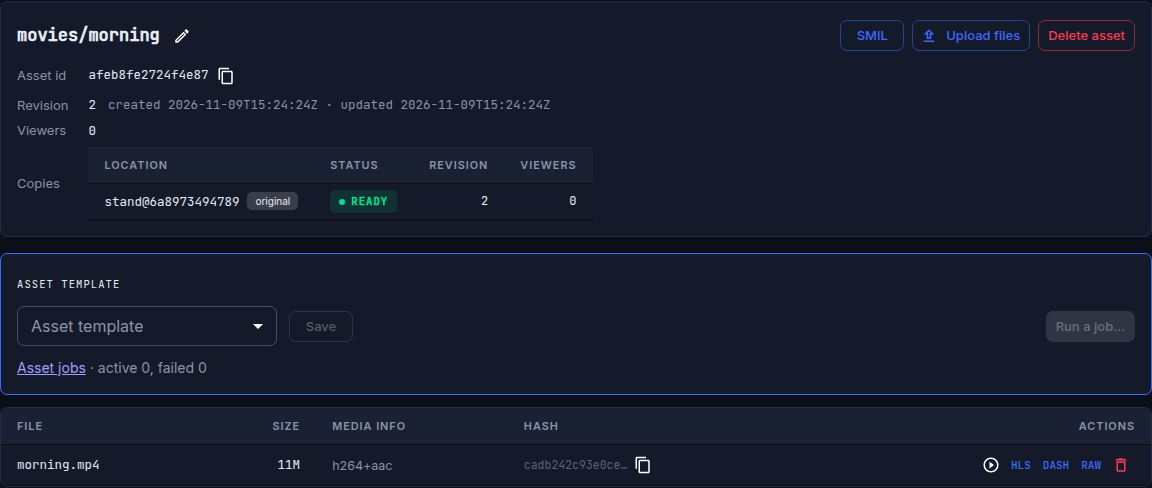
morning.mp4. In Upload into a new asset, entermovies/morning, leave No template selected and start the upload. - Wait for the upload to finish and open the asset in the catalog. The card must show the Ready status and video/audio information, such as
h264+aac: playout needs this information to use the file. - Upload
evening.mp4asmovies/eveningin the same way and check its status and tracks.
If the status or tracks are not shown yet, wait and refresh the card. Do not move on to the schedule until Catena has read the video information. Check the duration in the slot dialog after selecting the asset: the console fills it in from the file. After the last upload, clear completed uploads from the bottom upload panel: an expanded panel can cover buttons at the bottom of dialogs.
Create a playout
- Open Playout.
- In New playout name, enter
Movies 24and click Create playout. The editor will open.
Catena has already created a stream named playout_<id> and a programme guide source for the playout. You do not need to bind EPG separately.
Place the films in the schedule
- Click an empty place in the grid near the current time. In New slot, set Programme title to
Morning movie. - Set the start time with second precision. To start broadcasting immediately after saving, choose the current time.
- Under Content, find and select
movies/morning. The console will fill in the file duration. Add a description and genre: they will appear in the programme guide. - Click Create slot. The slot will appear in the draft schedule but will not be sent to viewers yet.
- Create a second slot immediately after the first one ends. Name it
Evening movie, selectmovies/evening, and add a description and genre. The second slot must start exactly when the first one ends, with no overlap or gap. - Click the main Save button above the grid to save the whole schedule.
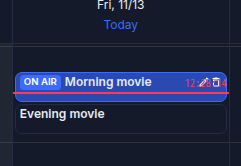
Check the On air panel on the right: Now or Next must show the programmes you have just created. If the first slot has already started, its title will appear under Now.
Configure the stream transcoder
Playout outputs uncompressed video and audio. They must be encoded for playback in an ordinary HLS player.
- In the On air panel, click Open stream card.
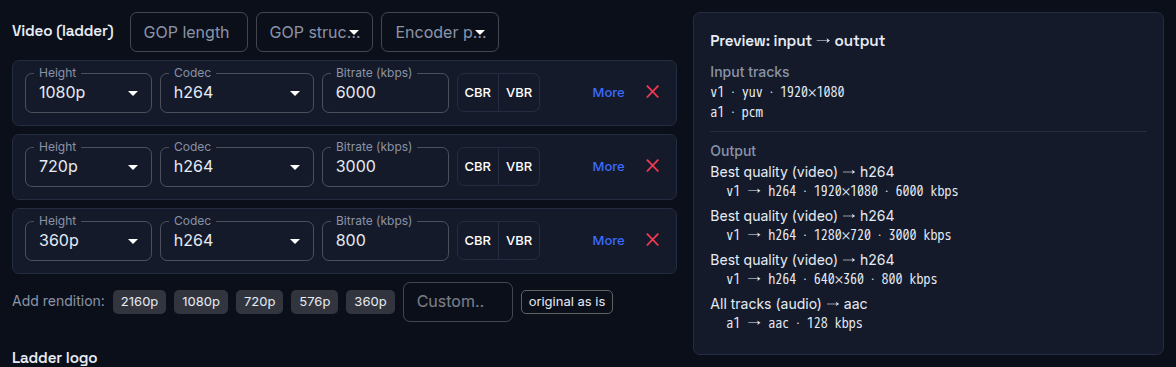
- Open the Transcoder tab and select the Standard ladder 1080/720/360 + AAC preset.
- In Preview: input → output, check that the manifest will contain three video qualities and AAC audio, then click Save.
Return to the playout editor and check that Now and Next still match the schedule. Use the HLS check below to verify the actual video and audio.
Check HLS before publishing
-
On the stream page, open the Egress tab.
-
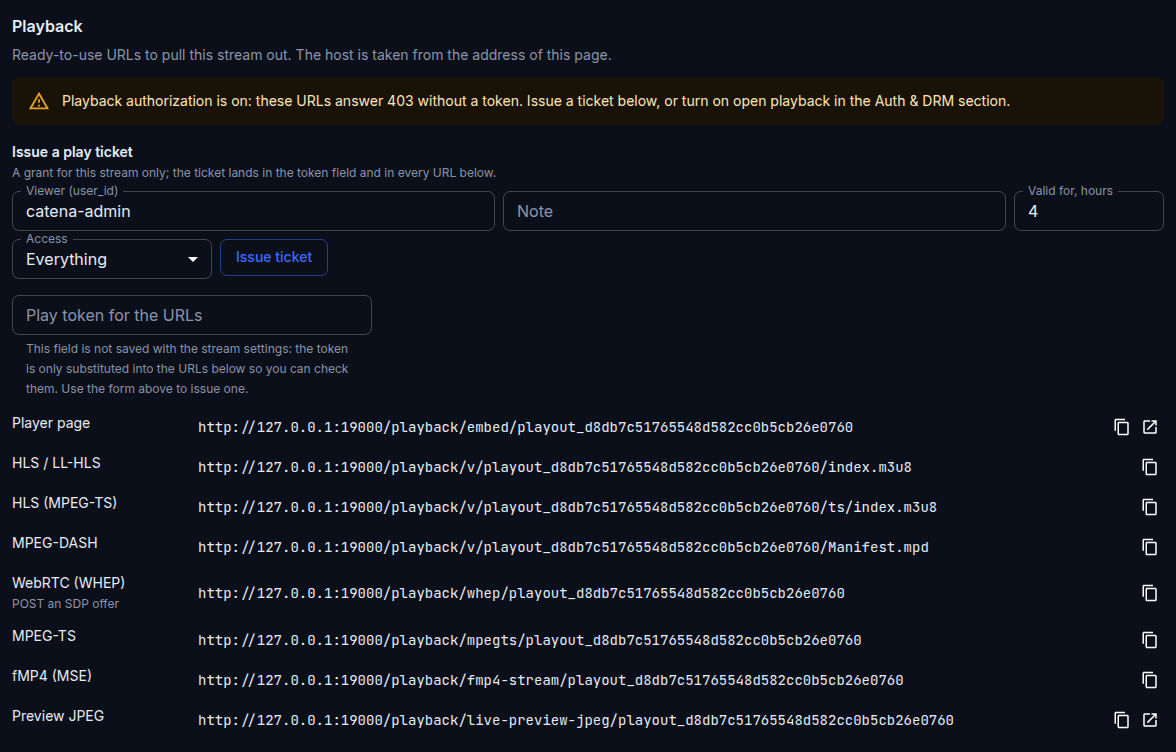
Under Playback, find Issue a play ticket and click Issue ticket. Catena will add a temporary token to the verification URLs.
- Copy the HLS / LL-HLS address into an HLS player. To inspect the manifest itself, paste the copied address into a new browser tab.
The player must show the current programme with sound. When checking the address itself, the response must contain a manifest with quality variants, not an access error or a playlist header alone. This check confirms that the stream works, but does not yet make the channel available to a subscriber.
Publish the channel
A stream becomes a subscriber channel through three links: the channel points to the stream, the channel belongs to a package, and the subscriber has a subscription to that package.
Create the channel
- Open Channels, enter
Movies 24in New channel title and click Create. - On the channel page, set Number to
101. - In Stream, select the playout stream
playout_<id>. Its full name is shown on the stream page you opened from the editor. - Click Save. In the channel list, Movies 24 must show the selected stream without the Stream not found on this installation warning.
Add the channel to a package
- Open Packages, enter
moviesin New package name and click Create. - Keep the package paid: do not enable Free package (available to every subscriber). You can leave Simultaneous screens empty; this permits one playback session.
- Under Channels in package, add Movies 24.
The channel must appear in the package. The stream itself does not belong to the package: the viewer receives access to the Movies 24 channel.
Create a subscriber and grant a subscription
- Open Subscribers, enter
Anna Petrovain New subscriber name and click Create. - Under Cabinet account, set a login and a password of at least eight characters, then click Save account. Share these credentials with the subscriber through a secure channel.
- Under Subscriptions, add the
moviespackage. - Check Available channels: Movies 24 must appear there.
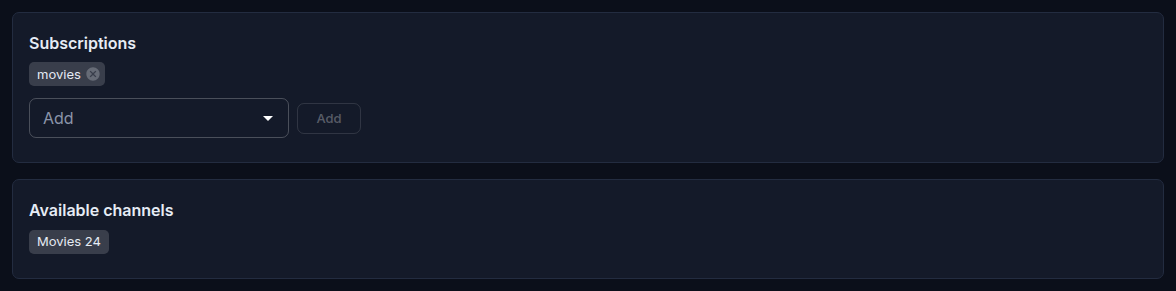
If this block is empty, check both links: the channel must belong to the package, and the package must be in this subscriber's subscriptions.
Check playback in WebTV
- Open
http://<catena-address>/tv/in a new tab or give the address to the subscriber. - Sign in with the login and password from the subscriber card.
- Wait for playback to start and check picture and sound. The screen must show Movies 24 and the current programme from the schedule.
If WebTV reports No channels available, return to the subscriber card and check Available channels. If the channel appears there, subscription access is working. If the channel is visible but does not play, follow The channel is visible but does not play. If the correct stream is already assigned, do not save or reassign it. Compare direct HLS first. If direct HLS fails, go to Direct HLS does not play either. If direct HLS plays, reload WebTV or open a fresh WebTV session in a private browser window and sign in again. If the player remains silent without an error, continue with Direct HLS plays, but WebTV stays silent without an error.
Check the viewer's programme guide
During playback, open the channel hint: the current programme must have the same title as its schedule slot. Then open the programme guide with the yellow remote button, F7 or ~, and find the current and next programmes for Movies 24.
The guide is already built from playout slots. It takes the following information from the schedule:
- Programme title and start/end times;
- Description;
- Genre;
- Age rating.
If you changed the schedule after WebTV was opened, reload the storefront page: a programme already loaded in an open tab does not refresh automatically.
The setup is complete: the subscriber is watching Movies 24 in WebTV and sees a programme guide that matches the playout schedule.