Storefront
The storefront is the viewer's app: a channel list, a programme guide and a player. The subscriber opens it on a TV or in a browser, signs in with their account and watches whatever their subscriptions allow.
The storefront is served by the Catena server itself — same address and port as the operator console. By default it opens at /tv/; a viewer-facing installation usually moves it to the root and puts the console on a path of its own. The layout is chosen at installation time.
The same application runs three ways:
- in a browser — an ordinary web page;
- on LG TVs — a webOS package;
- on Samsung TVs — a Tizen package.
What has to be configured
The storefront shows nothing on its own: it shows what the operator has entered in the console. The chain is required in full, every link of it:
- A stream that is actually running (Create and manage).
- A channel pointing at that stream, with a number (Channels).
- A package that contains the channel (Packages).
- A subscriber with cabinet credentials and a subscription to that package (Subscribers).
The next two are optional, but they are what makes a storefront more than a list of links:
- Archive (DVR) on the stream — without it the viewer only gets live, and no past programme opens (Archive (DVR)).
- Programme guide — without it the guide is empty and only the current broadcast can be watched (Programme guide).
A channel with no stream is visible in the storefront but does not play: the player answers This channel has no broadcast configured.
How the viewer signs in
There are two ways in, and both end the same way — the device gets a token of its own. Revoking one device leaves the others alone.
With a login and password. The operator issues them on the subscriber's card, block Cabinet account. The subscriber types them on the sign-in screen. On a computer or a phone this is the main path.
With a code from the screen. The TV shows a six-digit code and the line Enter this code in your account on a phone or a computer. The subscriber opens the storefront on a phone or a computer, signs in there with the password — that is their account page — and types the code into the Sign in a TV block. The TV signs itself in within seconds, and nobody has to type a password with a remote control.
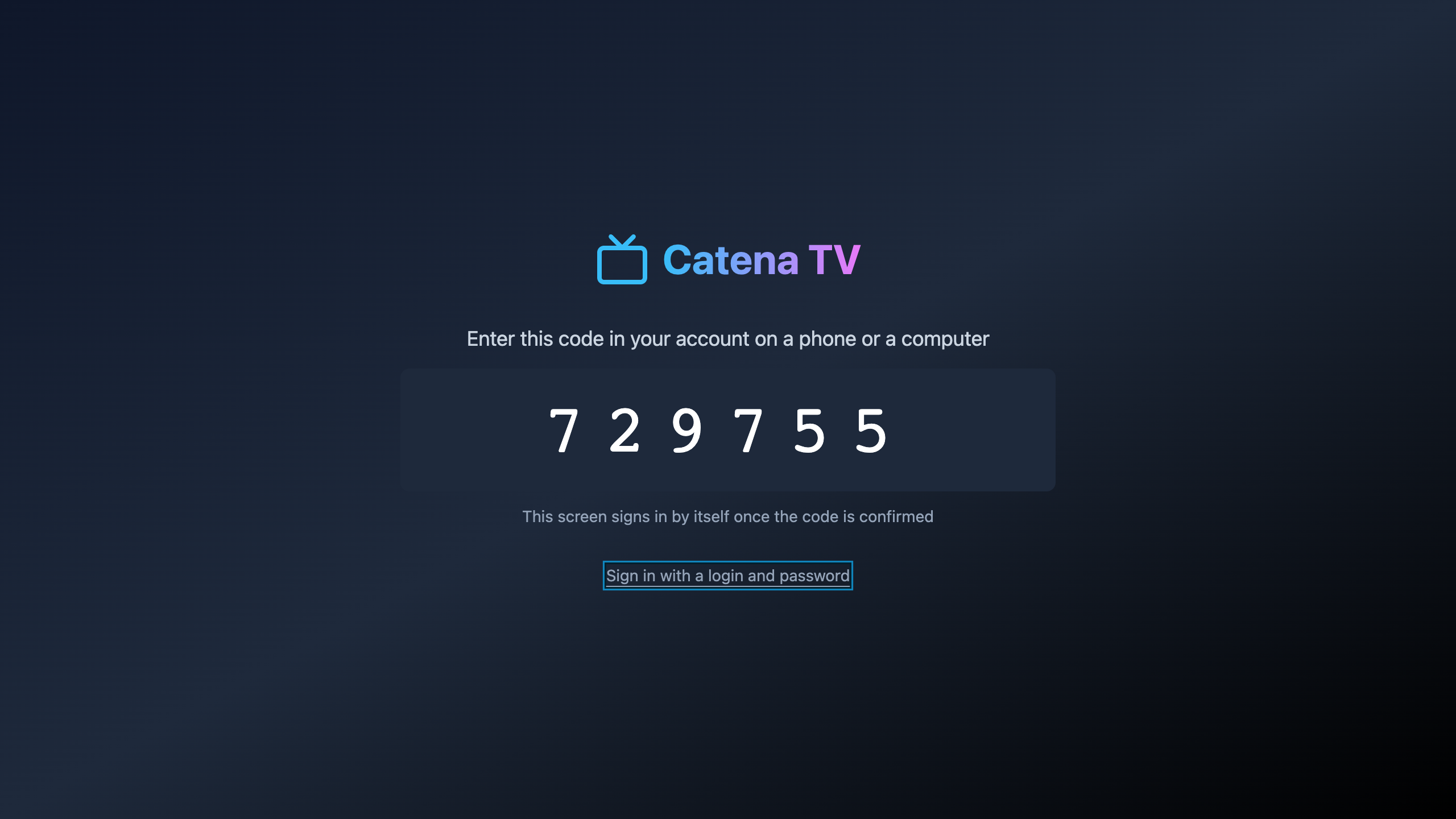
The switch under the form (Sign in with a code instead and Sign in with a login and password) moves the screen between the two. A TV opens on the code, a browser on the password form.
A code lives for 10 minutes and is gone after first use. Five failed sign-in attempts in a row lock the login for a minute — the counter expires by itself, and nothing has to be unlocked by hand.
If the subscriber cannot manage on their own, the operator confirms the code for them: subscriber card, block Device pairing. That is the support path — the normal sign-in closes on the subscriber alone.
Screens and the remote
The storefront starts straight in the player: the channel fills the screen, and a hint with the number, the title and the current programme appears briefly over it.
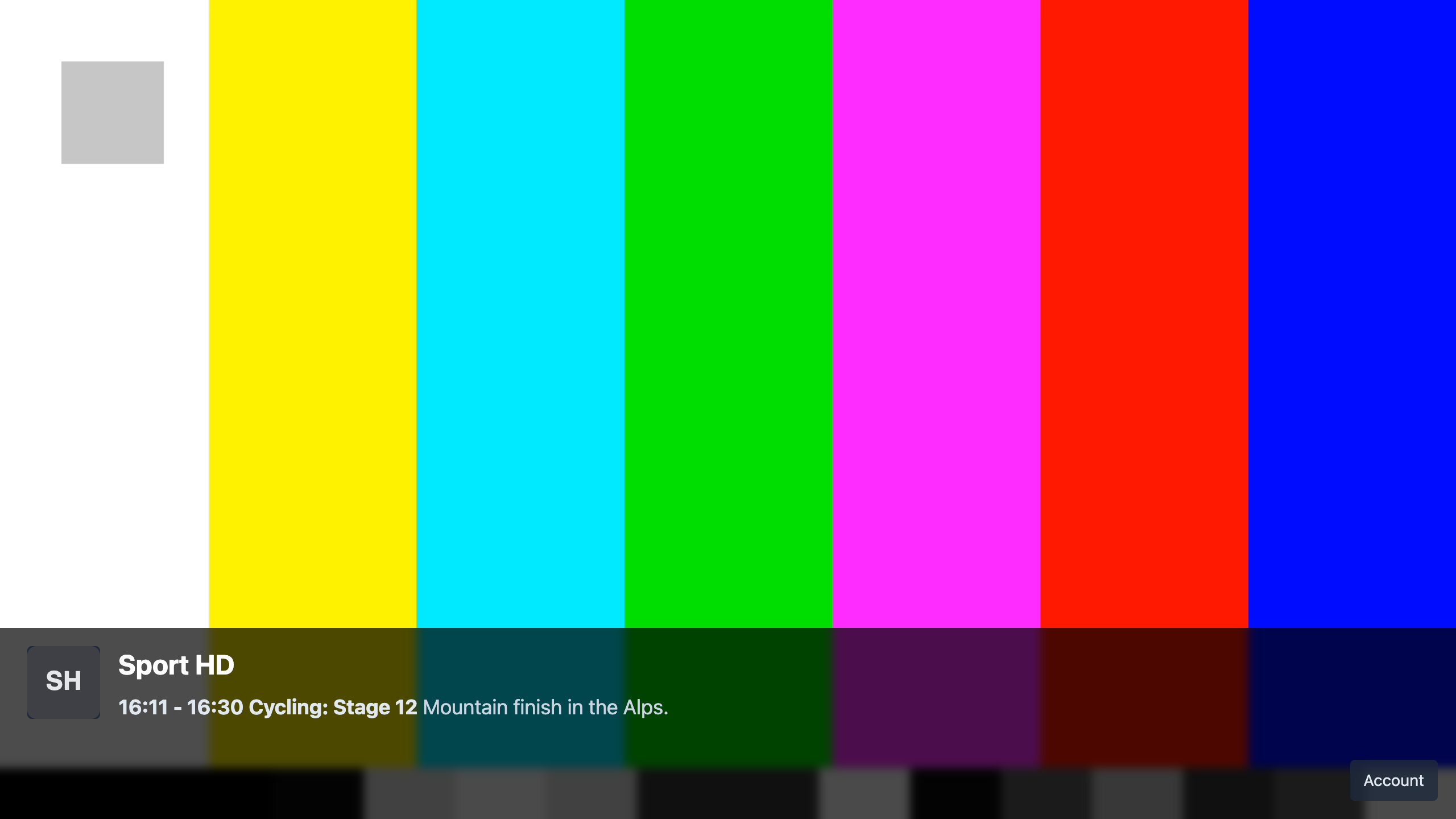
The controls are the same on a remote and on a keyboard:
- Up and down — previous and next channel.
- Left and right — previous and next programme of the current channel: this is how catch-up from the archive is opened.
- OK or space — apply the choice standing in the hint.
- Back — cancel a channel change that has not been applied, and close the guide when it is open.
- The yellow button — open and close the programme guide. On a keyboard it is F7 or ~.
Channel switching leaves room to think: the arrows walk the list, the hint shows where the viewer will land, and the channel changes on OK or by itself after a couple of seconds. Ten channels can be walked through without making the player open every one of them.
Programme guide
The yellow button opens the guide. Channels are on the left, their programmes on the right; arrows walk the grid and OK opens the selected programme.
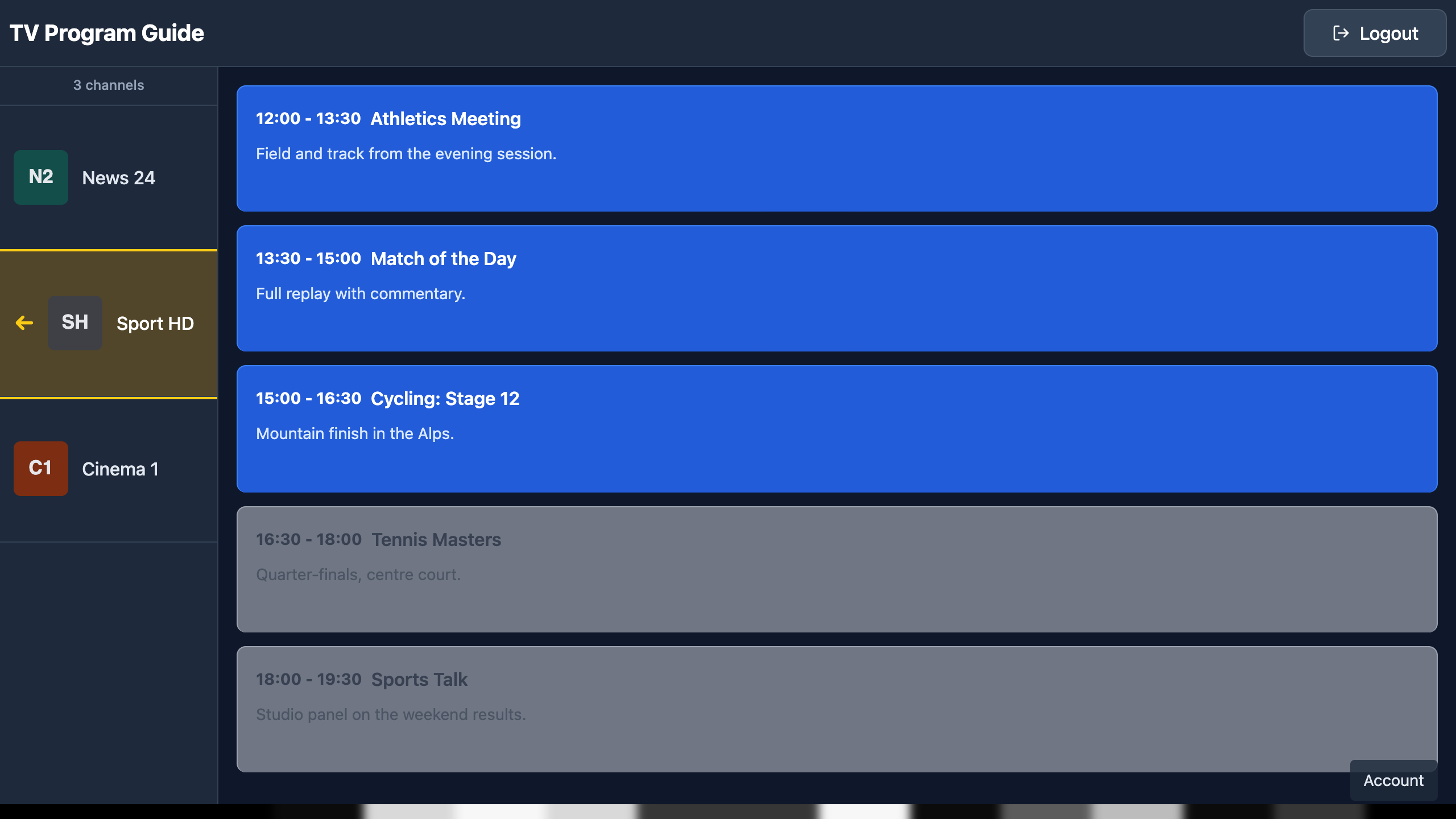
What the guide shows depends entirely on the schedule that has been loaded: with no guide source the programme column is empty, and that is missing data rather than a broken storefront — see Programme guide.
Programmes that are not in the archive are not offered. The rule is simple: a programme is available when its interval overlaps the channel's archive window. The reason for a refusal is spelled out:
- This channel is not recorded, so only live is available — the stream has no archive.
- This programme is no longer in the archive — the programme has fallen out of the recording depth.
- This channel has no broadcast configured — the channel has no stream assigned.
The archive bounds arrive together with the channel list, so the decision is made before the button is pressed — the viewer never lands on a black screen.
The account page and devices
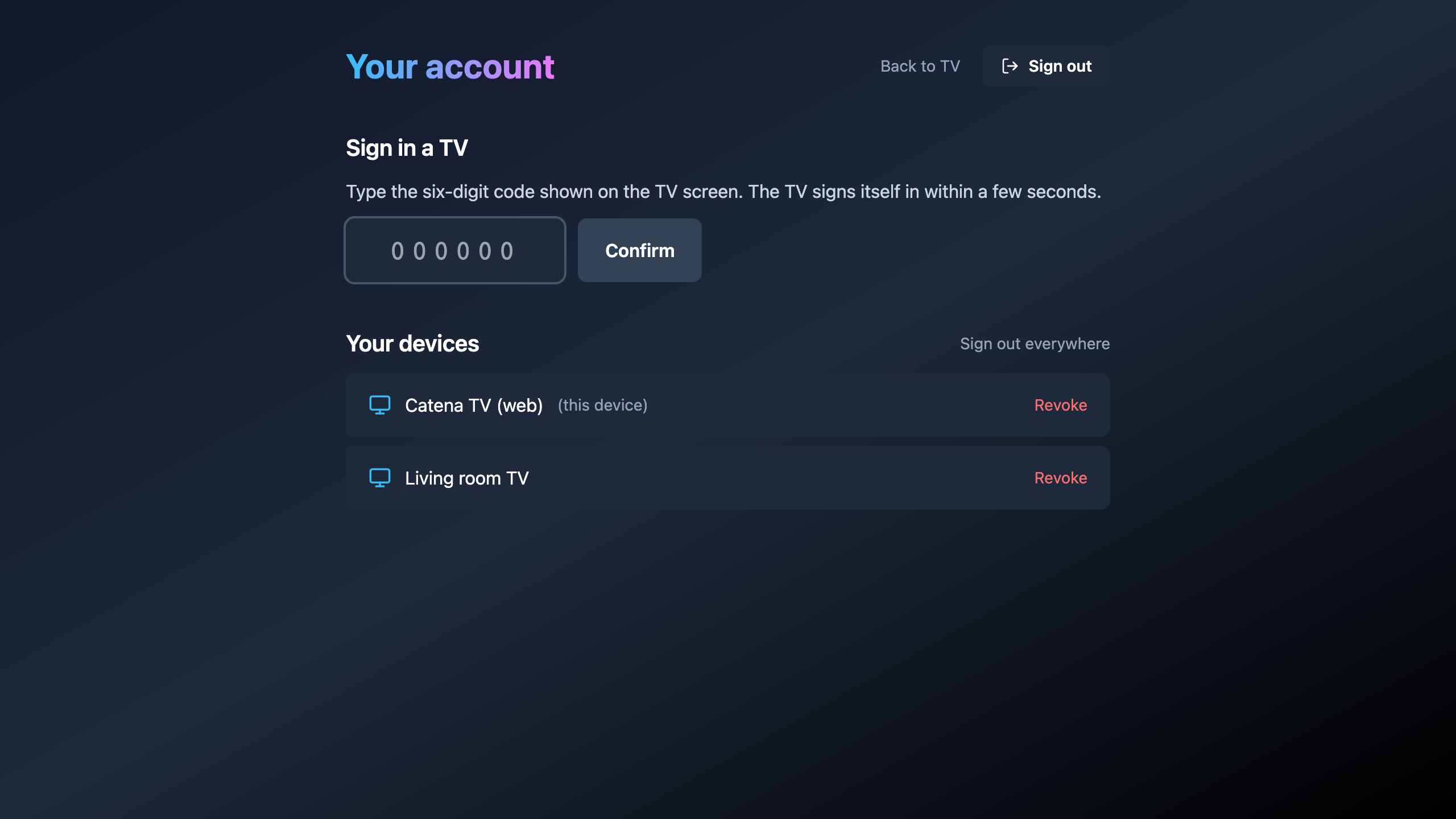
The account page is the same storefront opened on a phone or a computer: the Your account section. It holds three things.
- Sign in a TV — the field for the six-digit code shown on the TV.
- Your devices — the devices signed in with this account; the current one is marked (this device). The Revoke button next to a row cuts one device off: it stops playing immediately.
- Sign out everywhere — revokes every device at once. The link appears once there is more than one device, and it is what helps when the viewer cannot tell which row is the one they lost.
The ordinary Sign out kills the token on the server first and only then forgets it locally: otherwise the subscriber's list would keep a live token they can no longer name.
Changing the password does not cut devices off: the password guards the way in, not the tokens already issued. To cut off someone else's device, revoke it — from the account page or from the operator console.
The operator sees the same devices on the subscriber's card, block Devices, and can revoke them there — see Subscribers.
How many screens at once
The number of simultaneous views is a property of the package, field Simultaneous screens. A subscriber gets the largest limit among their packages, not the sum of them; an empty field means one screen.
A viewer who hits the limit sees All your screens are busy: someone is watching on another device. A screen is freed by closing the playback on another device — or the operator raises the limit in the package, which takes effect immediately, with no second sign-in and without interrupting the views in progress.
The player names its other refusals too:
- This device is no longer signed in — sign in again — the device has been revoked.
- Nothing to play here: the archive does not reach this moment — the requested interval is not in the archive.
A playlist for a third-party player
For a subscriber who watches in their own player rather than in the storefront, Catena serves the channel list as M3U — the regular one and one for IPTV players — and the guide as XMLTV. See Playlist and XMLTV.
Scenarios
Connect a new subscriber
- Create the subscriber and set their login and password in the Cabinet account block.
- Subscribe them to a package — the Subscriptions block.
- Check the Available channels block: what is listed there is what the viewer will see.
- Give the subscriber the storefront address, the login and the password.
The viewer replaced their TV
- On the new TV the subscriber opens the storefront and sees a code.
- They type the code into their account page on a phone — the TV signs itself in.
- They cut the old TV off in the Your devices list with Revoke, otherwise it keeps occupying a screen.
The subscriber says nothing plays
Read what the screen actually says:
- All your screens are busy — the screen limit; check the device list and the Simultaneous screens field of the package.
- This device is no longer signed in — the device has been revoked, the subscriber signs in again.
- This channel has no broadcast configured — the channel has no stream assigned.
- An empty channel list — the subscriber has no subscription at all, and the installation has no free packages.
If the channel plays but no past programme opens, the storefront is not the problem: the stream has no archive, or the recording does not reach that far back.
What's next
- Programme guide — where the storefront's guide comes from.
- Playlist and XMLTV — the same catalogue for a third-party player.
- Subscribers — accounts, device pairing and revoking.
- Packages — subscriptions and the screen limit.