Rare playout operations and limits
Use this page to change the source format or delete a playout. The final section lists limits that affect the schedule, EPG, fillers, and access checks.
Change the source format
The source format defines the frame size, frame rate, color depth, sample rate, and audio layout to which the playout conforms its content. It is configured on the source page of the playout_<id> stream, not in the playout editor.
Changing it requires stopping and restarting the stream. Viewers will experience a playback interruption. Record the previous values and choose a suitable interruption window. To verify the result, you need a configured transcoder and an HLS player or access to WebTV.
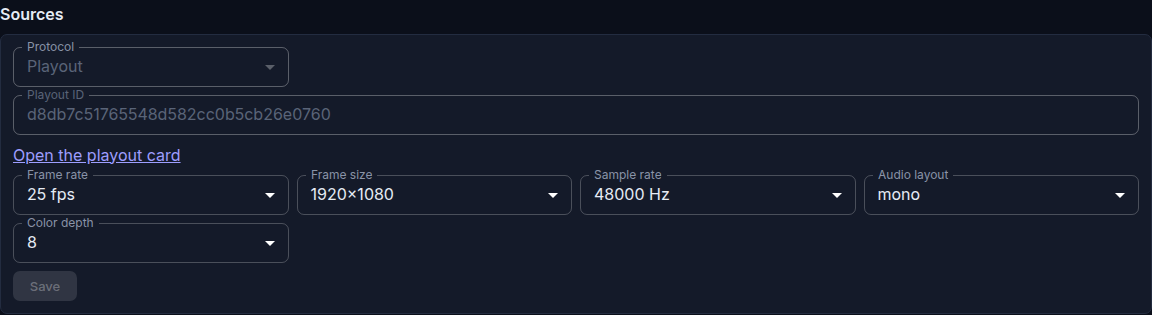
- Open Playout, select the playout, and click Open stream card in the On air panel.
- On the Basic Settings tab, turn off Enabled and click Save. Do not edit the format until the stream has been saved as disabled.
- Open the Sources tab. Change the required format parameters and click Save in the source panel.
- Return to Basic Settings, turn on Enabled, and click Save again.
- On the Sources tab, check the new values in Media info. Open a fresh HLS link or reload WebTV: the player must decode a frame of the new size and show the current content without a green frame. The master manifest must contain quality variants, and a variant manifest must contain media segments.
Do not change the format of a running stream through the API: a saved config alone does not confirm a change in Media info or the actual frame. The supported sequence is exactly disable stream → edit source format → enable stream.
To restore the previous format, repeat the same sequence with the recorded values and check Media info and the decoded frame again. This procedure does not edit the schedule.
Delete a playout
Deletion is irreversible. The playout's schedule, output stream playout_<id>, and EPG source with its events are deleted together with the playout. Catena does not create a replacement for the deleted stream. If the stream is published as a TV channel, decide in advance which stream to assign to the channel instead.
Do not delete a playout to stop the current slot or remove a schedule error. Edit or delete the slot and save the schedule instead.
- Open Playout and check the playout name, its identifier, and the associated TV channel.
- Click Delete in the playout row. Read the warning: it states that the schedule will be deleted, the stream will stop, and the action cannot be undone.
- If the name and consequences are correct, confirm with Delete. If you still need the playout, close the dialog with Cancel.
- Verify that the playout has disappeared from the list and that the previous stream and its EPG are no longer available. If a TV channel used the deleted stream, assign another working stream to the channel and verify subscriber playback.
There is no rollback. To restore broadcasting, you must create another playout and configure its schedule, fillers, format, transcoder, and publication again. Creating it does not restore the previous identifier or deleted EPG events.
Operator-relevant limits
Output and schedule
- Playout outputs uncompressed YUV video and PCM audio. A regular HLS player requires a transcoder on the playout stream; changing the source format does not replace it.
- Slot boundaries control broadcasting. Long content is trimmed at the slot end, short content is padded with filler, and the next slot does not move according to the file duration.
- Overlapping slots are rejected with HTTP 422. Adjacent slots, where one ends exactly when the next begins, are allowed. A gap between slots is covered by the general filler and creates no EPG event.
- There is no automatic series repeat: each episode and each repeat occupies a separate slot.
- In the verified version, a working live source may not reach the playout output: the slot and EPG are saved, but the player shows filler even without an asset error. The verified way to restore broadcasting is to replace the live slot with an available VOD asset and save the schedule.
Programme guide
- EPG receives the slot start, end, title, description, genre, and age rating. Season, Episode, and poster are not transferred; put the viewer-facing episode number in the title.
- The future schedule is written to EPG in full. Saving removes events that ended more than one day ago. Gaps between slots remain without events.
- One EPG event request covers at most 7 days and 200 streams. This is a read limit, not a limit on writing the future schedule.
- An already open WebTV does not refresh its loaded EPG automatically. After editing the schedule, reload it and compare the programme with the actual frame.
Fillers and access
- A still image is allowed only as a slot or playout filler, not as slot content. A live stream cannot be assigned as filler.
- On content failure, the fallback order is slot filler → general playout filler → color bars with silence. A natural VOD end inside a longer slot is not an asset error; an unavailable file or live source produces an asset error and requires source recovery.
- Working direct HLS does not confirm subscriber access. Viewing in WebTV requires the stream → TV channel → package → subscriber subscription chain. A protected JPEG preview can return HTTP 403 while HLS works.
The main procedures are in Playout setup, Broadcast schedule, Playout programme guide, and Playout troubleshooting.