Using zones to distribute cameras
Zones constrain and guide automatic camera placement. They describe which streamers can serve a camera, for example by having network access to its address or being at the required site. A zone does not configure the network or check camera reachability itself.
An administrator creates zones under Zones, adds streamers, then sets camera rules. A zone name is a unique identifier: Latin letters, digits, -, _ and . are allowed. Use stable names such as site-north and private-network.
Streamers and cameras can belong to several zones. The section is available when enabled in the installation interface settings. Zone Admin API operations require a Watcher administrator.
Mandatory placement (required zone)
Required zones set mandatory conditions. If a camera has several required zones, the streamer must meet all of them.
- Under Zones, create a zone, for example
private-network. - Under Streamers, open a server with access to that network. Add
private-networkon its Zones tab and save. - In the camera zone settings, specify
private-networkin Required zones and save. - Check placement and camera video reception through the selected server.
Selected streamer zone before saving.

If there are no suitable available streamers, the camera is not moved to a server outside the required zones. For fault tolerance, prepare several streamers in the same network that meet all conditions and have sufficient resources.
A required zone does not select a single host. If several servers meet the conditions, the assignment is chosen based on availability and load.
Preferred placement (preferred zone)
Preferred zones define a preference among eligible servers. They do not override required constraints.
- Create a zone, for example
region-west, and add the required streamers. - Specify it in Preferred zones in camera settings.
- Save and check placement. If preferred servers are unavailable, the camera can be assigned to another eligible server.
When suitable servers recover, placement may change in favor of preferred zones. Migration depends on availability and resources, so do not assume a fixed automatic camera return time.
The interface does not allow the same zone in both required and preferred. To remove a constraint, remove the zone from the appropriate list and save the change.
Required and preferred zones are set separately.

Dedicated zone
When creating a zone, Dedicated zone restricts the camera set on its streamers.

The Dedicated zone flag restricts camera admission to streamers in this zone. Such a server accepts cameras with the corresponding zone in required or preferred.
Use a dedicated zone to reserve site servers for a specific camera set. Before enabling it, check cameras already running on those servers: cameras without the corresponding zone may need reassignment.
A dedicated zone does not grant video viewing rights or separate user accounts. Organizations and folder permissions control video access.
The zone list shows associated streamers and camera counts for required and preferred placement.

Verification and bulk changes
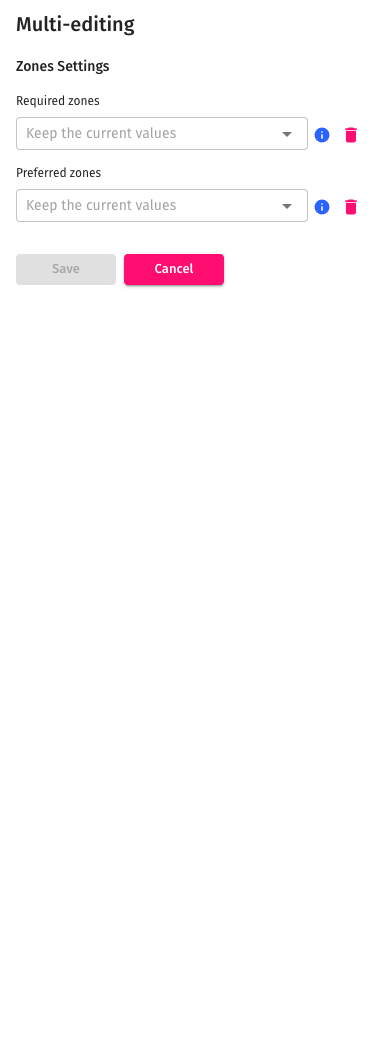
A zone page shows its streamers and required/preferred camera counters. You can open associated cameras from the zone page. For multiple cameras, use the administrative camera list and bulk zone editing form.
When changing streamer or camera zones, the interface may show a placement forecast. It helps identify expected changes before saving; actual assignment after saving depends on cluster state.
Check the result:
- No assignment — check required zones, dedicated streamer zones, server role and availability.
- A suitable server is not selected — check the stream limit, network and current load.
- Assigned but no video — check the network from that streamer to the camera; a zone does not create a network route.
- Cannot delete a zone — first remove references from streamers, cameras and presets. A zone in use cannot be deleted.
Through Admin API, camera rules are set in layout_rules, rather than by directly editing service labels:
{"layout_rules":{"required_zones":["private-network"],"preferred_zones":["region-west"]}}
The zones must already exist. Send an empty list for the corresponding field to clear it. Account for preset rules if the preset defines camera placement.
Administrative placement lists
These views are intended for the Watcher system administrator. Zone sections are available if enabled in the installation menu settings. Required and preferred rules define eligible placement; the current server assignment is shown separately.
Cameras and zones across the installation
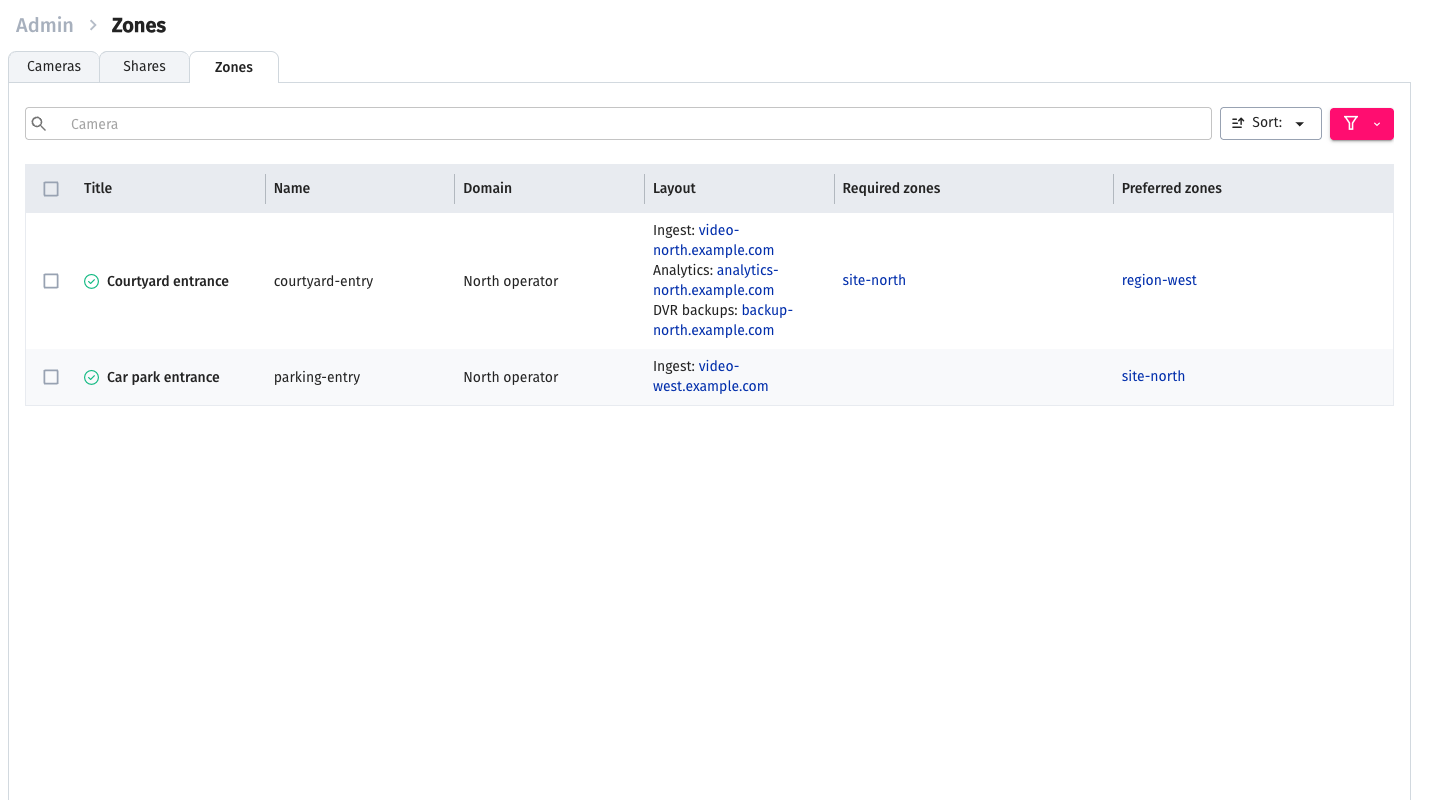
Open Admin → Cameras → Zones. The table shows cameras, their system names, ingest and analytics servers, DVR backup servers and required/preferred rules. A zone link opens that zone; a camera name opens its administrative card.
- Find a camera with search. Open additional filters to select required/preferred zones, Organization, ingest or analytics server. A domain filter is also available when domains are enabled.
- To find unassigned cameras, use the missing-server option in the appropriate filter. For an empty result, first check with filters cleared.
- Compare camera rules with the actual server assignment. To explain a change, open the camera placement history.
- For bulk editing, select the required cameras and open the editing form. Before confirmation, check the selected camera set and resulting rules; after saving, refresh the list and check video separately.
The bulk editing form appears above. Selecting cameras in the table does not itself change rules.
Cameras in an individual zone
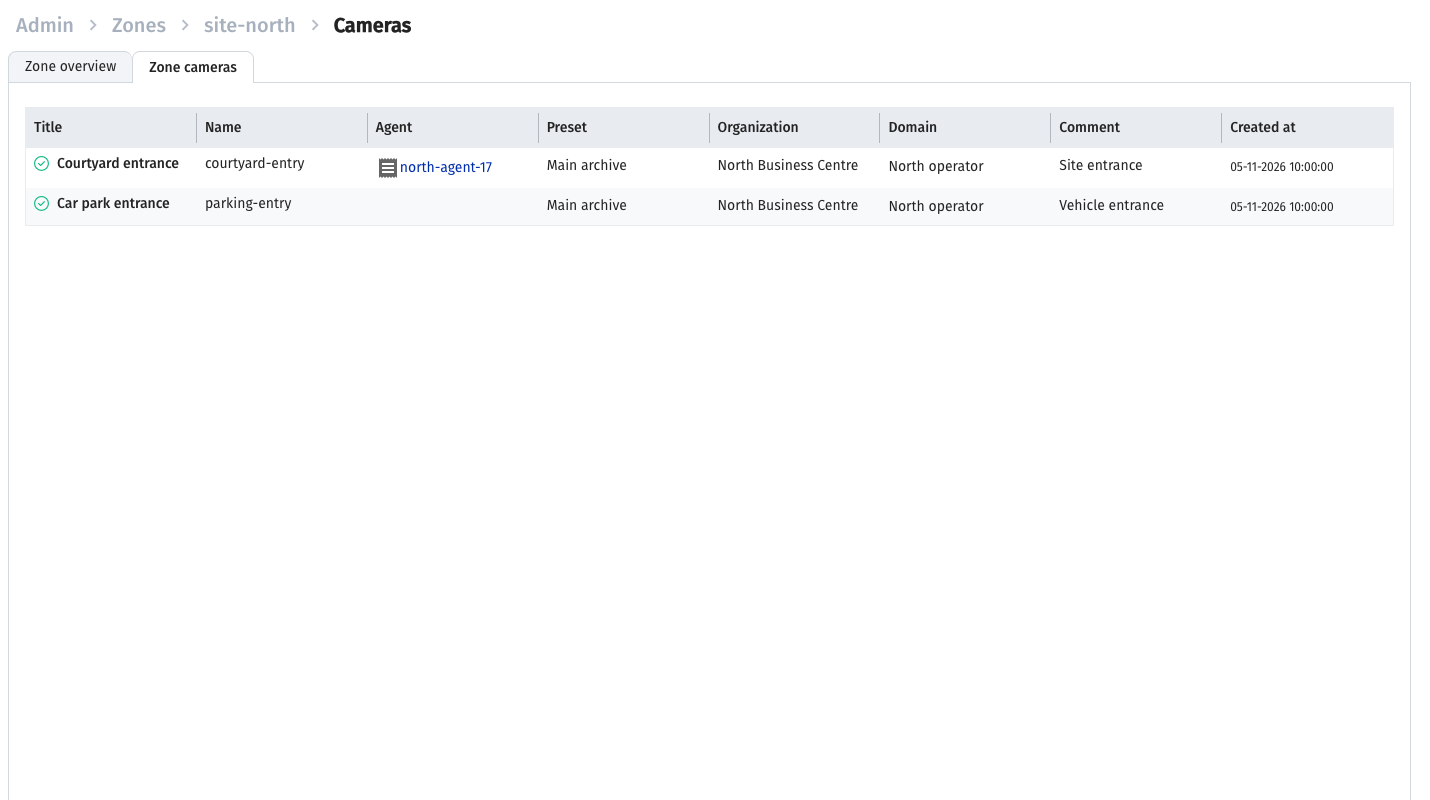
Under Zones, open the required zone and its Zone cameras tab. The list combines cameras with that zone in required or preferred. A camera appearing here means its rules reference the zone; it does not mean the camera is currently assigned to a streamer in that zone.
Open a camera from the list and check rules, actual servers and the placement forecast. If a camera is missing, check the zone name and saved camera rules. Check network connectivity and video separately after assignment changes.