Public camera access
Demo access opens the Watcher web interface without a personal account and shows cameras available to the shared demo user. Every visitor following this link receives the same permissions.
A direct link to one camera is configured separately — see embedding a camera.
Warning
Camera administration also grants video viewing, archive access and PTZ control for organization cameras. Read-only mode prevents changes but does not remove granted video access. Do not use camera administration for public viewing.
Check every organization and folder assigned to demo: adding a public organization does not remove previous permissions. If you grant access to an entire organization, it also covers cameras added to it later.
Enable demo access
- As an administrator, open Admin → Settings.
- Enable Demo access and save the form.
- Open the sign-in page in a separate browser session. Continue with access to public cameras appears.
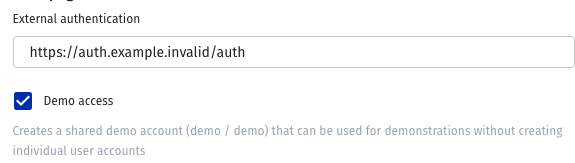
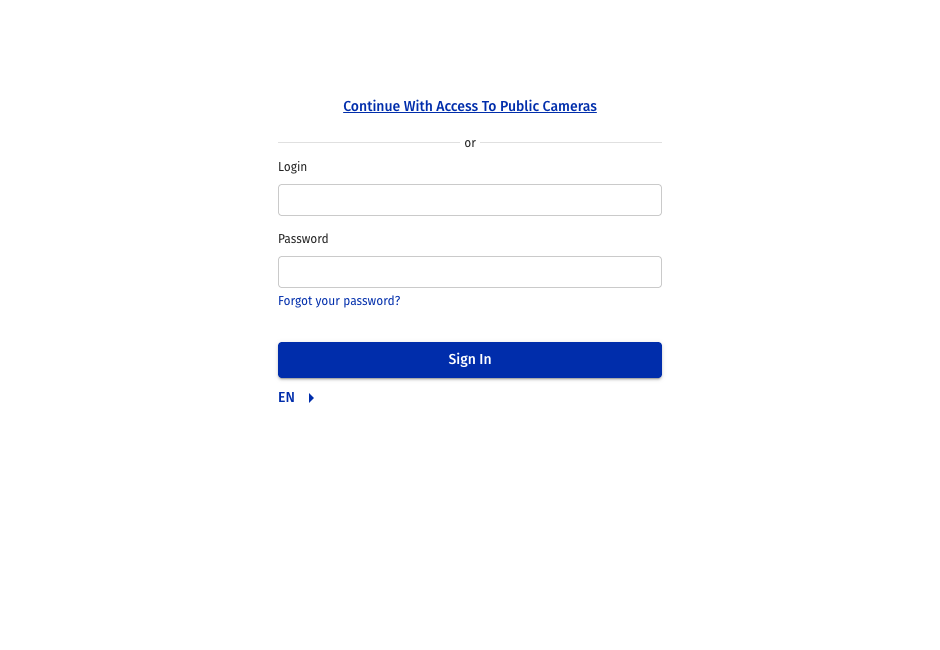
Enabling this creates or enables the demo user in the current domain. It operates in read-only mode. If it has not been granted camera permissions, its camera list is empty.
Grant access to public cameras
- Create a separate organization containing only cameras that can be shown to all visitors.
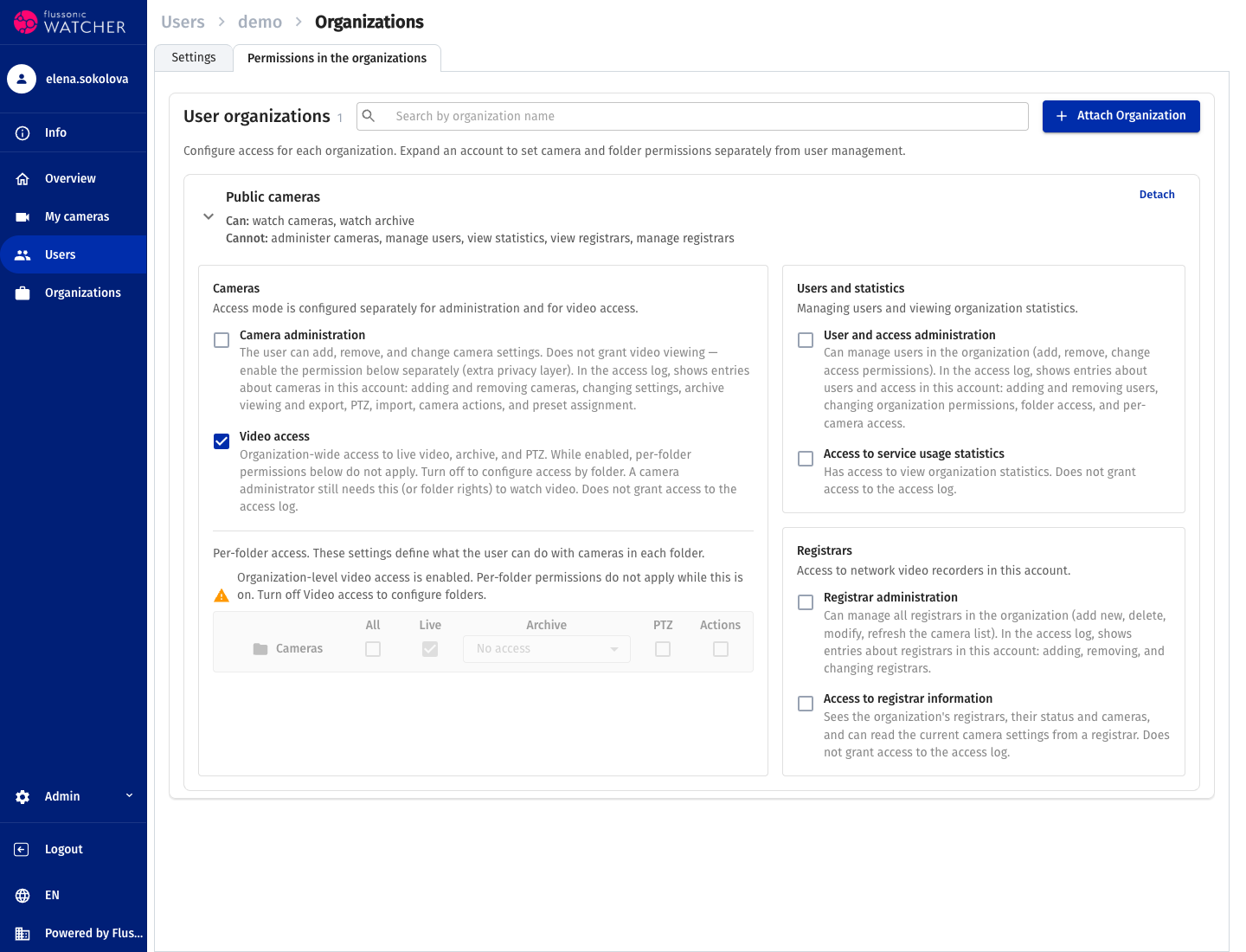
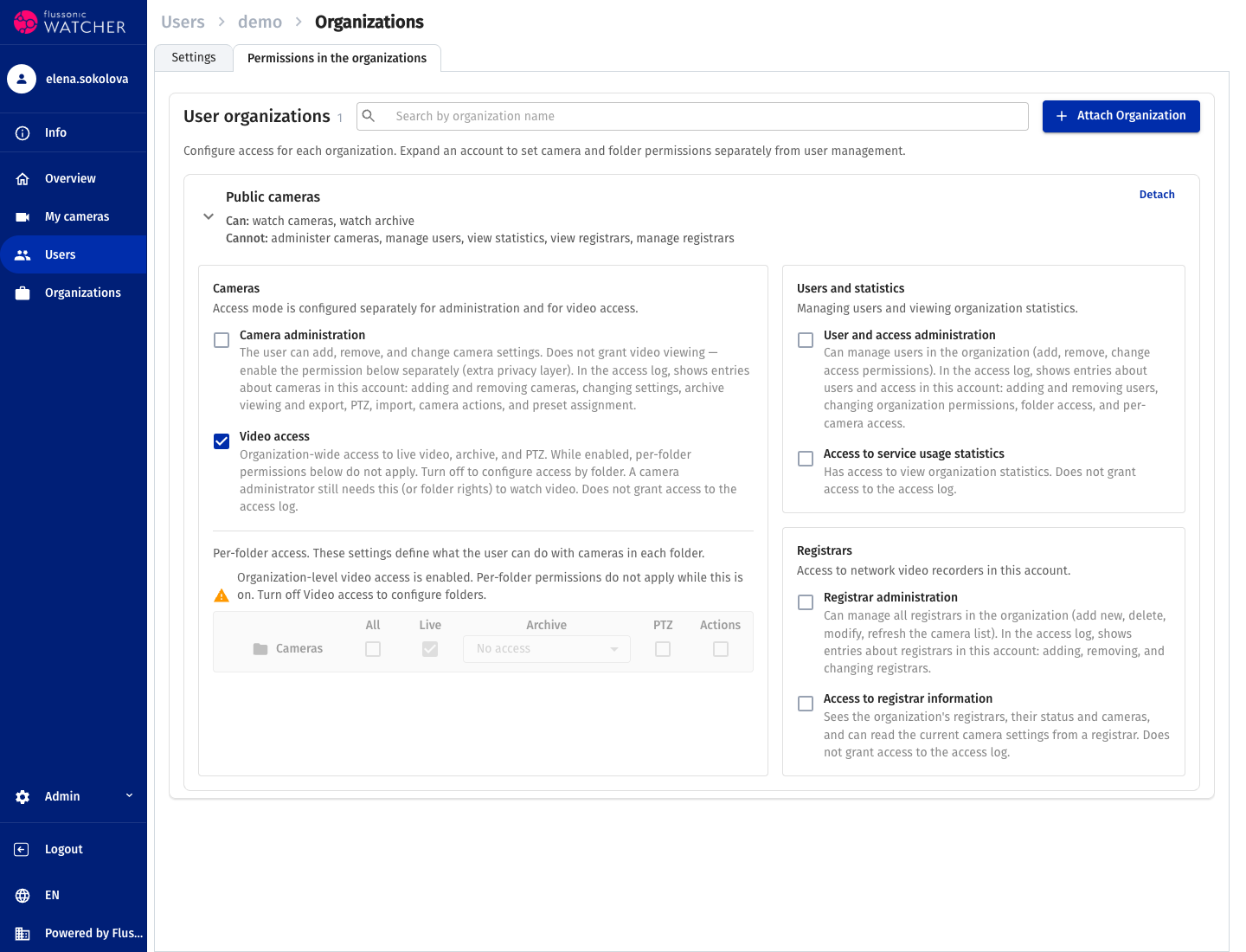
- Add demo to that organization.
- Grant Video access for live video. Leave Camera administration disabled.
- For a smaller selection, configure folders and individual cameras using the permissions guide. Archive and PTZ require separate permissions.
- Leave the administrator session and check the public link: only the selected cameras and permitted operations should be available.
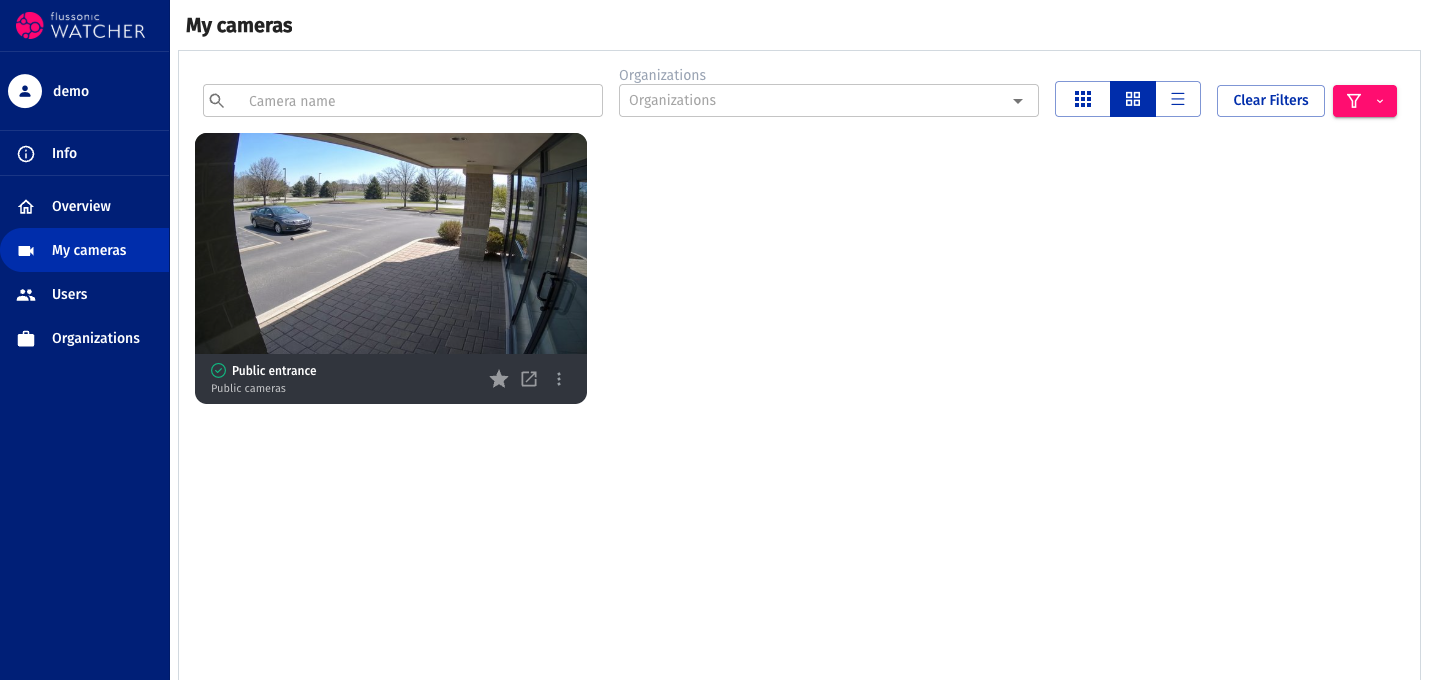
Disable public login
Disable Demo access and save. Watcher disables the demo user. Check that a new login through the public link is no longer possible.