Password reset
Users can request a password recovery email from Watcher's sign-in page. Server administrators can change passwords with the supplied command-line utility.
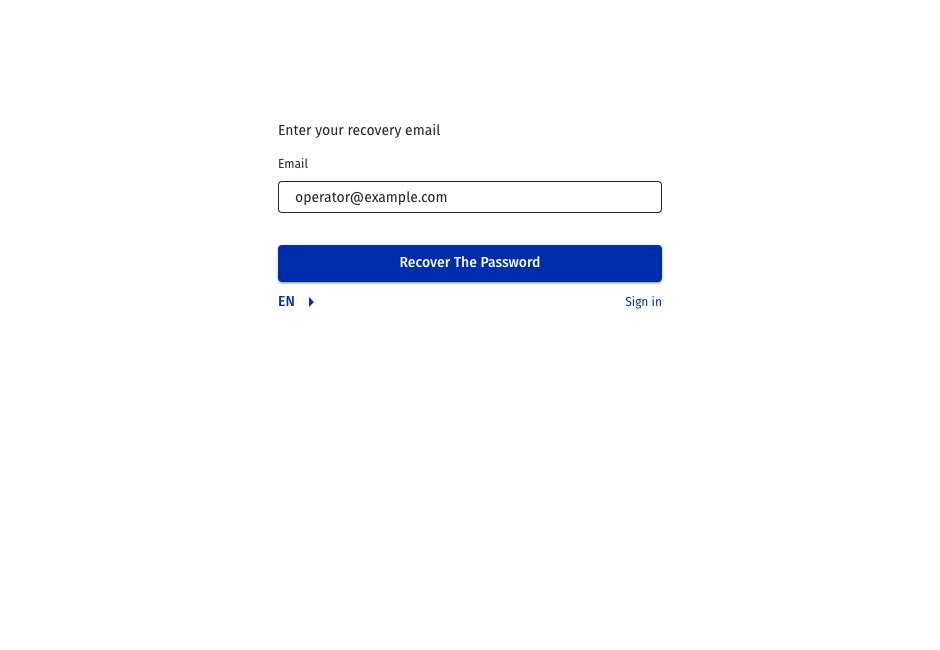
Recover by email
SMTP must be configured in Watcher. The request looks up users by login or notification email. If mail is unconfigured or the message does not arrive, contact the installation administrator.
User settings can prohibit password changes. With external authentication, change the password in the system that checks credentials: the next successful external backend login stores that system's password in Watcher again.
- Open password recovery on the sign-in page.
- Enter the user's address and submit the request.
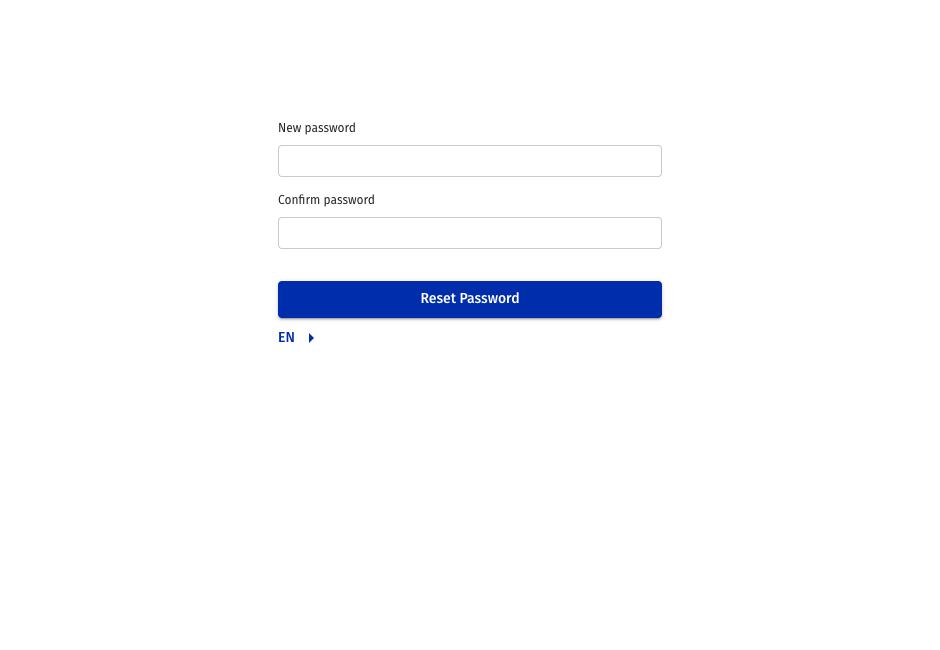
- Follow the email link and set a new password.
Change a password on the server
For a package installation, run as root on the management server:
/opt/flussonic/contrib/watcher reset_pass resident-example NewExamplePassword
resident-example is an existing account login; the second argument is the new password. On success, the utility reports:
Changing password for resident-example
Check the message names the intended user, then sign in with the new password. Do not use this command to discover an account: confirm the login first. In a multidomain installation, the same login may occur in different domains, and this command does not accept a domain ID.
The password is a process argument and may enter shell history. Run the command in a private administrative session and follow your credential handling policy.
Change through the API
An administrator can change a password with PUT /watcher/admin-api/v3/users/{user_id} and JSON body {"password":"NewExamplePassword"}. Changing a password from another account terminates the target user's sessions. See the user management API.
A password change does not enable an administratively disabled user. For a disabled account, separately check disabled and the reason for disabling it.