Overview
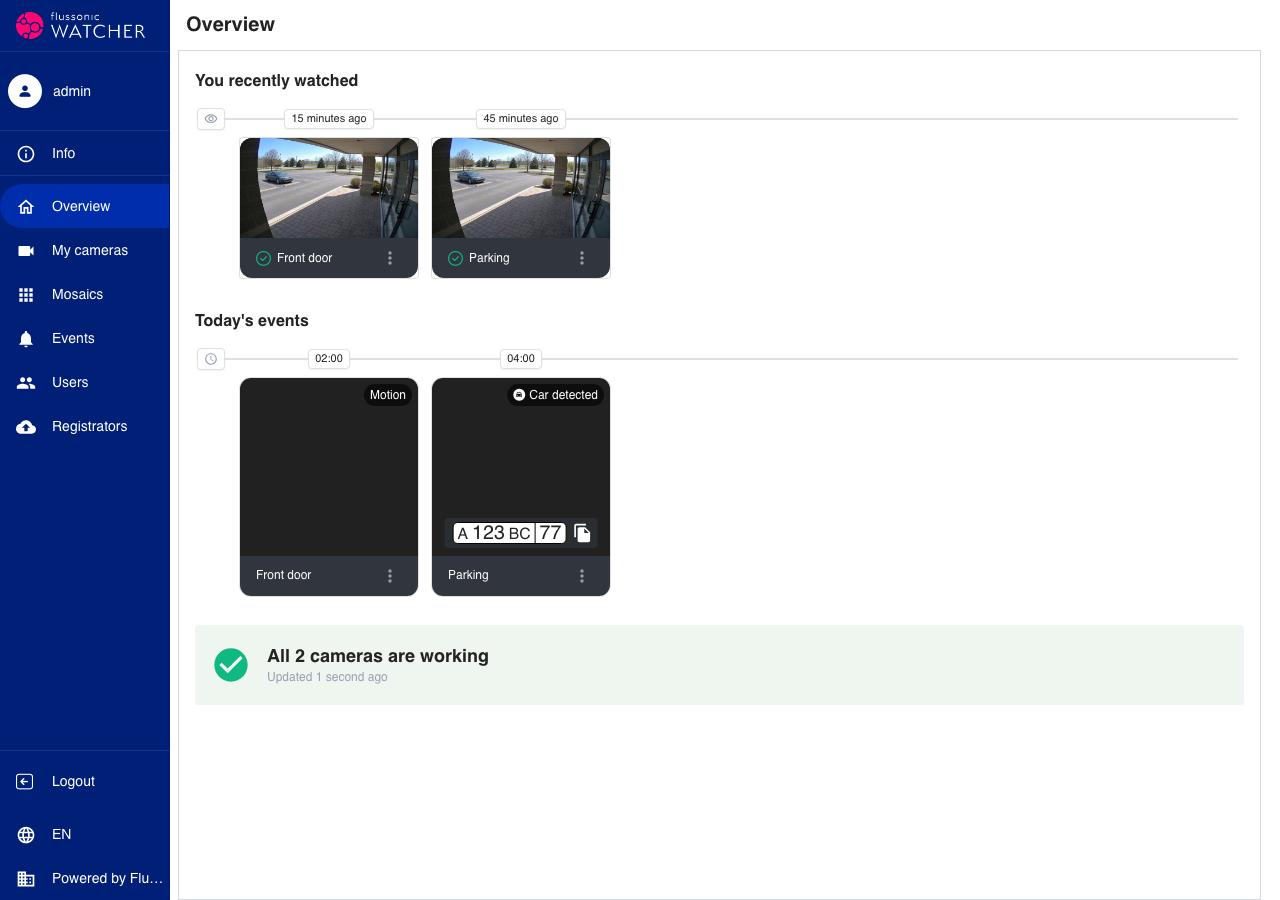
The Overview page is the home dashboard in Watcher UI. It gives a quick picture of your cameras: what you opened recently, what happened today, and whether any cameras need attention.
Open Overview from the main menu (first item with the home icon). The page is available when the user has access to Cameras.
Recently viewed
The Recently viewed section shows cameras you opened last. Each tile is a compact camera card with the same controls as on the Cameras page (play, favorites, settings, and so on).
Above the tiles, a timeline shows when each camera was last viewed. Hover the eye icon on the left to see the legend.
If you have not opened any cameras yet, the section shows a hint: open a camera to see it here.
Today's events
The Today's events section lists analytics events registered since the start of the current day. Events appear as cards in a horizontal strip. The timeline above each card shows the event time.
Click a card preview to play the event archive in place. Use the menu on the card for the same actions as on the Events page: open details, download, share, add to favorites, and delete.
Scroll the strip to the right to load more events. If there are no events today, the section shows an empty state.
Camera status
The status widget summarizes connectivity for all cameras you can access:
- While cameras are loading, the widget shows a progress message.
- When every enabled camera is online, the widget shows a green success state.
- When some cameras have problems, the widget shows a warning with the count of working cameras.
- When no enabled camera is online, the widget shows an error state.
Cameras disabled by an administrator are counted separately and mentioned in the widget note when relevant. The Updated line shows when the status was last refreshed.
Cameras requiring attention
When one or more cameras have connectivity problems, an additional Cameras requiring attention section appears below the status widget.
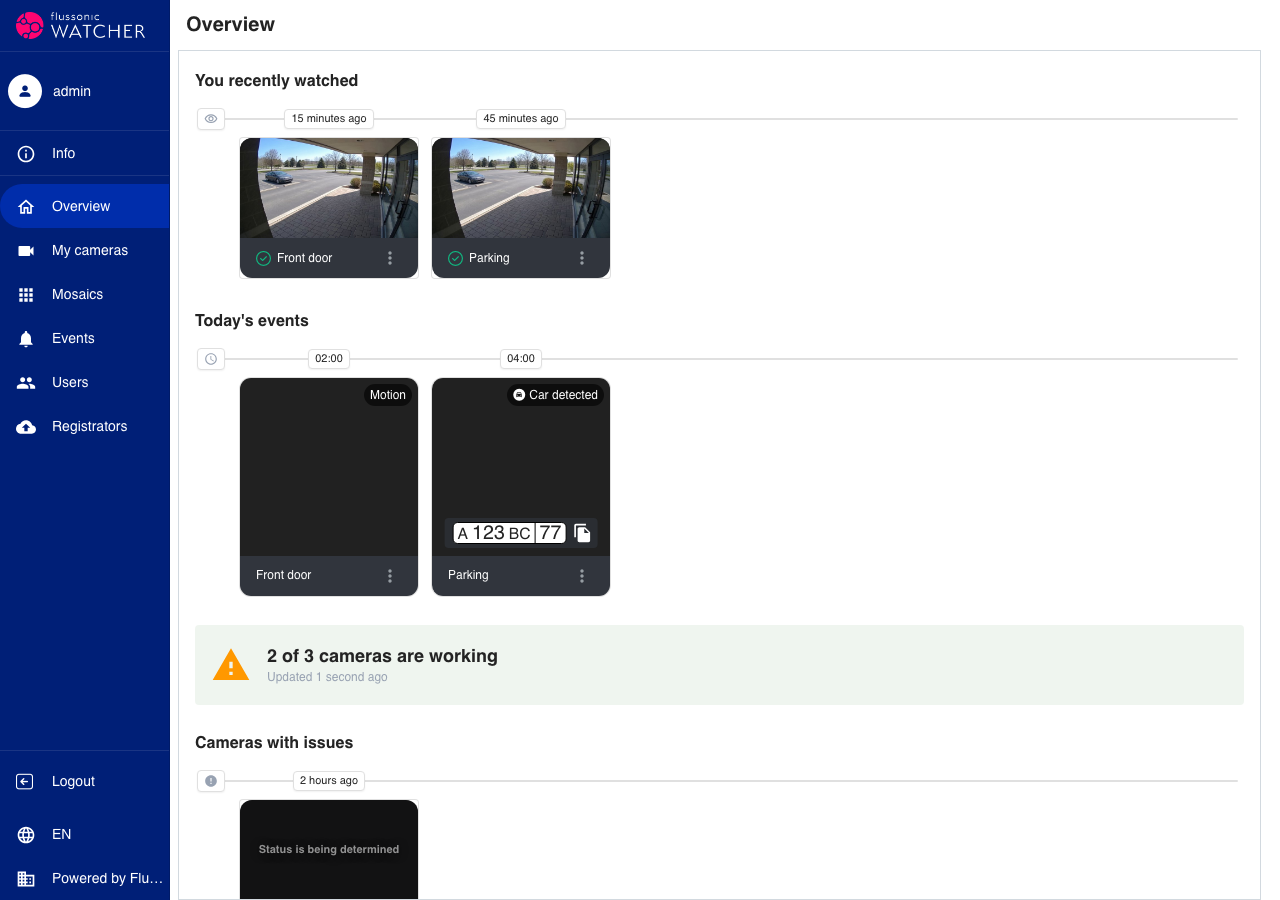
Each problematic camera is shown as a compact tile. The timeline above indicates when the camera status last changed (for example, when it went offline). Use the tile menu to open settings or other camera actions, same as on the Cameras page.
If all cameras are healthy, this section is hidden.