Finding unknown visitors
Use face recognition events to find episodes involving automatically created persons with a default name. These results help select recordings for viewing but do not by themselves determine whether a person is allowed to access the site.
Prepare the camera
Check the face recognition camera requirements, configure archive recording and user access to it. Viewing the result requires analytics events and retained video for their time.
Enable face recognition in Watcher
- Install video analytics.
-
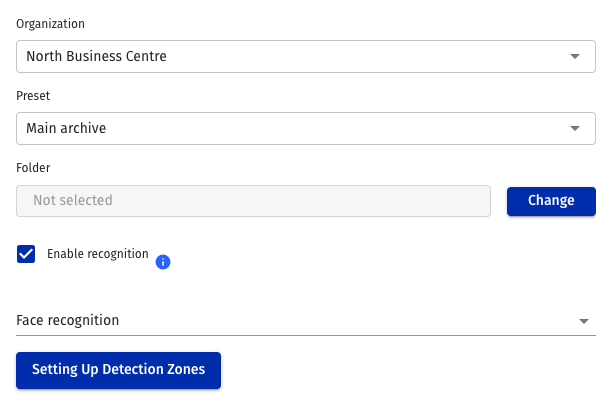
Add the camera and enable face recognition on it.
-
Open Events → Face detector and check that events are arriving from the camera.
Find events
- Go to Events → Face detector.
- Select the camera and the incident time interval.
- Enable the Unknown filter.
- Open suitable cards and view video for the event time.
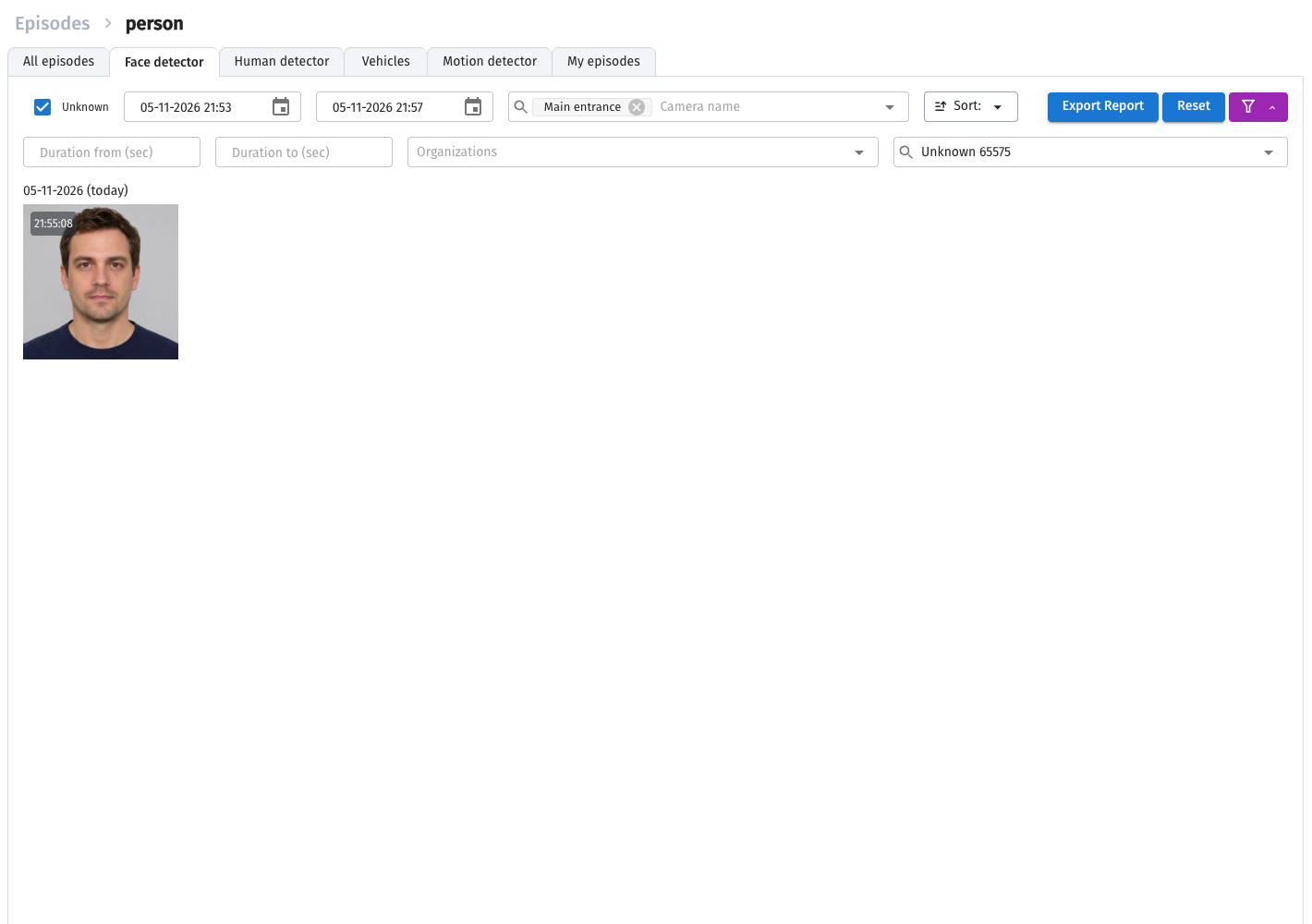
Example results: a camera, time interval and person with a default name are selected; the Unknown filter is enabled.
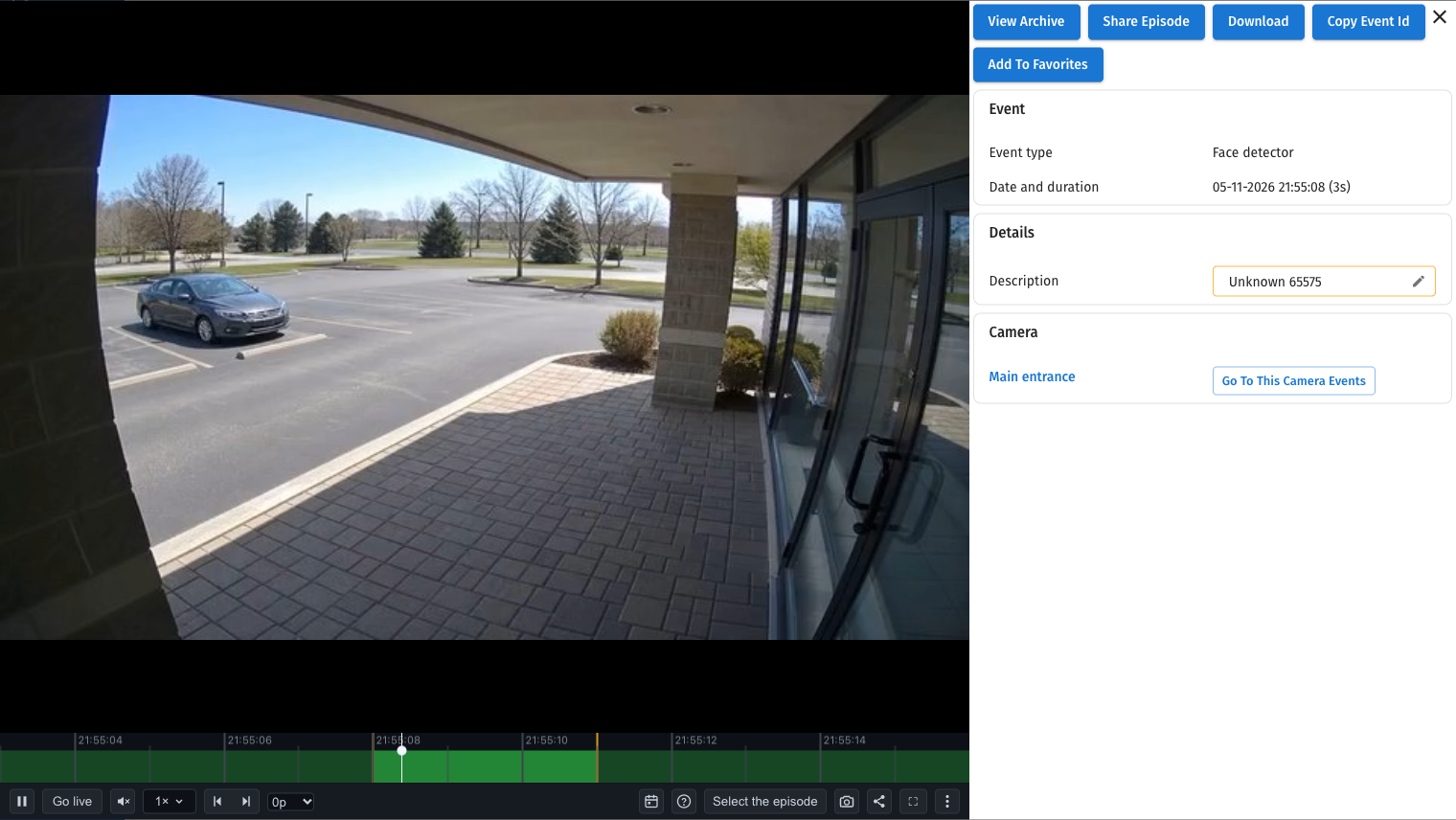
The selected episode card: video player, time, description and camera.
The filter selects automatically created persons with a default name. This search does not require creating an employee list in advance: the filter does not compare visitors against such a list. Frame quality and recognition settings affect the result; check the recording before drawing conclusions.
If you need to recognize specific known people, create persons and their lists following the face recognition guide. An analytics person and a Watcher sign-in account are different entities.
If there are no events, clear the unknown filter and check whether any events are arriving from the camera. If an event exists but the recording does not open, check archive availability for the selected time and your archive permissions.