Profile
Open Profile in your account menu to change contact details, password and personal API key.
The installed Watcher PWA also provides local PIN settings.
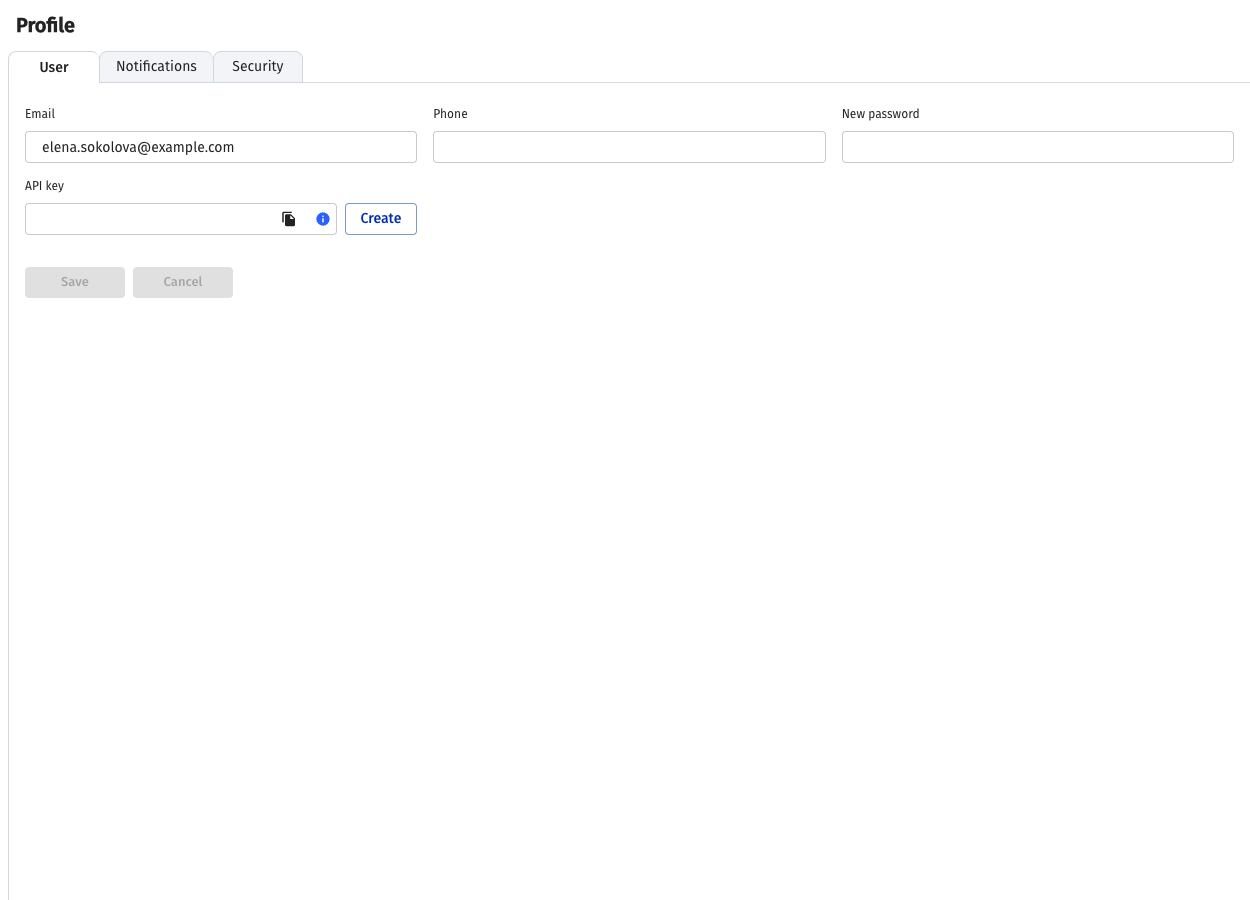
Contact details
On the account details tab, enter Email and Phone number, then save. Email is used for password recovery; delivery requires configured SMTP.
Password
If password changes are allowed for your account, the form includes a new password field. Enter and confirm the password, then save. If Watcher requires a password change after login, a message appears above the form.
Sign in to the mobile application
When enabled on the server, Authorize in mobile app is available in your profile. It opens a QR code to sign in as your account without entering a login and password.
- Confirm the web interface is using the intended account.
- Click Authorize in mobile app.
- In the Android app, scan it through QR login. See QR code login.
- Close the code window after login.
Do not give the QR code to others: it grants your permissions. If the button is absent, use another available application login method.
Local PIN in the PWA
Install Watcher as a PWA, open its separate application window and sign in. Profile → Security provides a local access PIN. Security is hidden in an ordinary browser tab. This section concerns the PWA; native Android settings are in the mobile access guide.
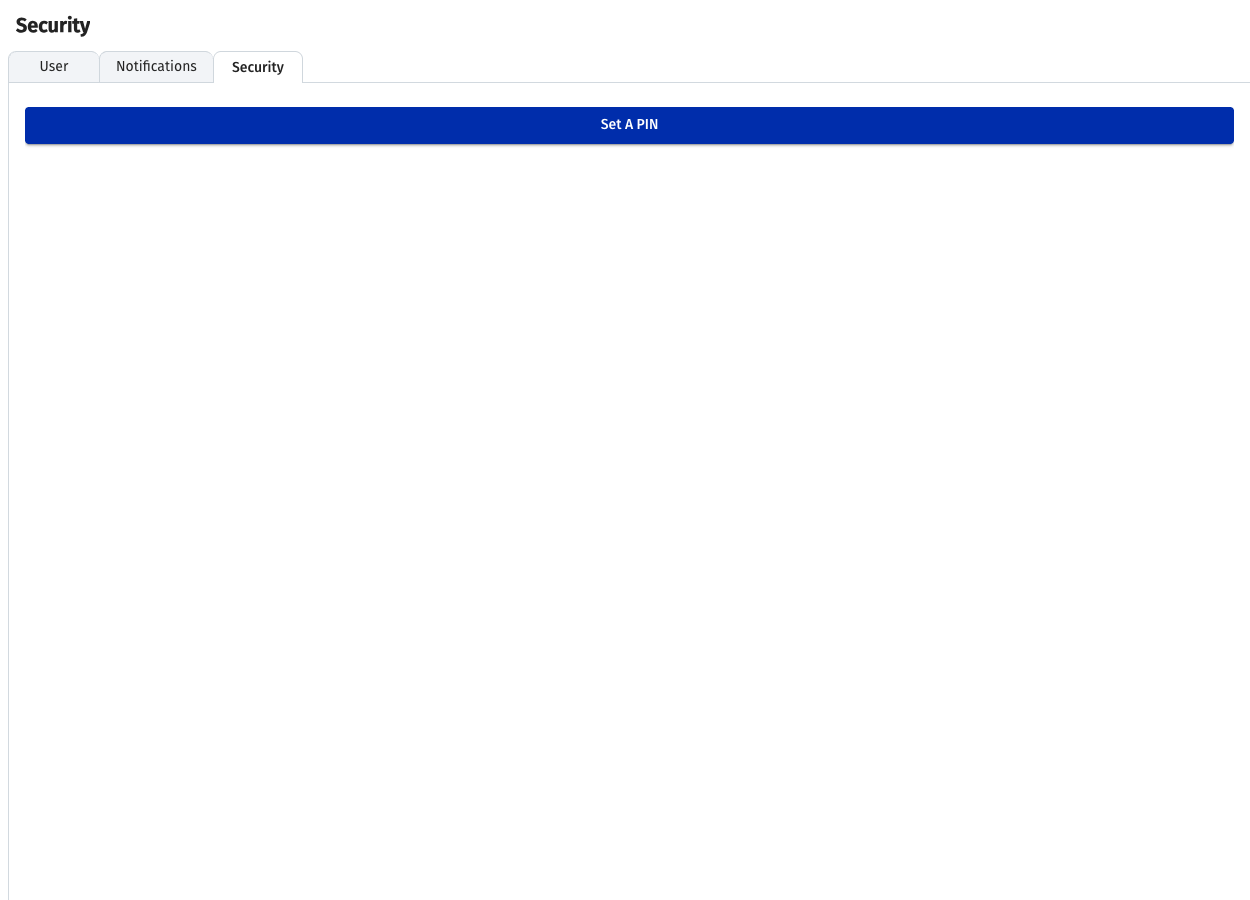
To set a PIN:
- Open Profile → Security and click Set a PIN.
-
Enter four digits. Wait for Repeat the PIN, then enter the same code. Confirmation saves automatically after the fourth digit.
-
Reopen Profile → Security. Change the PIN and Turn the PIN off should replace the setup button.
To change it, click Change the PIN, enter and repeat a new four-digit code. A matching confirmation returns to Security. Invalid PIN means the repeated entry does not match the new code: correct it. Cancel returns to settings without saving the new code.
To remove it, click Turn the PIN off. Set a PIN should appear and the change/disable buttons disappear. Reopen the tab to check.
The PIN is stored locally for the Watcher address in the current browser profile. Configure it separately on another device or profile; clearing site data removes it. It works with the saved Watcher session and does not change the account password or permissions. If you forget it on the PIN screen, choose Log in using login and password and sign in again: the previous local PIN is reset.
Personal API key
The key is used for API requests on your behalf. Click key creation, or reset if a key already exists. Confirm in the dialog, then copy the key.
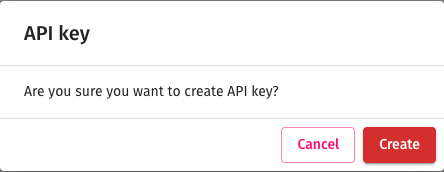
After reset, use the new key in your integrations. Do not share it with other users: requests have your account's permissions.
Notifications
Browser notifications are enabled for the current browser. Open Watcher through HTTPS in a browser supporting Push API and service workers.
- Open Profile → Notifications.
- Enable Push notifications and allow notifications in the browser prompt.
- Wait for subscription completion. The switch should remain enabled. If it switches off again, check site notification permission in the browser and messages on the tab, then enable it again.
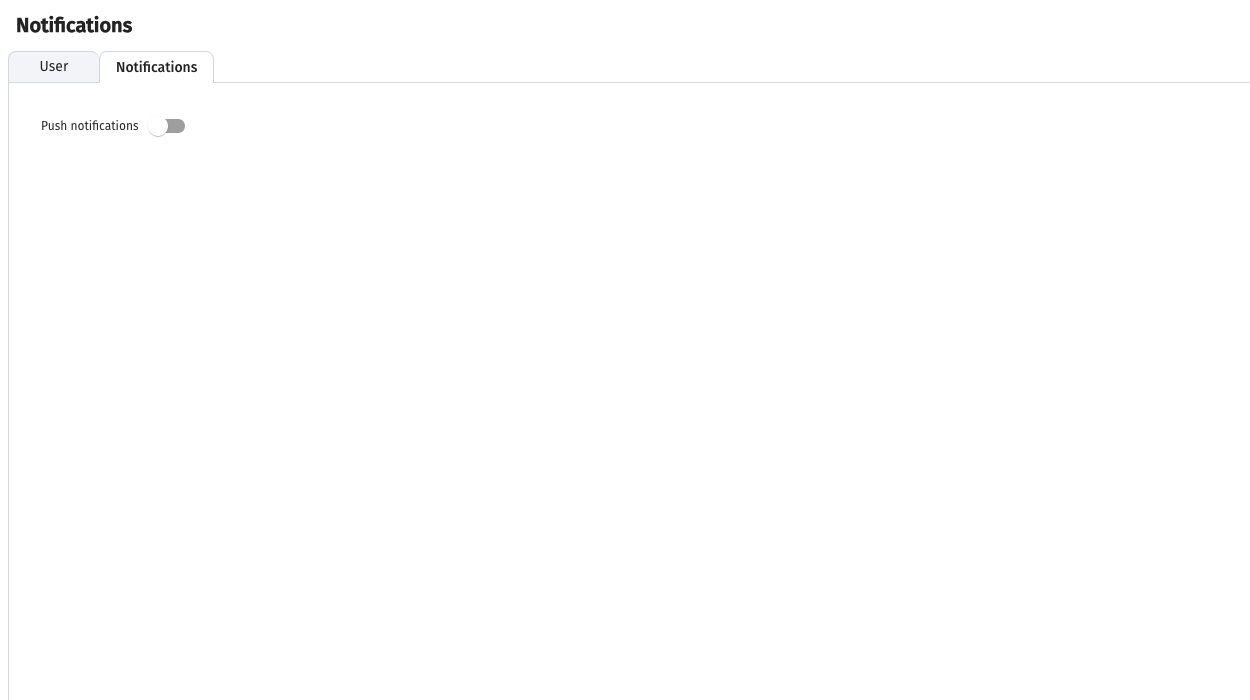
Disable the same switch to stop notifications in this browser.
If browser notification prerequisites are unmet, Notifications displays the reason.
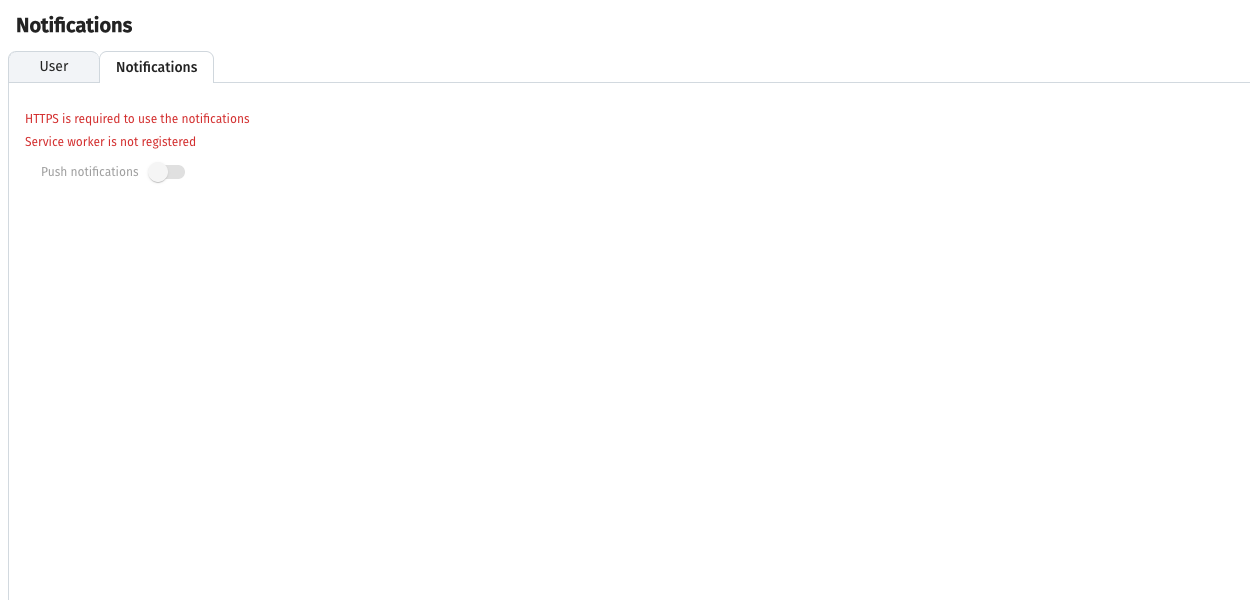
These settings apply to the current browser. Connecting a native mobile application is described in the mobile access guide.
For missing Android or iOS notifications, use the mobile notification checks. A browser subscription does not replace phone permissions.