Integration with existing billing system
This article describes common scenarios of integration between Flussonic Watcher and third party system allowing managed camera sales and accounting for subscribers and their services. API reference: Watcher Client API and Watcher Admin API.
Explanation of terms:
- Provider is a client of Flussonic, the owner of the service
- Subscriber is a Provider's subscriber, the user of the service
- Billing is a third party system not related to Watcher; it allows managing plans (billing plans, subscriptions) of Provider's services to subscribers as well as payment collection
The concept of billing implies that the billing service is the master system storing and managing subscribers data, and not Flussonic Watcher. Such a best practice allows you to centrally manage services in different systems, linking, for example, smart home and video surveillance in a single project.
Warning
The legacy API (/vsaas/api/v1, /vsaas/api/v2) and the global domain key X-Vsaas-Api-Key have been removed. All requests in this article use API v3. If your integration is built on v2, update it following this article; the mapping between old and new requests is given at the end of the page.
The mechanism for matching billing plans and Watcher presets, as well as the logic that will affect access, archive depth and other settings, is on the billing side in any case.
Service account and request authorization
In API v2, billing requests were authorized with a global domain key not bound to any account. There is no such key in API v3: every request is executed on behalf of a user. So first create a service account — a user with administrator access level (access_level: admin) that the billing system will use for all requests to Watcher.
The roles in this scheme are distributed as follows:
- The subscriber owns their organization. They watch video, use the mobile app, add cameras and other users. Their
external_idappears in reports as the account identifier. - The service account is a Watcher administrator. It manages cameras, plans and blocking through the Admin API (
/watcher/admin-api/v3/...): Admin API requests are available to an administrator for any organization of the domain and require no membership or permissions in it. Organizations are created through the Client API — an administrator passes by domain-level permissions.
Do not try to manage subscribers' cameras through the Client API on behalf of the administrator: its requests check permissions in a specific organization, and an administrator who is neither its owner nor a member gets a 403 error. Use the Admin API for billing operations.
Note
In legacy multi-domain installations (created before January 2026), organizations can only be created by a user with the login billing or a login with the _master suffix. We recommend naming the service account billing — this name works in any configuration.
There are two ways to authorize:
- JWT token — issued by POST /watcher/client-api/v3/login using Basic authorization. The
access_tokenis valid for one hour; a new token is issued by repeating the/loginrequest with theAuthorization: Bearer <refresh_token>header. - Personal API key — has an unlimited lifetime and requires no renewal; this is the recommended option for server-side integration. The key is issued once:
POST /watcher/client-api/v3/users/{user_id}/apikey
Authorization: Bearer <access_token>
Pass the received key in the Authorization: Bearer <key> header of every request.
Note
Do not call /login before every request: frequent requests cause the server to respond with 429 Too Many Requests. Use a permanent API key, or reuse the access_token until it expires.
Creating presets
A preset is a predefined set of archive and analytics settings to populate to the camera. Presets correspond to your billing plans, so you should create and configure presets before adding cameras.
The subscribers usually shall not be allowed to change the camera settings populated from the preset. Just make the preset non-configurable ("is_adjustable": false) to fulfill this requirement. Then, even if the subscriber has the organization owner permissions allowing them to edit the camera settings, they will not be able to change the preset-defined parameters. The settings will be visible but not editable.
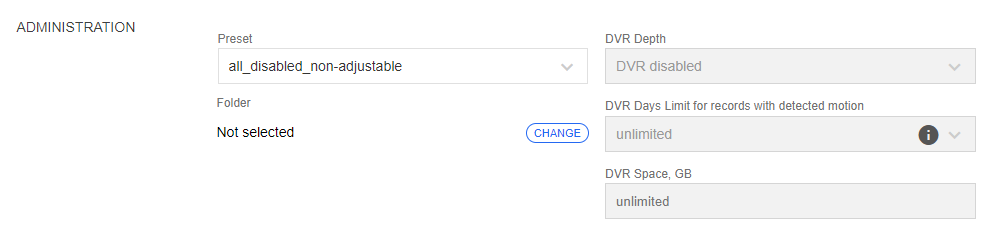
Organization owners cannot create, edit or delete presets: only Watcher administrators have such permissions. However, if several presets are linked to an organization, then the organization owner will be able to switch presets in the camera settings.
In addition to the plan presets, create a technical preset in advance — a preset with zero archive depth and no analytics. It is used as the plan when suspending services for non-payment.
Presets are created from the billing system via the Admin API:
POST /watcher/admin-api/v3/presets
title is a required parameter for the preset name. The billing_external_id field can store the identifier of the corresponding plan in the external billing system, so you do not have to maintain a mapping table on the billing side.
You can also use requests like GET/PUT/DELETE to get/change/delete the preset with the specified ID.
To make a plan available to a subscriber's organization, link the preset to the organization:
PUT /watcher/client-api/v3/organizations/{organization_id}/presets
{"preset_id": 42}
Connecting a subscriber
Connecting a subscriber takes two steps. Identifiers for each next step are returned in the response to the previous one, so the steps must be executed strictly in order.
Step 1. Create a user
The subscriber is created through the Admin API, without specifying an organization — their own organization appears in the next step; for now the user is listed in the domain's default organization:
POST /watcher/admin-api/v3/users
{
  "name": "johndoe",
  "password": "secret",
  "external_id": "billing-account-123"
}
Fields:
- name — the user's login (not a display name).
- password — the subscriber's password; usually generated by the billing system and handed over to the subscriber. The field is optional, but without a password the subscriber cannot sign in until a password is set with a user update request.
- external_id — the subscriber identifier in the billing system. It appears in Watcher reports as the account identifier — fill it in on creation.
- email — optional email for notifications.
Note
Do not pass another organization's organization_id in this request: creating a user in a specific organization requires the permission to manage its users, which an administrator does not have, and the request fails with a 403 error.
Save the user id from the response.
Step 2. Create an organization owned by the subscriber
Each subscriber has their own organization. The owner is assigned at creation:
POST /watcher/client-api/v3/organizations
{
  "title": "John Doe, 1 Main St.",
  "owner": {"id": 15}
}
Pass the user identifier from step 1 in the owner.id field. Save the organization id from the response; keep the mapping between the organization and the subscriber on the billing side. A folder named Cameras is created automatically together with the organization.
As the organization owner, the subscriber sees live video and archive of all its cameras, uses the mobile app, adds cameras and other users (for example, family members) and grants folder permissions to them. No permissions need to be granted to the subscriber with separate requests.
If necessary, remove the subscriber from the default organization where they were created in step 1:
DELETE /watcher/client-api/v3/organizations/{default_organization_id}/users/{user_id}
Note
The organization owner can switch a camera's preset if several presets are linked to the organization. To prevent the subscriber from changing plan settings on their own, use non-adjustable presets and link to the organization only the plans available to the subscriber.
Cameras with Agent
Cameras with Flussonic Agent are not created with the camera add request: the camera appears in Watcher automatically after the agent is activated with an activation token.
An activation token is created with the POST /watcher/client-api/v3/agent_activation_token request on behalf of a user with the camera management permission in the organization. This request is not available to an administrator who does not own the organization, so the scenario depends on who activates the camera:
-
Main scenario: the subscriber activates the camera. The organization owner adds the camera from the Watcher mobile app or web UI — activation token creation is built into the interface, no billing involvement is required. An installer working under the subscriber's account acts the same way.
-
Tokens prepared by the provider in advance (for example, flashing a batch of cameras). In this case, create the organization first with the service account as the owner (the request from step 2 without the
ownerfield), create the activation tokens, and then transfer the ownership to the subscriber:POST /watcher/client-api/v3/agent_activation_token { "organization_id": 7, "preset_id": 42, "title": "Entrance 1" }The
preset_id(plan; defaults to the organization's preset) andtitle(camera name; generated by default) fields are optional. Save thetokenfrom the response — this is the activation token; thestream_namefield is empty at this point. After the agent activates, the camera name is returned by theGET /watcher/client-api/v3/agent_activation_token/{token}request in thestream_namefield.Ownership transfer to the subscriber after the tokens are prepared:
PUT /watcher/client-api/v3/organizations/{organization_id}
{"owner": {"id": 15}}
In both scenarios, billing discovers the subscriber's new cameras by listing the organization:
GET /watcher/admin-api/v3/streams?organization_id={organization_id}
Save the name field of each camera from the response — further management (plan change, disabling, status reading) is performed by it, the same way as for regular cameras.
Note
In the billing inventory system, link the camera to the subscriber by the camera serial number: the agent identifier can change if the camera is reset or handed over to another subscriber, while the serial number stays the same.
Cameras without Agent
The scenario for cameras without Agent (e.g. RTSP, ONVIF) would usually be as follows:
- A camera is connected to the internal Provider’s network.
- The subscriber asks Provider to grant access to the camera.
- The Provider sends request to billing to add the camera for the subscriber or give permissions to use the camera.
-
If it is a new personal camera (e.g. for subscriber’s smart home):
-
It is assumed that the user and organization for the subscriber have already been created in Watcher. If they are not, create them following the chain from Connecting a subscriber.
-
Billing fills in the necessary camera attributes in accordance with the billing plan.
-
Billing sends a request to Watcher to add a camera to the subscriber (see example below).
-
-
If the subscriber wants to connect to a shared camera, for example, to an intercom or to the Safe City system:
-
Shared cameras are placed in a separate provider's organization owned by the service account — then it is entitled to manage the users and folders of this organization through the Client API.
-
Billing adds the subscriber to the organization with the shared cameras with the
PUT /watcher/client-api/v3/organizations/{organization_id}/users/{user_id}request — if the subscriber is not a member of the organization yet, the request adds them as a member. -
Billing grants the subscriber permissions on the folder with the camera:
PUT /watcher/client-api/v3/organizations/{organization_id}/folders/{folder_id}/users/{user_id}
{
  "can_view": true,
  "can_view_dvr": true,
  "dvr_depth_limit": 0,
  "can_use_ptz": false
}
Flags:
can_view— live video,can_view_dvr— archive,dvr_depth_limit— limit of the available archive depth in seconds (0means no limit),can_use_ptz— PTZ camera control. The permissions are applied recursively to nested folders. Folder identifiers are returned by theGET /watcher/client-api/v3/organizations/{organization_id}/foldersrequest.
-
Adding a camera
A camera is created and updated with the same Admin API request (there is no separate POST request for creation in v3 — if the camera is not found, it will be created):
PUT /watcher/admin-api/v3/streams/{name}
{
  "title": "Entrance 1",
  "preset_id": 42,
  "organization_id": 7,
  "folder_id": 15,
  "inputs": [{"url": "rtsp://..."}]
}
Warning
The camera name is assigned by Watcher. On creation, the {name} value from the URL is not used: the name is generated from title with a random suffix and returned in the name field of the response. Pass any value in the URL, for example new, and be sure to save the name from the response on the billing side — all further operations with the camera (plan change, disabling, status reading) are performed by it.
The following parameters are required in the request to add a camera:
- preset_id (integer): Watcher preset identifier corresponding to the billing plan in billing.
- organization_id (integer): organization identifier. The organization must have already been created in Watcher.
If you do not specify the preset ID and organization ID in the request, the camera will be added to the default organization with the default preset.
The bulk import request POST /watcher/client-api/v3/streams/import (see Import cameras via API) is not used in this scheme: it belongs to the Client API and requires camera management permissions in organizations, which the service account does not have. Add cameras one at a time with the PUT /watcher/admin-api/v3/streams/{name} request — its response contains the name assigned to the camera.
Adding a user
A user is created with the POST /watcher/admin-api/v3/users request — see Connecting a subscriber.
External authorization backend is alternative way to integrate users authorization.
Changing the billing plan
The camera's plan is changed by changing its preset:
PUT /watcher/admin-api/v3/streams/{name}
{"preset_id": 43}
To change the plan in bulk (for example, when the plan conditions change for all cameras at once), use the request:
POST /watcher/admin-api/v3/streams/multiedit
{
  "streams": [
    {"name": "cam-001", "preset_id": 43},
    {"name": "cam-002", "preset_id": 43}
  ]
}
Notes on multiedit:
- Only the
preset_idanddvrfields can be changed. - A successful response is
204with no body. - If at least one camera from the list is not found,
404is returned and no changes are applied to any camera.
Suspending services
If the subscriber, for some reason, should no longer use the services (for example, turned off the service or did not pay on time), billing should send a corresponding request to Watcher.
The easiest way is disabling the user:
PUT /watcher/admin-api/v3/users/{user_id}
{"disabled": true}
All active sessions of the subscriber (web and mobile app) are terminated immediately. To resume the service, send the same request with {"disabled": false}.
Options for limiting access without disabling the user:
- Disable the subscriber's camera that nobody else uses:
PUT /watcher/admin-api/v3/streams/{name}
{"disabled": true}
- Switch the cameras to the technical preset via multiedit — video stays available while the paid services (archive, analytics) are turned off.
Revoking access and deleting
- Remove the user from the organization with shared cameras (both organization permissions and folder permissions are removed):
DELETE /watcher/client-api/v3/organizations/{organization_id}/users/{user_id}
- Delete the user completely (sessions and all relations are deleted):
DELETE /watcher/admin-api/v3/users/{user_id}
- Change the subscriber's password (there is no separate request — the user update is used; all sessions of the subscriber are terminated):
PUT /watcher/admin-api/v3/users/{user_id}
{"password": "new-password"}
Camera status
Camera state is read with GET /watcher/admin-api/v3/streams (list; the organization_id parameter limits the selection to the subscriber's organization) and GET /watcher/admin-api/v3/streams/{name} (single camera). There are no online/offline fields in the response; use:
- stats.alive (bool) — the camera is streaming; becomes
falsewhen the stream delay exceeds 12 seconds. - stats.status —
running,waitingorerror. - stats.last_online_at — the last time the camera was online; the field is present only for cameras that are currently offline.
The disabled field in the camera configuration means the camera is turned off administratively (see Suspending services) — it is not the same as connection loss.
Common mistakes
- Error 403 in the Client API for an administrator. Client API requests check permissions in a specific organization, and administrator permissions do not substitute for them. This applies to creating a user with
organization_id, granting folder permissions and creating activation tokens. Perform camera and user operations through the Admin API; operations available only to the organization owner — on behalf of the owner (see Service account). - The camera edit permission includes video viewing. A user with the
can_edit_streamspermission automatically getscan_view_streamsas well — access to live video and archive of all cameras of the organization. It is not possible to configure an account that manages cameras without access to video. - The response does not repeat the sent values. In the response to
PUT /organizations/{id}/users/{id}, thecan_view_streams: trueflag is always returned when the user has the camera edit permission or owns the organization, regardless of the sent values. Do not verify the request result by comparing the sent and received flags. - The
namefield of a user carries the login. The notification email is specified in theemailfield.
Mapping of v2 and v3 requests
| Request in v2 | Request in v3 |
|---|---|
X-Vsaas-Api-Key: <domain key> |
Authorization: Bearer <token> or a personal API key (see Service account) |
POST /vsaas/api/v2/auth/login |
POST /watcher/client-api/v3/login |
POST /vsaas/api/v2/cameras |
PUT /watcher/admin-api/v3/streams/{name} — creates the camera if it is not found; the name is assigned by Watcher (see Adding a camera) |
PUT /vsaas/api/v2/cameras/{name} |
PUT /watcher/admin-api/v3/streams/{name} |
POST /vsaas/api/v2/cameras/import |
adding cameras one at a time with PUT /watcher/admin-api/v3/streams/{name} (see Adding a camera) |
POST /vsaas/api/v2/users |
POST /watcher/admin-api/v3/users |
PUT /vsaas/api/v2/users/{id} |
PUT /watcher/admin-api/v3/users/{user_id} |
GET /vsaas/api/v2/organizations |
GET /watcher/client-api/v3/organizations |
.../organizations/{id}/folders/... |
the same paths under /watcher/client-api/v3/... — on behalf of the organization owner |
GET/POST /vsaas/api/v2/presets |
GET /watcher/client-api/v3/presets, POST /watcher/admin-api/v3/presets |
POST /vsaas/api/v2/agent-activation-tokens |
POST /watcher/client-api/v3/agent_activation_token — on behalf of the organization owner |
Other v3 differences:
- Collections are returned with cursor pagination: the
estimated_count,next,prevfields. - The
camerasresource is renamed tostreams.