Receiving camera motion events
Watcher receives camera motion detector events and displays the corresponding episodes on Events. To view recordings, configure the camera archive and have permission to view it.
Motion sources can differ. A camera with Flussonic Agent can send SMTP messages through the Agent. For a compatible ONVIF camera, event reception is enabled in ONVIF settings. These are separate methods of receiving events; configuring Watcher outgoing email does not replace configuring the camera detector.
Choose how to receive events:
- Camera with Agent — configure SMTP events on the camera.
- Camera with ONVIF — enable event reception in ONVIF settings.
- Analytics module — enable motion analysis.
Motion analysis by the video analytics module
Besides camera-generated events, the camera form offers the Motion detection analytics type. It requires an analytics module supporting that detector; it is a separate episode source, not an SMTP server or ONVIF subscription.
- Open the administrative camera settings.
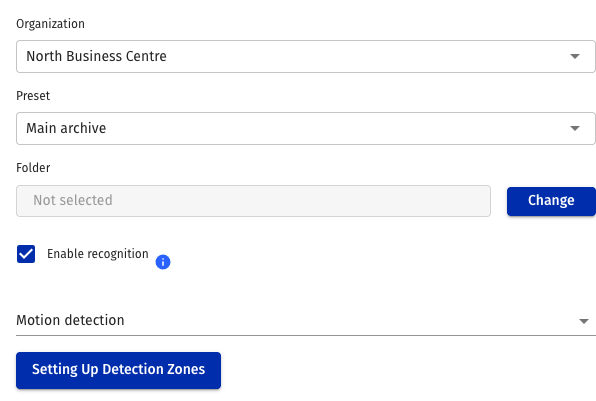
- Enable Enable recognition and select Motion detection.
- Check the detector type in the analysis areas, save settings and cause motion in the frame.
- Check for episodes on Events → Motion detector.
Being able to select and save a type in camera settings does not establish that the installed analytics server processes it. Check the result on a test stream. In the current release, configuring this type through a preset does not retain analytics as enabled; do not use such a preset to enable the detector.
The form has Motion detection selected. Apply it using the camera settings save button.
Recording and retention
Choose recording mode and retention in DVR settings. With continuous recording, an event marks motion time in the stream already being recorded. Record on motion requires events to arrive from the camera.
Video retention depends on DVR settings and available storage. Do not treat an episode as confirmation that video is retained: check the required interval in the player. Episode and video retention are configured separately.
Configuring SMTP events on a camera with Flussonic Agent
First check that the camera is connected to Watcher through the Agent and is transmitting video. Then open the camera's own web interface, enable its motion detector and email notifications for that event.
In the camera SMTP settings, enter:
SMTP Server: 127.0.0.1
SMTP Port: 5025
Here 127.0.0.1 is the camera itself with the Agent installed. The Agent accepts the connection on the local port and forwards it to the server components. This address is unsuitable for a separate camera without Agent.
Fill in required sender and recipient fields according to the camera interface. When transmitted through the Agent, the camera is identified by the connection; the sender name does not have to match the camera name.
Save camera settings, trigger test motion and check that an episode appears in Watcher. A successful SMTP test in the camera interface alone does not confirm episode creation: check the entire path to Watcher.
Viewing events
The Motion detector filter leaves motion events from the selected cameras in the feed.
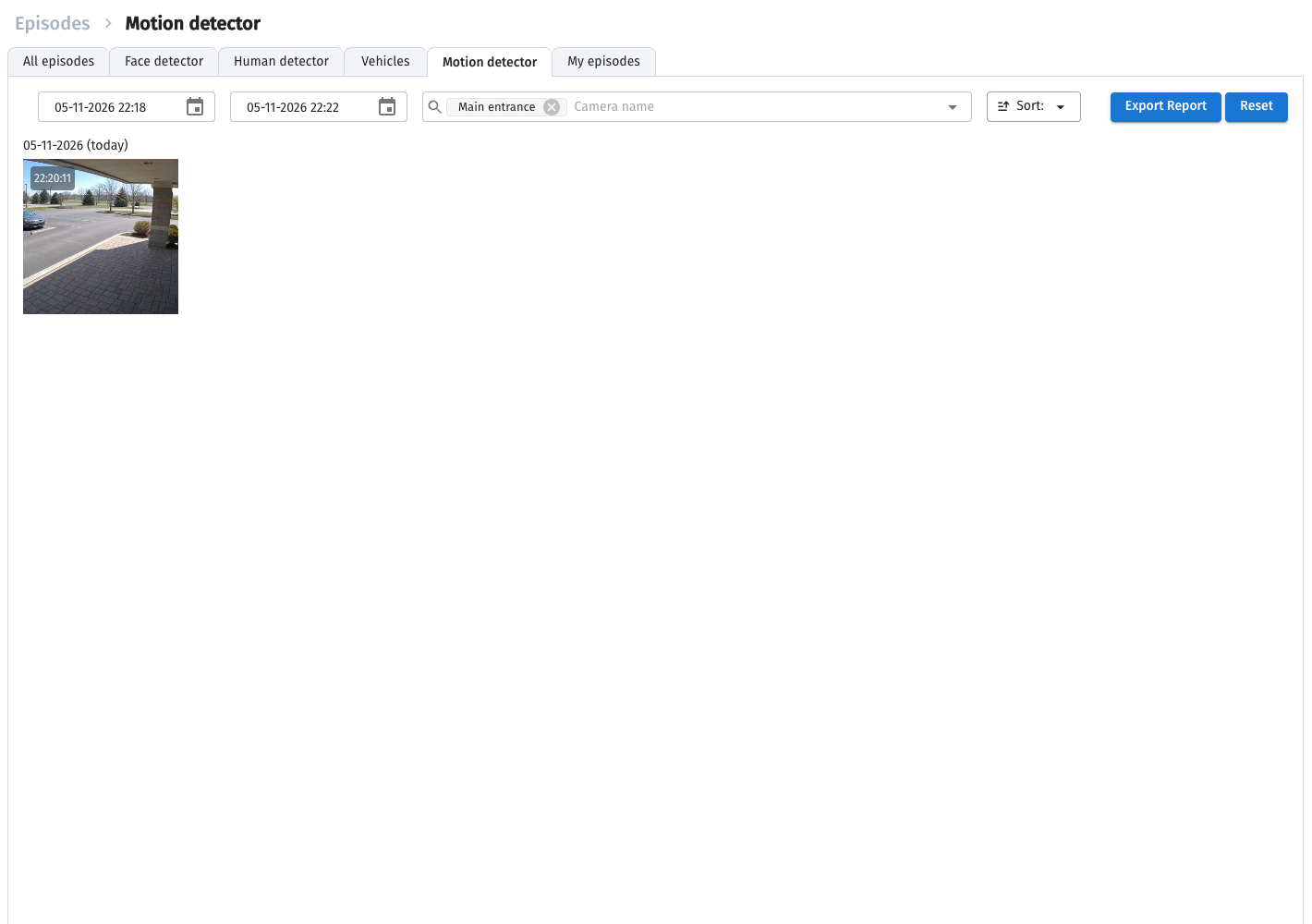
- Open Events → Motion detector.
- Select the camera, Organization and time interval in the filter.
- Click an episode to open the player at the corresponding time.
You can also open the camera on My cameras and go to the required archive time. Event markers help locate motion intervals.
If an episode exists but video does not play, check archive viewing permission, recording settings and video availability for the selected time. If no episode exists, check the camera detector and event sending, Agent connection or ONVIF event reception.
See Events for details.