Anamorphic video and SAR
In Mcaster, output pixel shape depends on the input SAR, codec and resize strategy. Pixel shape (SAR) sets output SAR independently of the resize strategy. Choose a setting by the required result:
| Goal | Setting |
|---|---|
| Preserve anamorphic video | Automatic SAR, H.264 or HEVC without resize; use fit to change height |
| Convert anamorphic video to square pixels | Square pixels (1:1) in the SAR field |
| Keep the entire picture within a frame | fit with width and height; adds bars if proportions differ |
| Crop the picture to a different frame | Crop; arbitrary frame width cannot be set in the current console |
| Correct the aspect of an SD SDI input | Check the source device aspect; the console has no dedicated field yet |
Raster, SAR and display proportions
- Raster is the number of samples in a frame, such as 720×576. This is the encoded frame size.
- SAR (Sample Aspect Ratio) is pixel width divided by pixel height. A SAR of
1:1means square pixels. - DAR (Display Aspect Ratio) is the displayed picture ratio:
DAR = (raster width / raster height) × SAR.
A 720×576 raster with SAR 64:45 displays as 1024×576, or 16:9. With SAR 16:11, the same raster has a display width of about 1048. These SAR values use different active-picture conventions and cannot be substituted for each other.
For PAL SDI, Mcaster derives SAR from the aspect using 704 active samples: 16:9 produces SAR 16:11 for the full 720×576 raster. Its full display width therefore exceeds 1024.
Preserve anamorphic video
- Open the stream and its Transcoder tab. If no transcoder is configured yet, add the first rendition or select a ladder preset.
- Select Codec → h264 or hevc for the rendition and click More.
- Leave Pixel shape (SAR) set to Automatic.
- To change height, select Height, for example 360p, and Resize strategy → Fit (keep aspect, pad). Leave Width empty.
- Click Save.
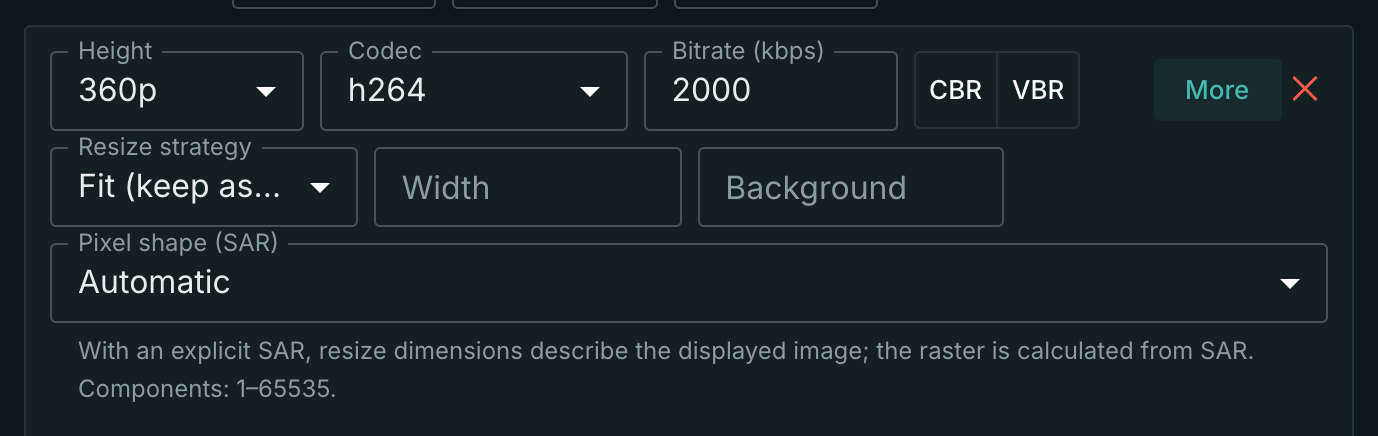
In this mode Fit preserves input SAR. A 720×576 input with SAR 64:45 produces a 450×360 raster with the same SAR; its display size is 640×360.
Automatic lets the transcoder choose SAR. For H.264/HEVC, behavior depends on the strategy:
- Without resize (—) preserves input SAR.
- Fit preserves input SAR.
- Crop preserves input SAR.
- Scale sets the raster; for anamorphic input it recalculates SAR to preserve display proportions. For square-pixel input SAR stays at 1:1, so the image can stretch.
As is under Codec passes video through without encoding. Select an encoding codec to set explicit SAR: saving it with As is is rejected.
Produce square pixels
- On the Transcoder tab, select h264 or hevc for the rendition and click More.
- Set Pixel shape (SAR) to Square pixels (1:1).
- To retain the source display size, select Resize strategy → —. To set a different height, select Fit and the required Height; leave width empty.
- Click Save.
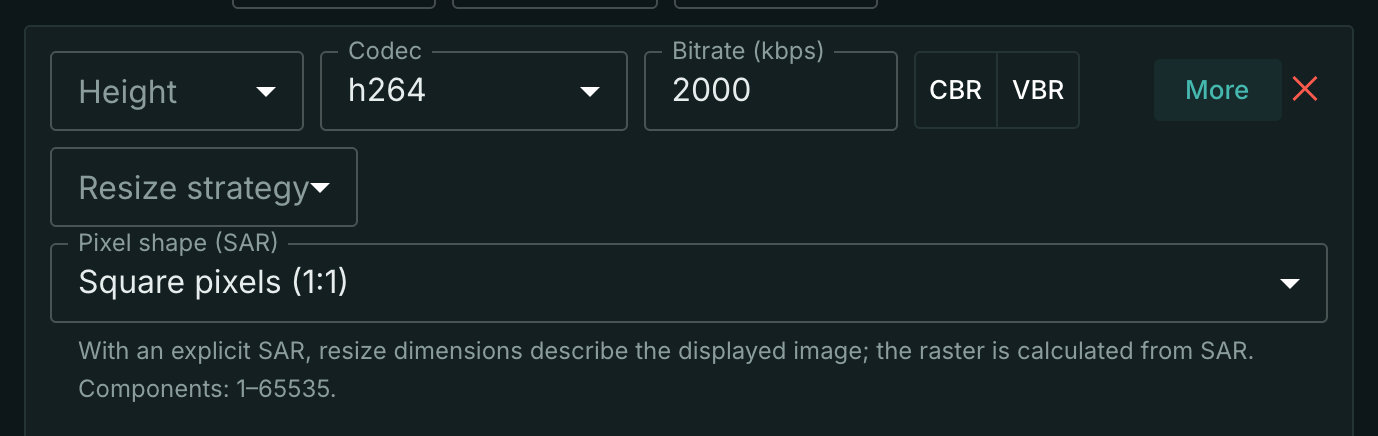
A 720×576 input with SAR 64:45 becomes a 1024×576 raster with SAR 1:1 without resize. Display proportions are preserved. With height 360p and Fit, the result is 640×360 with square pixels.
AV1 and JPEG 2000 in Mcaster always use square pixels. They accept automatic SAR or explicit 1:1; a non-square fraction causes a save error.
Set a custom SAR
Select Custom ratio under Pixel shape (SAR) and enter SAR numerator and SAR denominator, for example 16 and 11. Both must be integers from 1 to 65535. Click Save.
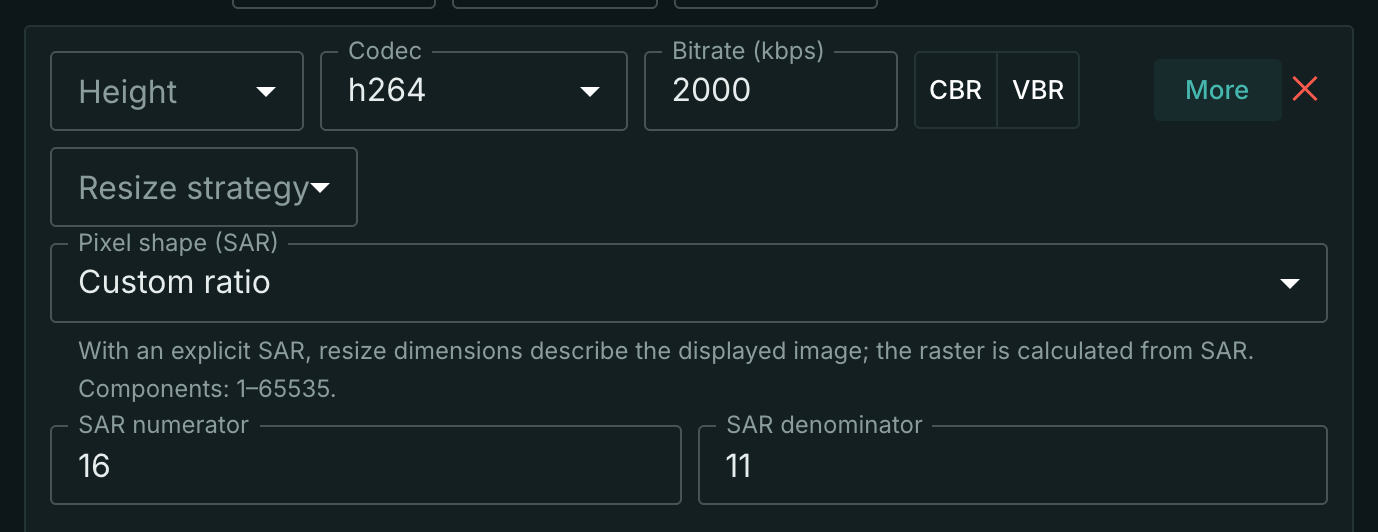
With explicit SAR, resize dimensions describe the displayed picture; the raster is calculated from the chosen pixel shape. For example, a 640×480 frame and SAR 4:3 produce a 480×480 raster. The resize strategy determines how the picture fits into that frame.
MPEG-2 carries a limited set of DAR values rather than an arbitrary SAR fraction. If the selected SAR cannot be represented at the resulting raster, the transcoder reports an error. A fraction that makes a raster dimension smaller than two pixels is also unusable.
To remove explicit SAR, select Automatic and save. You do not need to change width or height.
Resizing: fit, crop and scale
This field controls resizing independently of SAR. Click More on the required rendition and open Resize strategy.
- Fit (keep aspect, pad) fits the entire picture within a display frame. If both dimensions are specified and proportions differ, it adds bars. Background sets their color.
- Crop fills a frame and crops the excess at the center. The current form has no Crop width field, so selecting Crop alone does not change proportions or remove bars already encoded into the picture.
- Scale (stretch) resizes to the specified dimensions exactly. With explicit SAR, these describe the display frame and the picture may stretch. Automatic SAR preserves the previous behavior: the dimensions specify the raster.
SAR selects pixel shape; the resize strategy determines how the picture is processed when dimensions change. These settings are independent.
How SAR interacts with resizing
Input SAR describes the source. The resize strategy determines how the picture is fitted, cropped or stretched. Explicit output SAR determines the raster for the resulting display dimensions. Changing SAR alone preserves the display aspect ratio and resamples the raster; it requires transcoding rather than just changing metadata.
For a 720×576 source with SAR 64:45 and H.264:
| Resize | Output SAR | Raster | Display dimensions |
|---|---|---|---|
| None | Auto | 720×576 | 1024×576 |
| None | 1:1 | 1024×576 | 1024×576 |
| None | 16:11 | 704×576 | 1024×576 |
| Fit, height 360 | Auto | 450×360 | 640×360 |
| Fit, height 360 | 1:1 | 640×360 | 640×360 |
| Fit, height 360 | 4:3 | 480×360 | 640×360 |
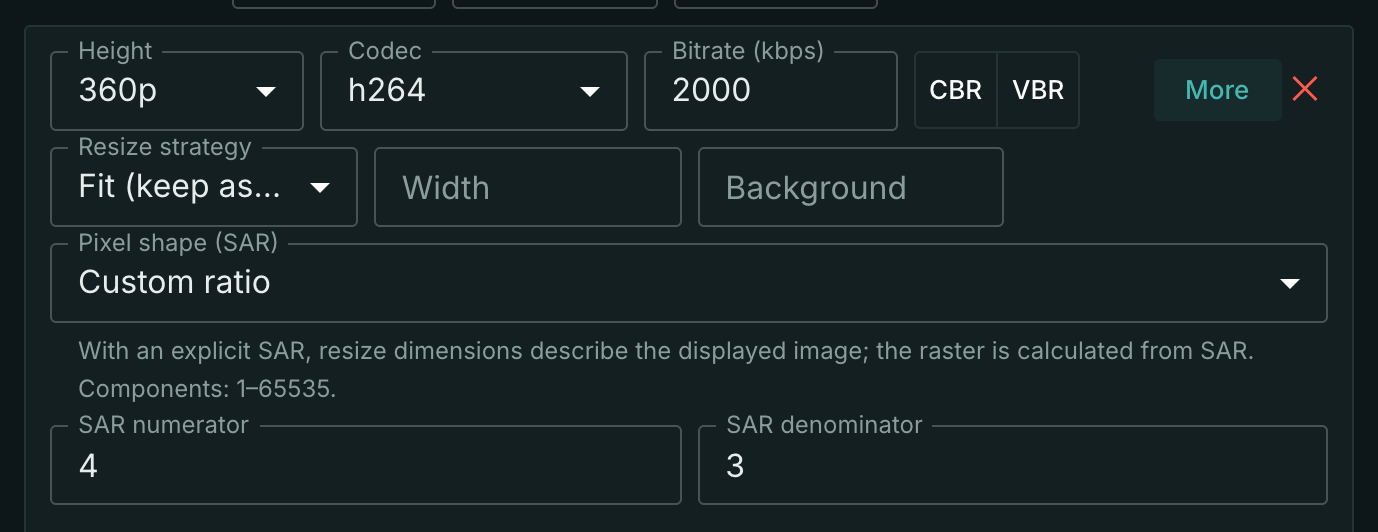
With explicit SAR, resize width and height specify the display box:
- Fit retains the whole picture and adds padding when necessary.
- Crop crops around the centre.
- Scale stretches to the box.
For example, Scale 640×480 with SAR 4:3 produces a 480×480 raster displayed at 640×480: a 16:9 input is stretched to 4:3.
In Auto mode, H.264/HEVC without resizing, with Fit or with Crop preserve input SAR. Scale dimensions specify the raster: for anamorphic input SAR is recalculated to preserve DAR; for square-pixel input SAR stays 1:1 and stretching is possible. Switching from Auto to explicit SAR with the same Scale dimensions can therefore change the result.
The media.transcode.sar feature is counted per stream: at least one rendition with explicit SAR, including 1:1, counts as one. More renditions do not increase the count. Auto and anamorphic input without an explicit setting are excluded. Telemetry sends the current count as usage.media_transcode_sar; zero is omitted. This is separate from video encoding under media.transcode.video.
Check the SD SDI aspect
If the SDI picture is squeezed or stretched, check the 16:9 or 4:3 setting on the source device and whether it transmits the aspect indication with the signal. The 720×576 raster alone cannot identify the source's intended proportions.
The current Mcaster console has no dedicated SDI aspect selector. A rendition's resize strategy does not replace a correct description of the input signal. Correct the aspect at the source first, then configure the output rendition.
Verify the result
After saving, check that the stream runs without a transcoder error. On the Transcoder tab, the Preview: input → output block on the right lets you compare input track dimensions with the selected output rendition.
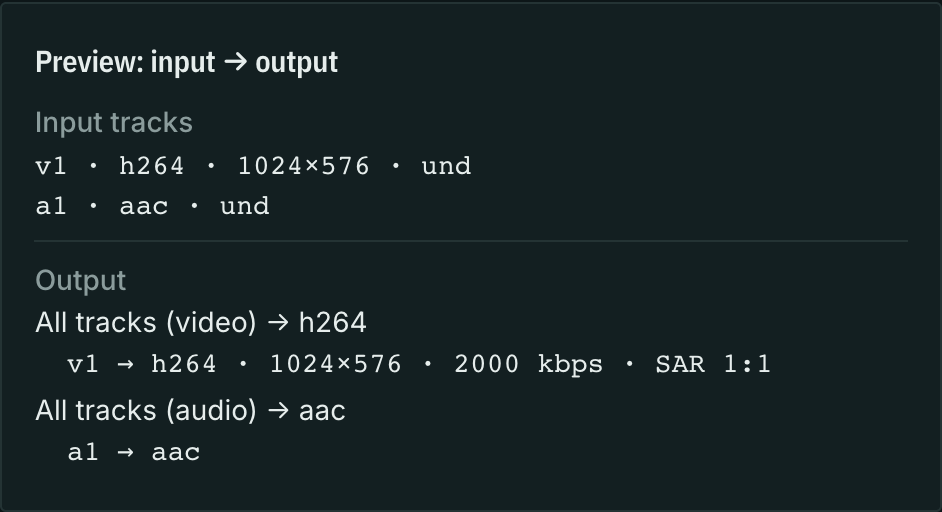
The Fit example should show a display size of 640×360; the explicit SAR 1:1 example, 1024×576. This preview shows the calculated output composition; explicit SAR appears on the output line. Separate raster dimensions are not displayed.
Open the output stream in a player and check proportions: circles should remain circular and faces should look natural. If there are multiple renditions, check each. To confirm SAR 1:1 specifically, check the output with a media stream analyzer: display dimensions in the console alone are insufficient.
See also CBR for DVB and SDI ingest.