HDMI capture
Overview
The HDMI input captures video and audio from a capture card HDMI port. The signal arrives over a wire plugged into the card: a presenter's laptop, a conference room camera, a computer playing a slideshow — the input does not care what is on the other end of the wire.
Capture is uncompressed, and several high-resolution inputs load the PCIe bus. Check the bandwidth indication before wiring a fourth 4K input to one card.
Supported cards
HDMI capture cards with a V4L2 driver are supported. Verified on DeckLink Quad HDMI Recorder — four HDMI inputs on a single card.
The input detects the signal standard by itself: frames arrive with their own description — size, scan, rate. A standard change on the line is a routine capture restart, not an error: that is what switching the resolution on the connected computer looks like.
Which cards sit on the streamers, which ports they have and what signal is on them is shown by the Capture cards section.
Configuring the input
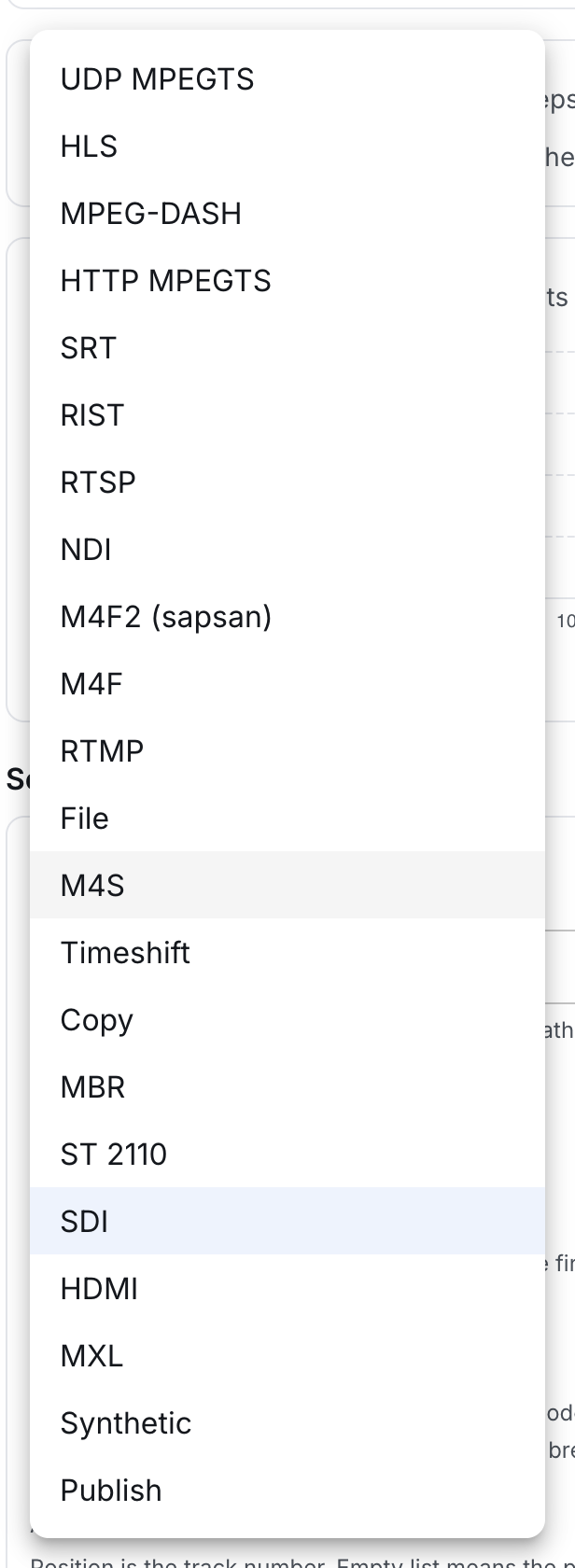
Create a broadcast and on the Sources tab press + Add source. Choose the HDMI protocol.
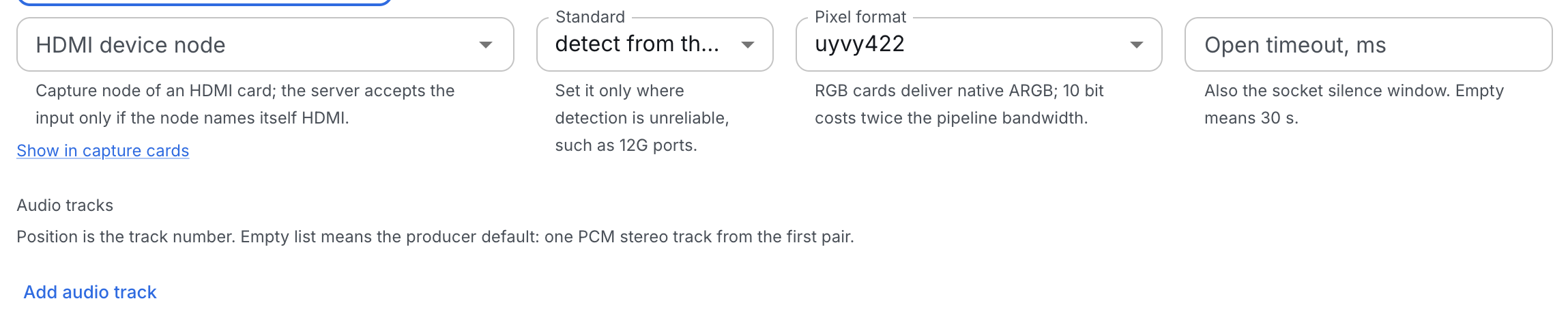
Section fields:
| Field | Meaning |
|---|---|
| Device node | the HDMI card port the capture comes from; picked from the list or typed by hand |
| Standard | detect from the signal (default) or an explicit standard: hd1080i50, hd1080p60 and others |
| Pixel format | uyvy422 (8 bit, default) or v210 (10 bit) |
| Open timeout, ms | how long to wait for frames before declaring the source dead. Empty means 30 s |
| Audio tracks | the HDMI audio layout, see below |
Choosing the node
The list offers capture nodes of every streamer in the cluster whose name says HDMI. An option line carries more than a path: the card model, port, streamer and signal state are right there, and an occupied port is labeled with the broadcast holding it.
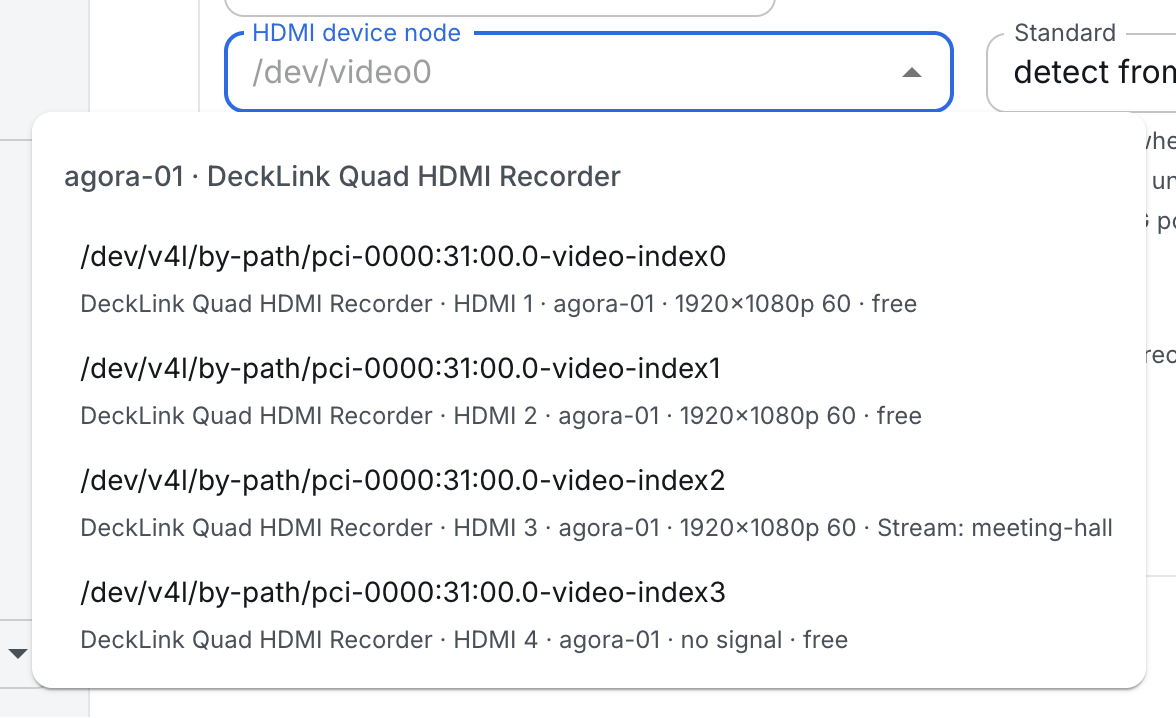
What goes into the broadcast document is the stable /dev/v4l/by-path/... link, not the /dev/videoN number: the number moves when cards are re-seated, the link does not.
The list is a hint, not a restriction: the path can be typed by hand, and the field accepts anything. The server checks node membership when the input starts — see below.
Audio
HDMI audio is uncompressed LPCM inside the signal. By default the input assembles one stereo track from the first channel pair; the Add track button adds more. Each track has channel numbers starting from one, a transport (pcm or smpte337) and a language.
How the HDMI input differs from SDI
The HDMI and SDI inputs share a pipeline but live in separate sections, and mixing them up is impossible:
- ad markers — SCTE-104 arrives in SDI inside ancillary lines; HDMI carries none, so the HDMI section has no marker field;
- timecode — SDI runs the broadcast timeline by ATC timecode; HDMI has none, and the timeline follows the streamer clock;
- license — HDMI ingest and SDI ingest are sold as separate tariff grid positions. If the HDMI position is not purchased, the section shows inactive with an explanation of what exactly to buy.
Node membership check
A node path does not say by itself whether it is HDMI or SDI, so the server checks membership when the input starts: the driver must name the node with HDMI in the name. A node without HDMI in the name — usually an SDI card port — the input refuses: the broadcast does not start, and the input state shows a device error. Move the input to an HDMI port or configure it as an SDI section.
One node feeds one broadcast: a configuration with a second broadcast on the same node is rejected, with the node field of the second one highlighted.
Troubleshooting
- The broadcast does not start, device error — the node did not name itself HDMI: check the Capture cards section for which card it is and how its ports are named.
- The list has no nodes at all — the card inventory has not been collected yet or the streamers are silent. The field works as a plain text one: type the node path by hand.
- The node is busy — the node is already assigned to another broadcast or held by a process outside Agora; the Capture cards section shows the holder.
- Frames arrive but the broadcast stutters on four 4K inputs — likely a PCIe bandwidth shortage: see the indication.
Do not forget to press Save: input edits reach the server only by the button.