Administrators
Access to the Agora panel is built on named accounts: everyone who signs in has their own login, their own password and their own role. The installation keeps that list itself — it is its own staff list, and it overlaps with nothing else.
Administrators, in particular, are not viewers. The sessions in the Sessions section are the people watching broadcasts, and they have nothing to do with access to the panel. The two lists must not be mixed: they mean different things, they live different lives, and a mistake in one costs something different from a mistake in the other.
The first login
A freshly installed machine knows no administrators yet — there is nobody to create them. There is exactly one way in: the static credentials the package generated during installation. The login is admin, the password is the value of EDIT_AUTH_PASSWORD in /etc/agora/secrets.env (the file is readable by root only).
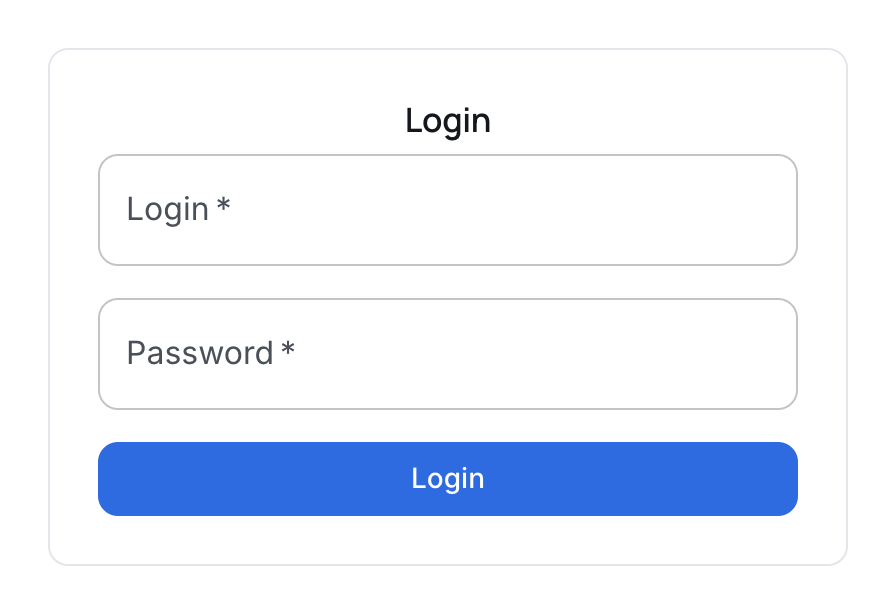
The panel accepts them and immediately asks for a named account:
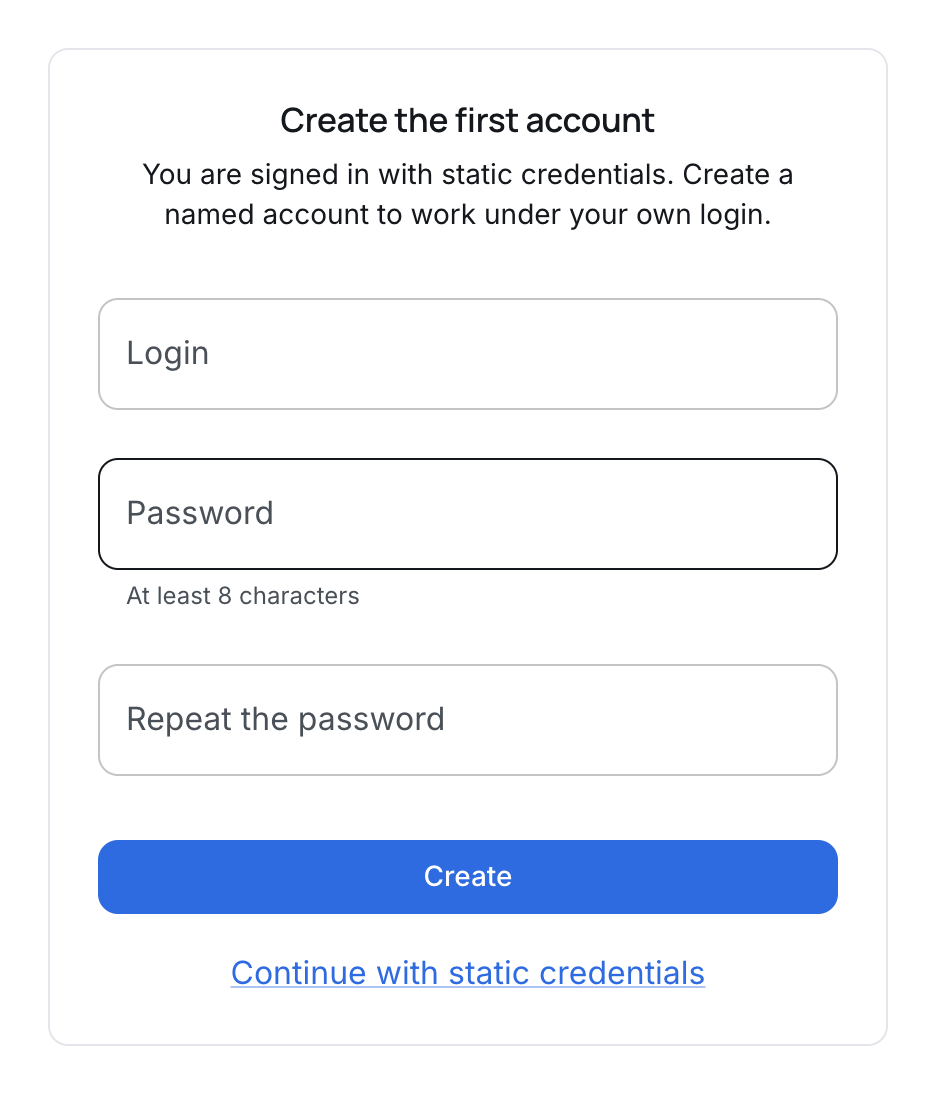
The account created here gets the superadmin role — only that role manages the other administrators. Work under it from then on, not under the static credentials. The reason is simple: the static credentials are shared by everyone, so they answer no question that starts with "who did this".
The Continue with static credentials link skips this step. The offer comes back at the next login — while the administrator list is empty, the panel keeps reminding you.
Static credentials are the break-glass entrance
The static credentials do not disappear once administrators exist. That is deliberate: they remain the break-glass entrance for the cases named accounts cannot help with — the only superadmin has left the company, forgotten their password, or been disabled by mistake. Signing in with them, you can always create a new superadmin.
Treat them as the key to the server room:
- the password lives in
/etc/agora/secrets.env, and only root may read the file; - it is changed in the same place, and the machine picks the new value up when the service restarts;
- for anyone who needs day-to-day access, create a named account instead of handing this password over.
The Accounts section
The section is visible to the superadmin only. Other roles have it neither in the menu nor by a direct link — the server enforces the refusal, and the menu merely declines to show what the role would not get anyway.
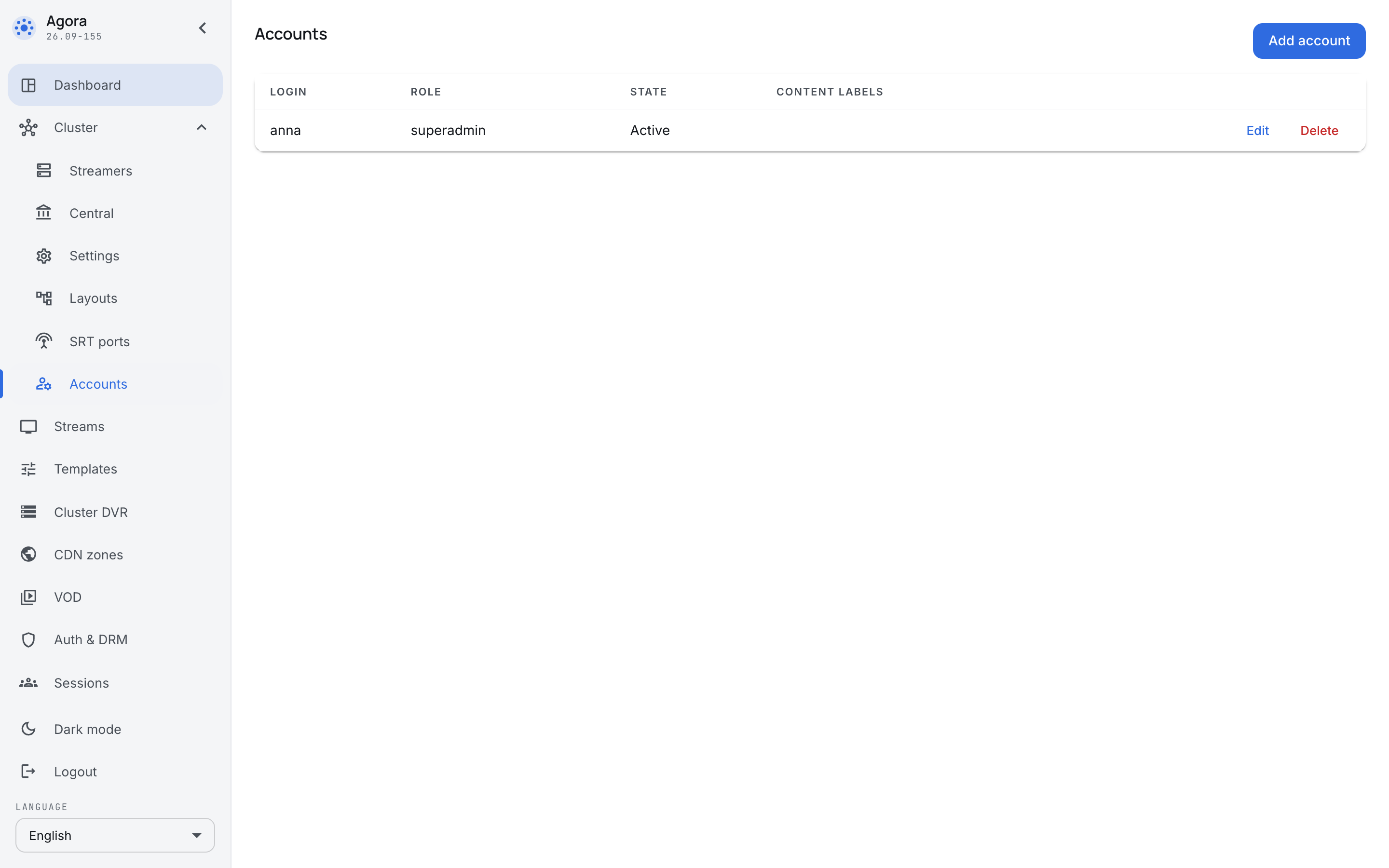
The list has three columns, answering three questions:
- Login — the name the person signs in under.
- Role — what they may do.
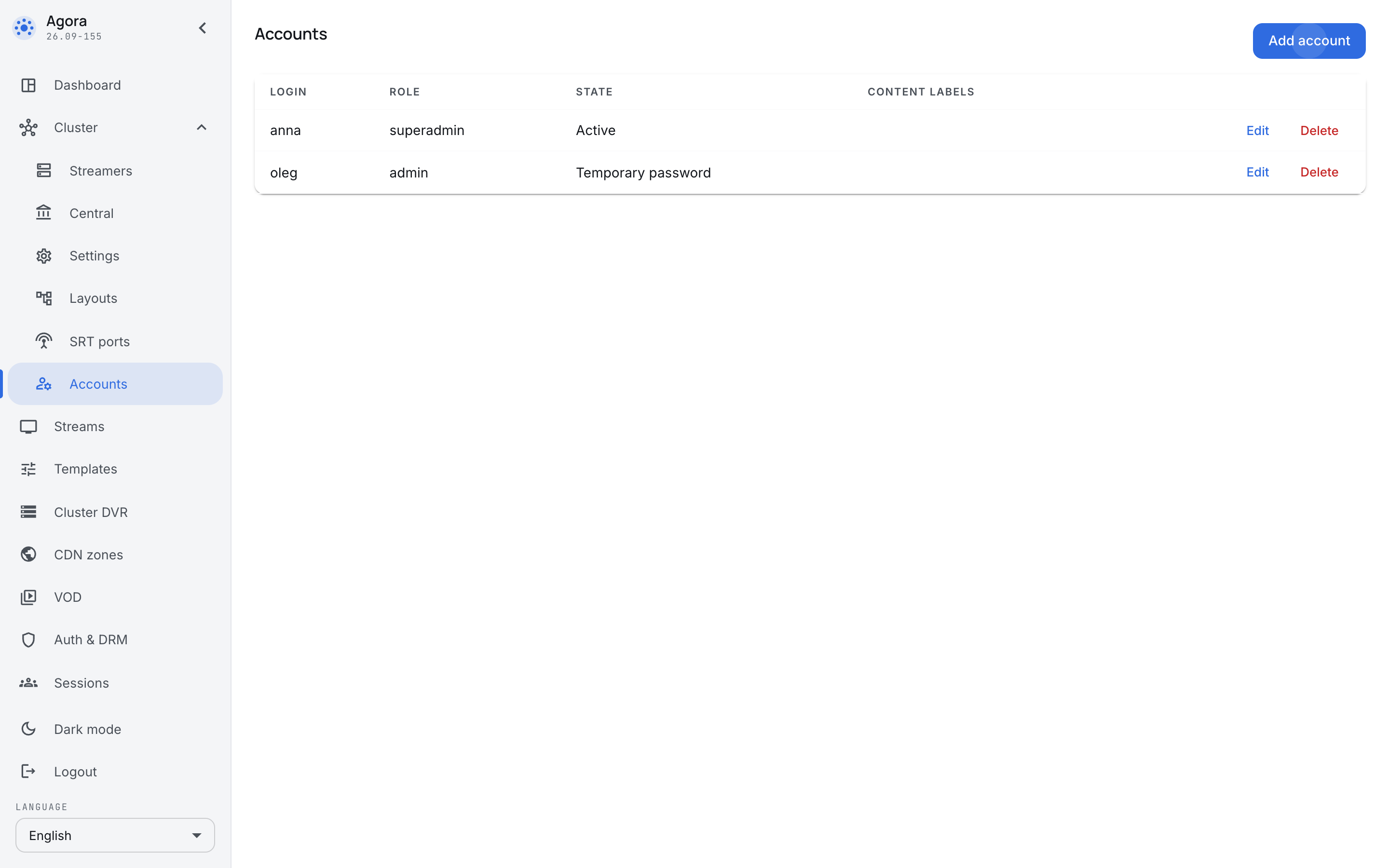
- Status — Active, Temporary password (the account exists, but its owner has not yet changed the password they were given) or Disabled (the account is there, the access is not).
Roles
An administrator has exactly one role, and there are five to choose from:
- superadmin — everything, including this section and replacing the licence document.
- admin — all the day-to-day work: broadcasts, templates, cluster servers, the archive, playback access. Exactly two things are closed — the Accounts section and the licence.
- viewer — observation only: the dashboard and the sessions. Configuration is closed entirely, reading included.
- security — the security office: the audit log and their own session, and nothing else. Neither configuration nor the observed state. The point of the role is separation of duties: oversight of the operators should not belong to the operators.
- player — issuing play tickets and their own session. The role is machine-facing by design: an internal portal or a script signs in under it when it needs a mandate to show a broadcast, not to run the installation.
The viewer deserves a word of its own, because forbidding it to read configuration looks excessive. It is not: configuration documents hold secrets by construction — passwords for sources, keys, machine credentials. A document cannot be handed over with its secrets stripped out along the way, so the viewer is not handed the document.
The role is checked by the server on every request, not only at login.
Adding an administrator
The Add account button opens the form:
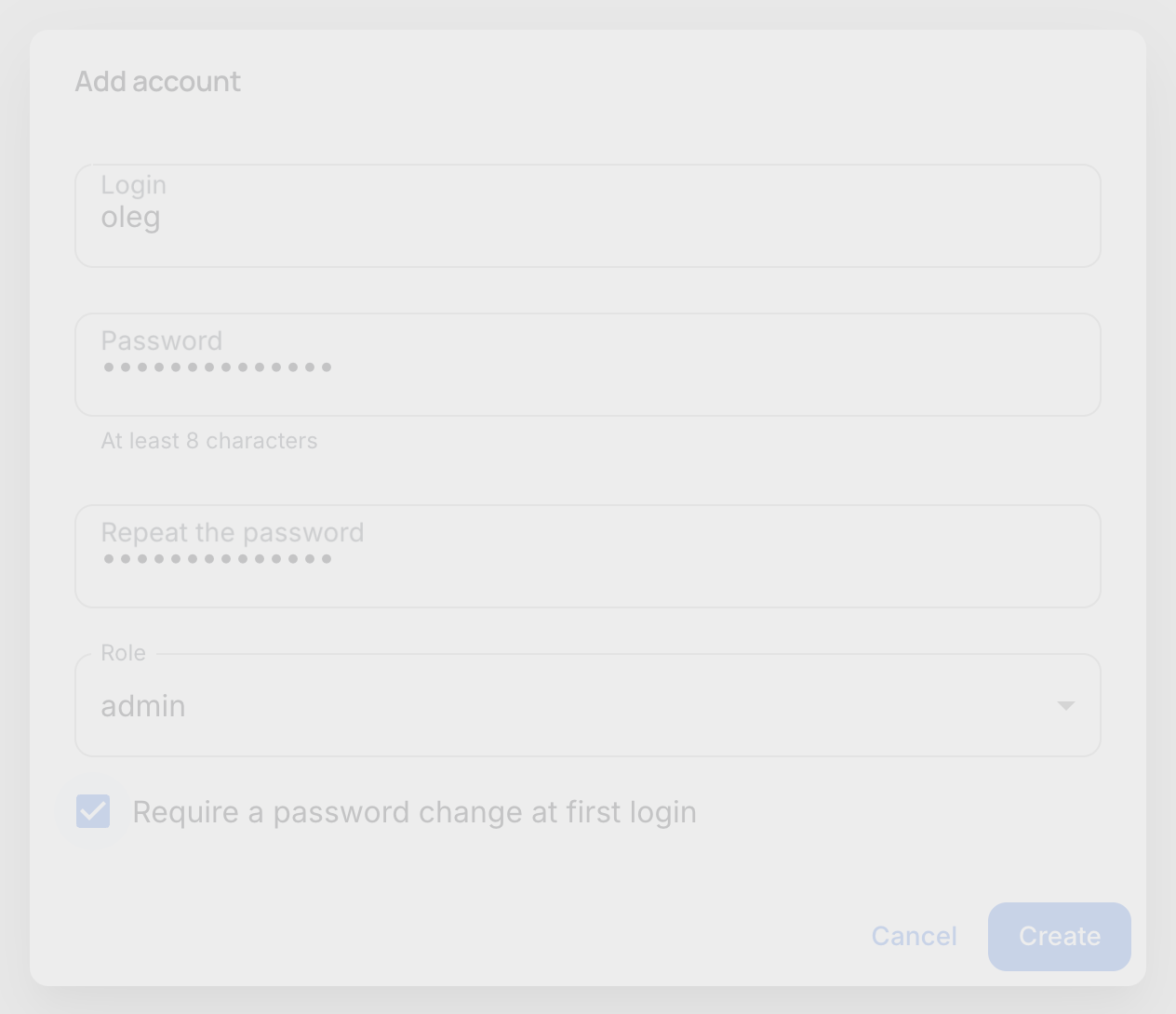
Enter a temporary password here and pass it to the person however you pass passwords. Tick Require a password change at first login: a password you invented for somebody else is known to you as well, which means it has stopped being a shared secret between them and the machine.
The new account appears in the list in the Temporary password state:
At their first login the owner lands not in the panel but on the password change form:
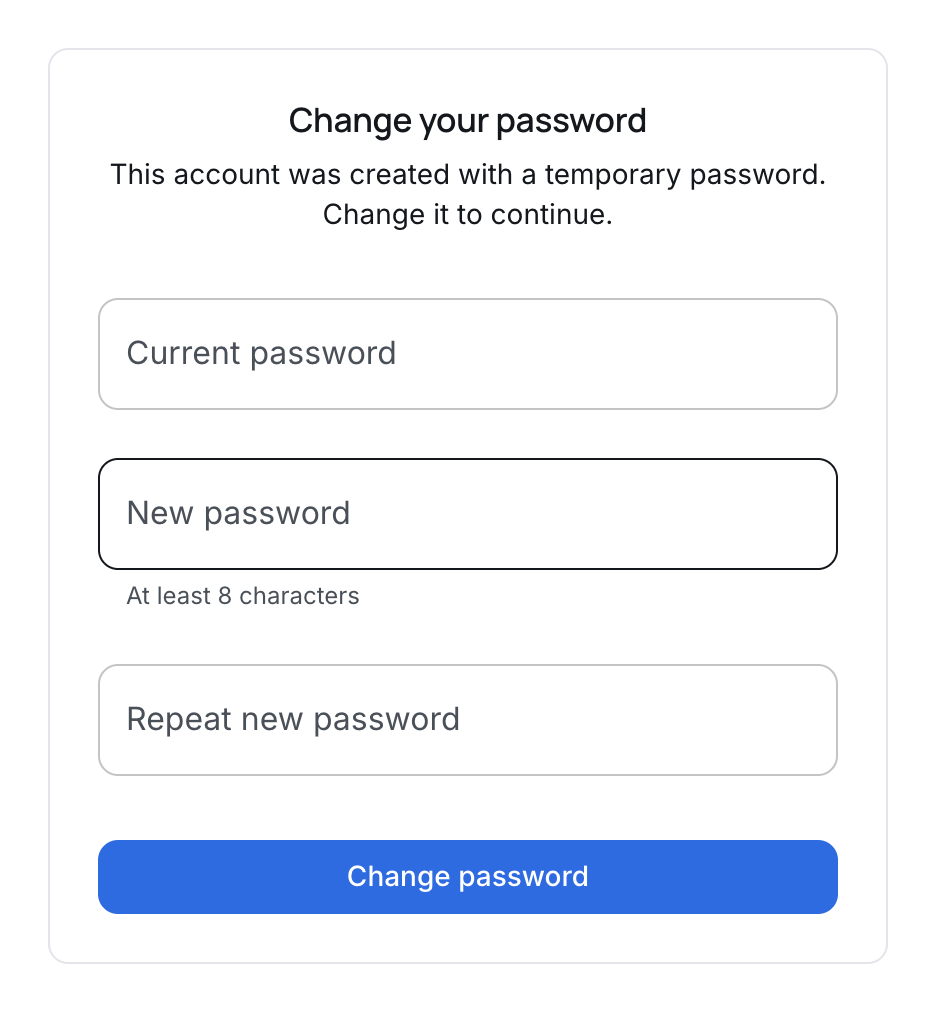
Nothing else opens until the password is changed — this is the server refusing, not the window being decorative: knowing the addresses does not get you around the form. After the change the person is in the panel immediately, with no second login.
Editing, resetting a password and disabling
The Edit button in a row opens everything that can be changed on an existing account:

- Role — a new role takes effect immediately: the account's sessions are dropped, and the person signs in again with the new rights.
- New password — what brings back someone who has forgotten theirs. The panel shows nobody their own password, so a forgotten one is not recovered but replaced. The password issued here is temporary too: the owner changes it at the next login. An empty field means "leave the password alone".
- Note — what this account is for and whose it is. It earns its keep once there are a dozen of them.
- Disabled — access closes at once, together with the sessions already open, while the account itself stays.
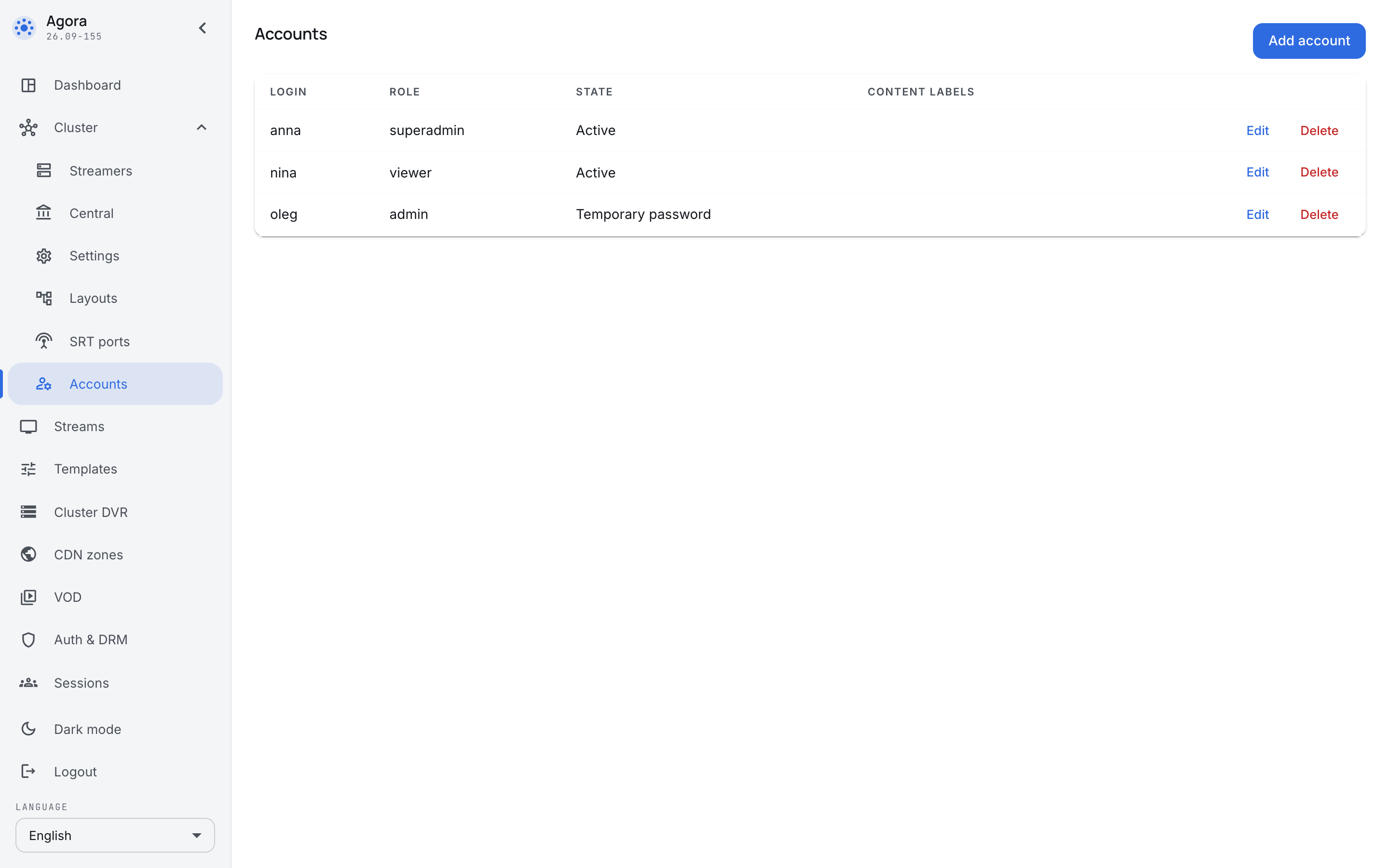
Disabling is what most cases call for: somebody went on holiday, changed role in the company, lost a laptop. The Delete button erases the account for good; delete when an account was created by mistake.
What a viewer sees
This is the same panel under the viewer role: the menu keeps the dashboard and the sessions, and the configuration sections are not shown.
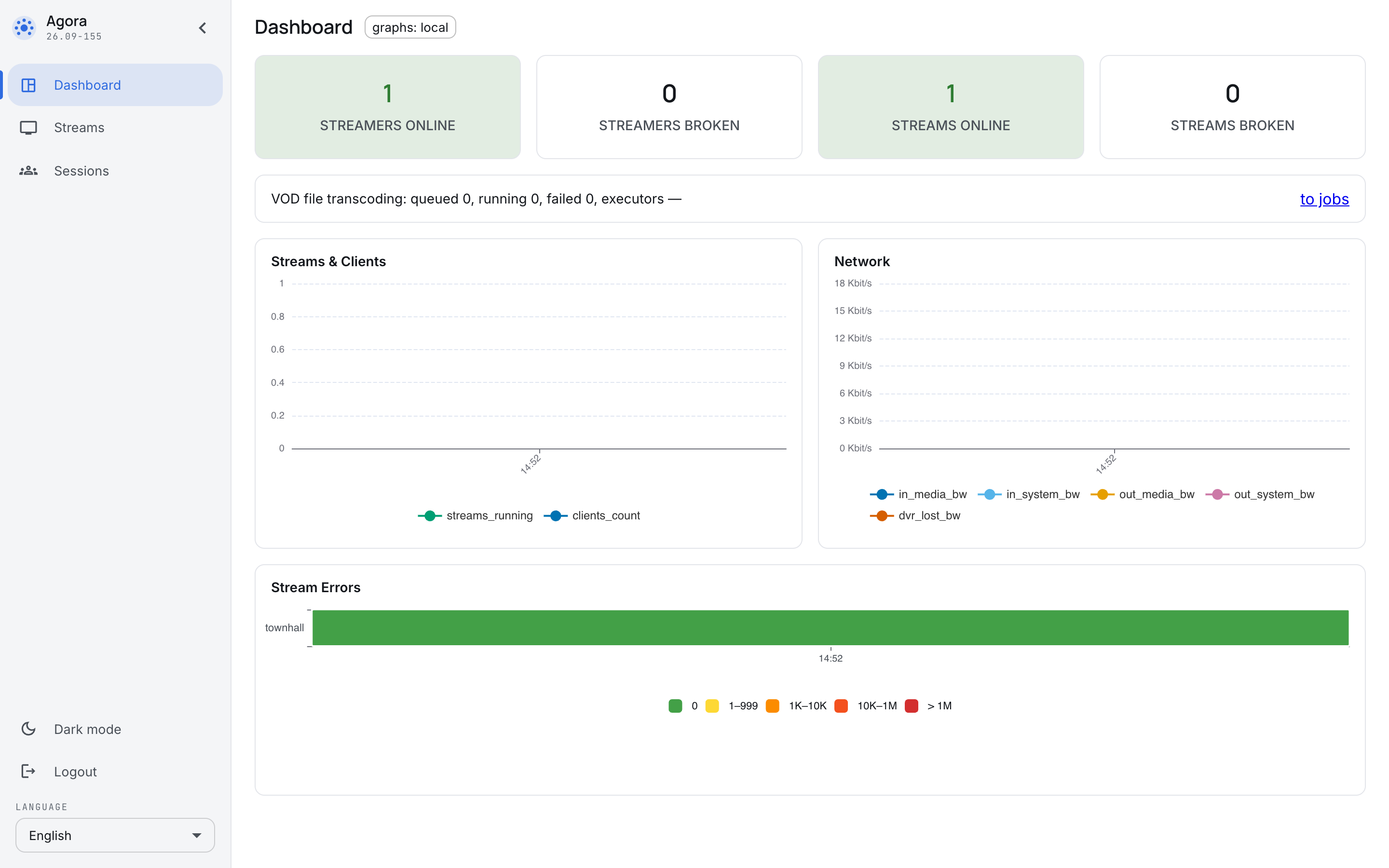
It is a convenient role for a duty shift and for anyone who needs to see what is going on without changing any of it.
The browser session
The panel does not keep the password in the browser. After the login it works with a pass issued by the server and renews it itself while the tab is open — there is no re-typing the password through the working day.
The Log out button drops the session on the server, not just the tab. That matters when you are leaving somebody else's machine: closing a tab does not take the access away, and logging out does.