Maintenance mode and service recovery
If the service has no valid license or its license is blocked, it enters maintenance mode. This guide helps you identify the cause and restore a central or managed server.
What happens in maintenance mode
The process remains running, but its regular functions are suspended. A streaming server stops ingesting, processing, and delivering streams; a central server stops providing its regular console and cluster management. A page shows the reason and recovery guidance. A systemd service marked active means the process is running, not that it is ready to serve requests.
Each server checks its own license. When central enters maintenance, it does not put managed servers into maintenance: they continue using their last applied configuration while their own licenses remain valid. If a server's activation expires and cannot be renewed, that server enters maintenance too.
A temporary loss of connection to the license server or central does not itself stop a server while its confirmed activation remains valid. A missing license for an individual feature does not necessarily put the entire service into maintenance.
Open the maintenance page
In a browser, open the server's HTTP address and configured web port, for example http://<server-address>:<port>/. You can omit port 80. Maintenance uses HTTP even when the regular interface used HTTPS. Use a trusted network: HTTP does not encrypt credentials or files.
The page shows the reason. If it does not open, check the address, port, network access, and service log. For example, for Catena:
systemctl status catena
journalctl -u catena -n 50 --no-pager
For another product, substitute its service name. Do not send keys or passwords with logs to support.
Choose the procedure for your server:
- Central server — sign in to the recovery page and upload the required files.
- Managed server — check the page message and its connection to central. The managed server has no upload form.
- Standalone server without central — check the reason and install the required files manually.
Restore a central server
You need the local administrator login and password configured on the central server. Accounts stored only in the central database cannot be used here. If local credentials are not configured, the form is disabled and the page shows where to configure them. Restart the service after changing local settings.
- Open the central server page over HTTP. Select English under Language if needed.
- Enter the local credentials and click Sign in.
- Follow the section for your license type below.
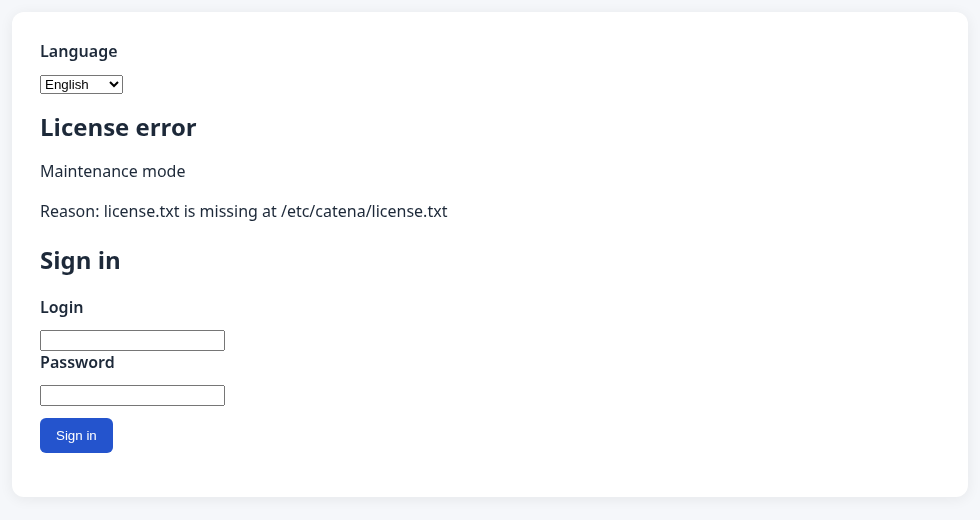
After sign-in, the forms for the license key and USB activation file are available.
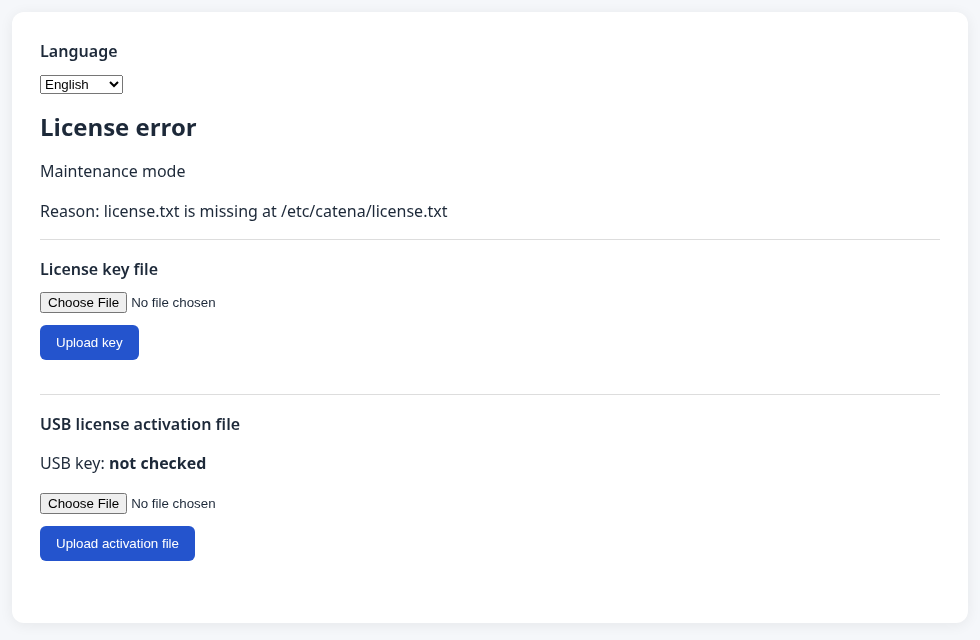
Online license
Prepare a text file containing your issued online license key. The server needs access to the license server for activation.
- Under License key file, select the file and click Upload key.
- Wait for verification. If an error appears, resolve the reported cause and upload the file again.
- Once activation is confirmed, wait for the regular console to start. The page displays success and opens the console when it is ready.
Saving the file does not itself mean activation succeeded. If the connection drops and the page reports an unknown result, check the server state and retry if necessary.
USB license
Prepare the license key file and activation file supplied with your license, and connect the corresponding USB key to the central server.
- Under License key file, select the key file and click Upload key.
- Under USB license activation file, select the activation file and click Upload activation file.
- Wait for verification and check the message and USB key status. If verification fails, check the indicated files, the device connection, and service access to it. Retry the upload or verification.
- Once activation succeeds, wait for the regular console to open.
You can upload the files in either order. Verification after the first upload may report that the other file is missing; upload it and wait for the next check. A file error alone does not mean the USB key is absent.
Detected USB s/n identifies the dongle found by the server. You can compare it with billing information, but an ID alone does not confirm successful activation. After activation, details of the device used are available on the License page.
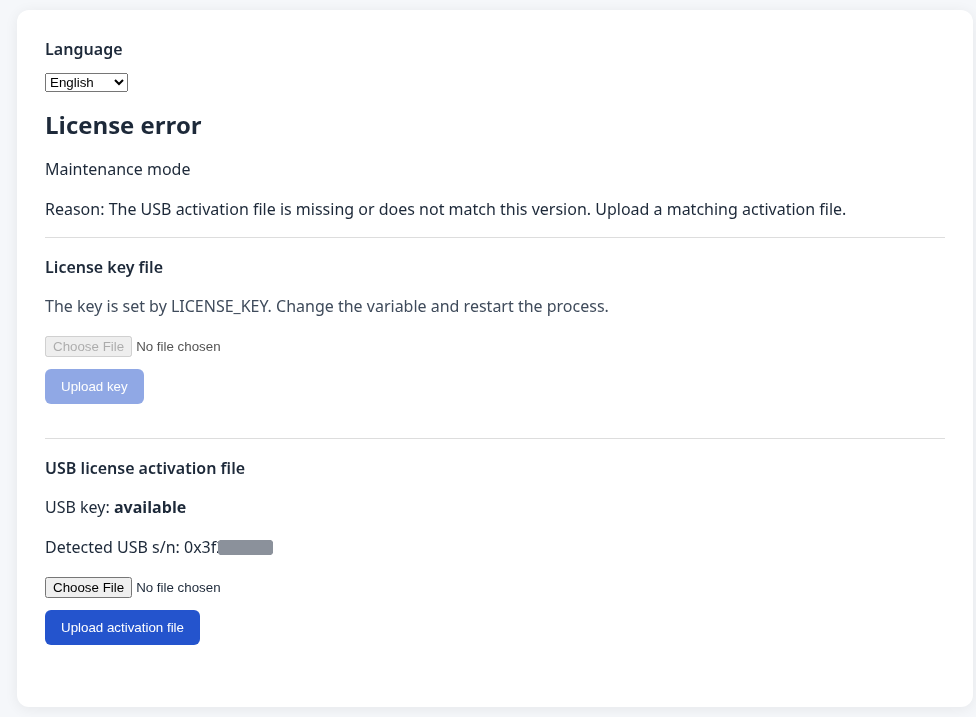
If another suitable file is already in the directory, the page can show both the uploaded filename and the file selected for verification. Check both names: saving the uploaded file does not mean that verification used it.
Restore a managed server
A managed server in maintenance tries to connect to central and obtain an online license key. A new node must have the central address and cluster join settings configured. Central must be reachable and have a suitable key. See your product's instructions for adding a server. For a new node, obtain a join token from central in advance and provide it with the central address during installation. The maintenance page cannot configure cluster membership.
The managed server page shows the reason and key delivery status. In this example the join token is not configured:
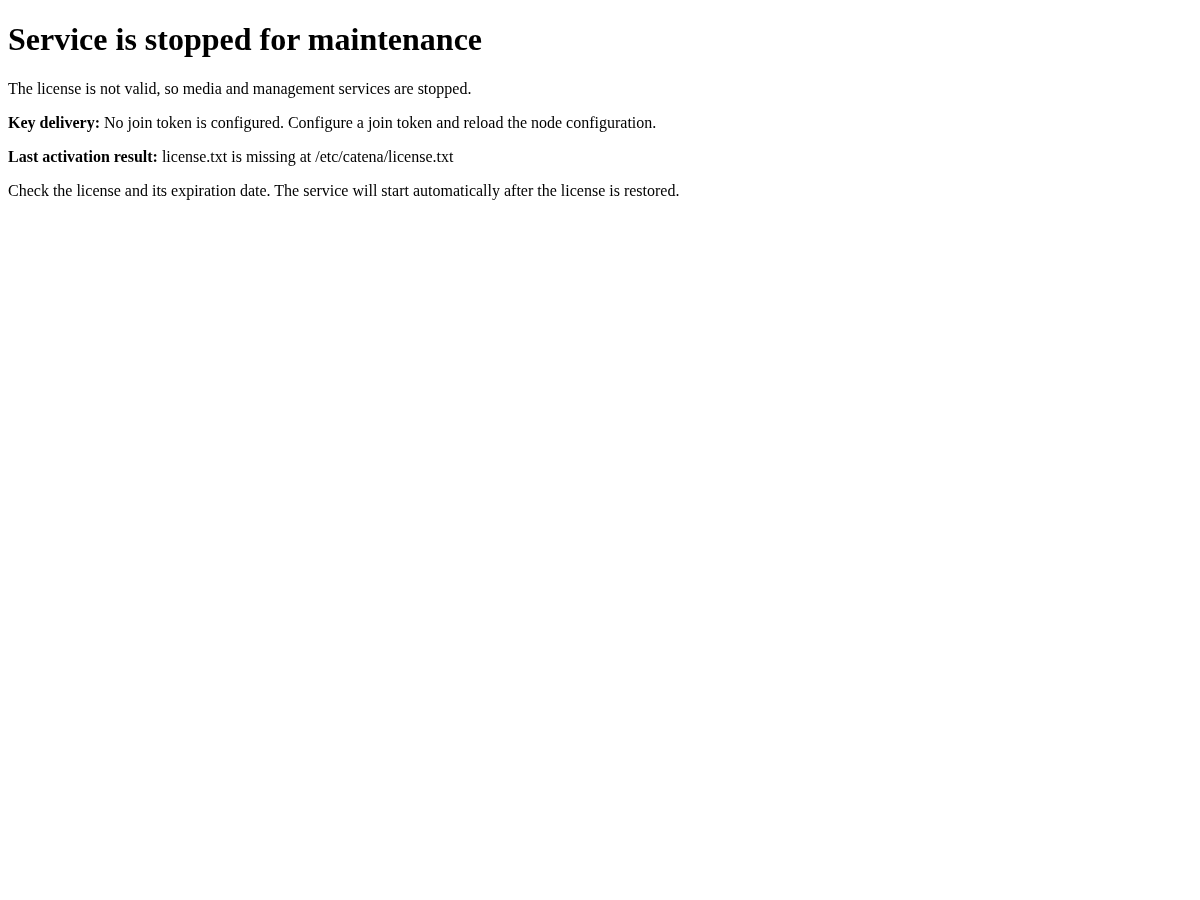
- Open the managed server's HTTP address and read the reason and key delivery message.
- If central is in maintenance, restore it first. If it is unreachable, check its address, network, and state. For registration errors, check the join settings and the managed server log.
- Wait for the retry. The server saves the key received from central, attempts activation, and starts its regular services automatically.
- Verify that the server appears in the central registry and is ready for work. Check its log and streams if necessary.
If central cannot provide a key, you can install one manually. While the server remains in maintenance, a key received later from central may replace the file. A non-empty LICENSE_KEY environment variable takes precedence over the file and the delivered key.
Automatic delivery applies to online keys. For a USB license, it does not replace connecting the device and installing the required files on the server using that license.
Install files manually
Manual installation is a fallback when the recovery form is unavailable or you need to provide a key to a server without central. You need administrator access to the server's operating system and the files issued for the license.
Place the license.txt key file in the product configuration directory. The screenshots show a standard Catena installation: /etc/catena/license.txt. Paths differ for other products and may be changed in a custom installation. If LICENSE_PATH is set, its path is used. Restrict file access to the service owner or an administrator. The service keeps attempting activation and detects a new or changed file without a restart.
Standard installation paths are documented for each product:
For a USB license, also connect the device and place the activation file in the activations directory under the product state directory. In a standard Catena installation this is /var/lib/catena/activations/. Use the file supplied for your license and retain its name. Ensure the service can read the file and device. On error, check the maintenance page or log.
A non-empty LICENSE_KEY environment variable takes precedence over license.txt: replacing or uploading the key file will not change the key in use. To replace it, change the variable in the service settings and restart the service. The USB activation file can still be installed separately.
Verify recovery
After the license is confirmed, the service automatically leaves maintenance and starts its regular components. Check that the regular console opens, managed servers are available in the registry, and required streams work. On a standalone server, check its regular functions and log.
If the maintenance page remains, read the latest reason and check license server access, the files, and LICENSE_KEY. If the license is blocked, contact your account manager or support. If the error persists, send support the message and log without keys or passwords.