Recording and playing the archive
Prepare the streamer (node) disks first, then enable recording for a camera. Sign in as admin or superadmin to configure these settings.
Configure RAID on the streamer
Optic uses Sapsan application RAID: recording is distributed across independent disks. Prepare JBOD, with a separate filesystem and mount point for each disk. This setup does not need a separate mdadm array or hardware RAID.
This scheme does not mirror the archive: a failed disk loses its recordings, while available disks continue to be used. Plan archive backups separately.
-
Prepare the archive disk filesystems on the server and persistent mounts by UUID in
/etc/fstab. In this example, two disks are mounted at/storage/dvr/disk1and/storage/dvr/disk2. The streamer service needs write access to these directories and to/storage/dvrfor the metadata catalog. Preserve existing filesystems and data when working with existing recordings. For disks with an existing ext4 filesystem, create the mount points:sudo mkdir -p /storage/dvr/disk1 /storage/dvr/disk2Find the UUIDs with
lsblk -fand add these entries to/etc/fstab, replacingUUID_DISK1andUUID_DISK2with the actual UUIDs. For another filesystem, also replaceext4:UUID=UUID_DISK1 /storage/dvr/disk1 ext4 defaults 0 2 UUID=UUID_DISK2 /storage/dvr/disk2 ext4 defaults 0 2Mount the prepared disks:
sudo mount /storage/dvr/disk1 sudo mount /storage/dvr/disk2 -
Check the actual mount points on the server:
lsblk -f
findmnt --mountpoint /storage/dvr/disk1
findmnt --mountpoint /storage/dvr/disk2
Each
findmntmust show the separate filesystem of its archive disk. Check that these mounts also return after a server reboot. -
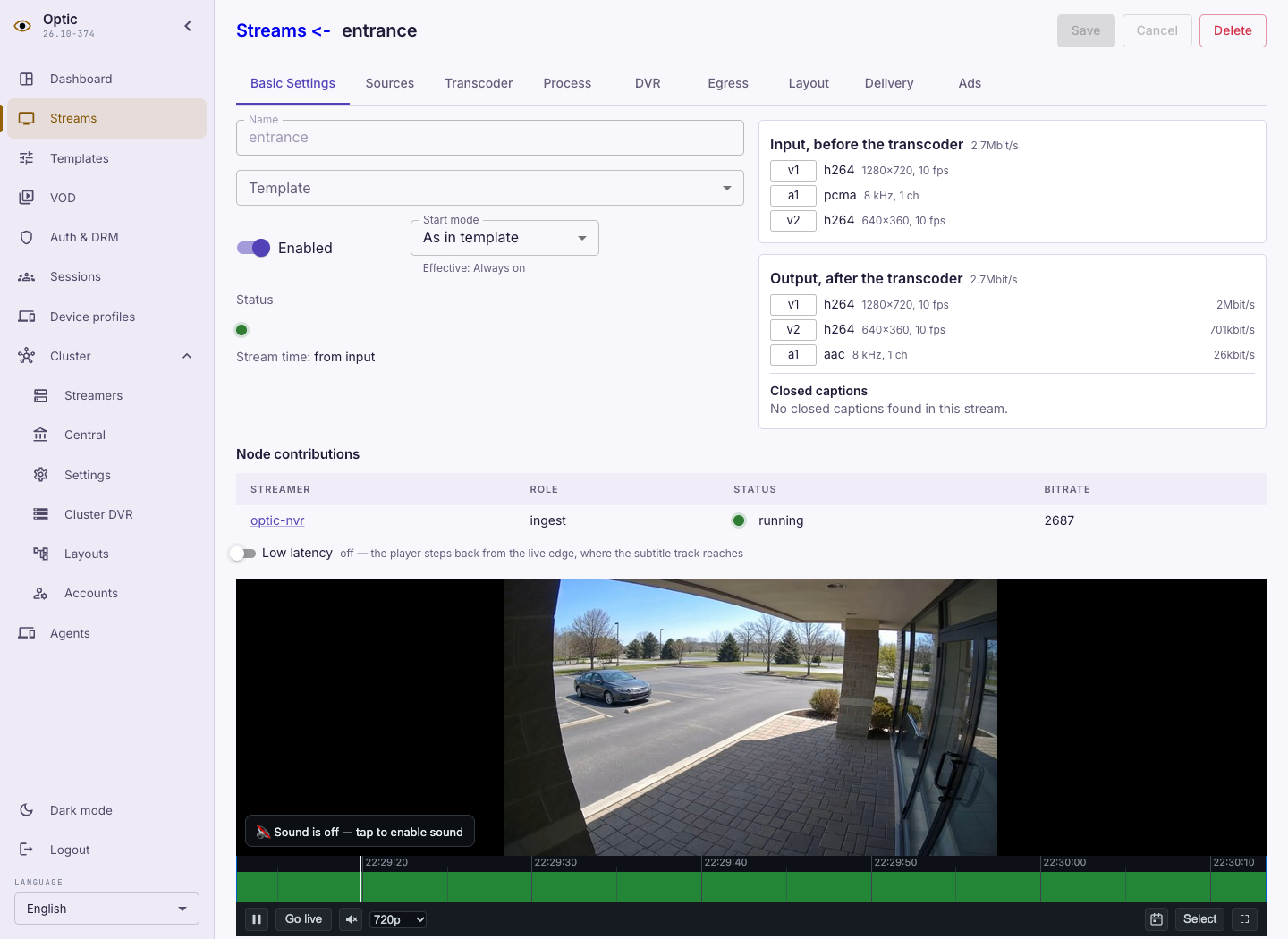
In the console, open Cluster → Streamers, select the streamer and its settings. Fill in DVR:
Field Example value Archive root /storage/dvrDisk 1 disk1Disk 2 disk2Check mount before writing Enabled Use Add disk for the second disk. Disk paths are relative to the root:
disk1, rather than/storage/dvr/disk1. The archive root holds the metadata catalog and does not replace the disk list. An empty Catalog path keeps metadata at/storage/dvr/catalog. -
Click Save changes and wait for the streamer to apply the configuration. Open this streamer in Cluster DVR and check disk availability and capacity.
The procedure is the same for the local streamer in a single-server installation. If a disk is shown as not mounted, fix the mount; keep the check enabled so a missing disk cannot cause recording to fill the system partition.
Enable camera recording
- Open the camera in Streams and check that the RTSP source is running.
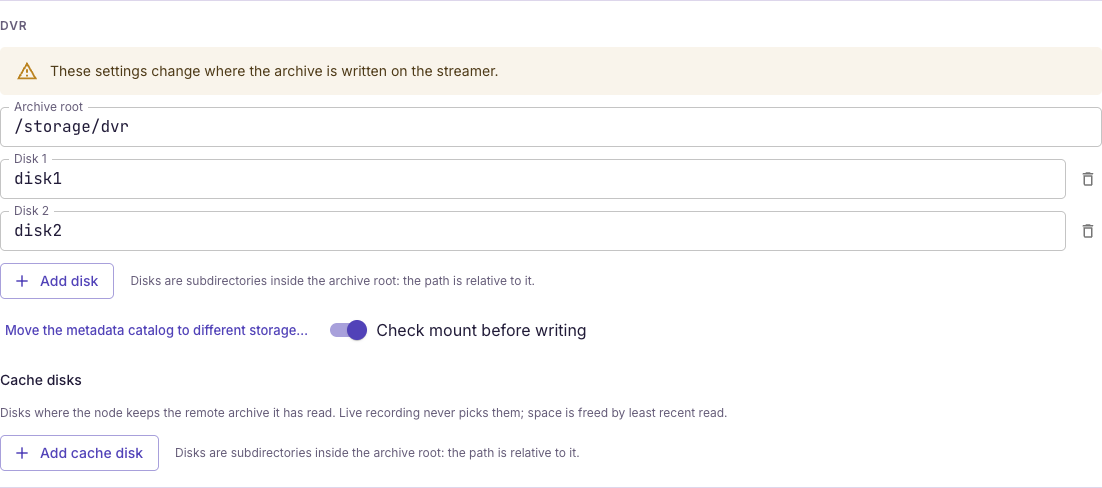
- On DVR, enable Record to DVR.
- Set Retention (hours), for example
168for seven days, then click Save. - Wait for a recorded range to appear and check Current recording status. The archive window grows from the time recording starts; seven days requires seven days of continuous recording and enough disk space.
On Layout, check which streamer records the archive: that streamer needs storage configured. Cache archive controls the read cache and does not enable camera recording.
Play the archive
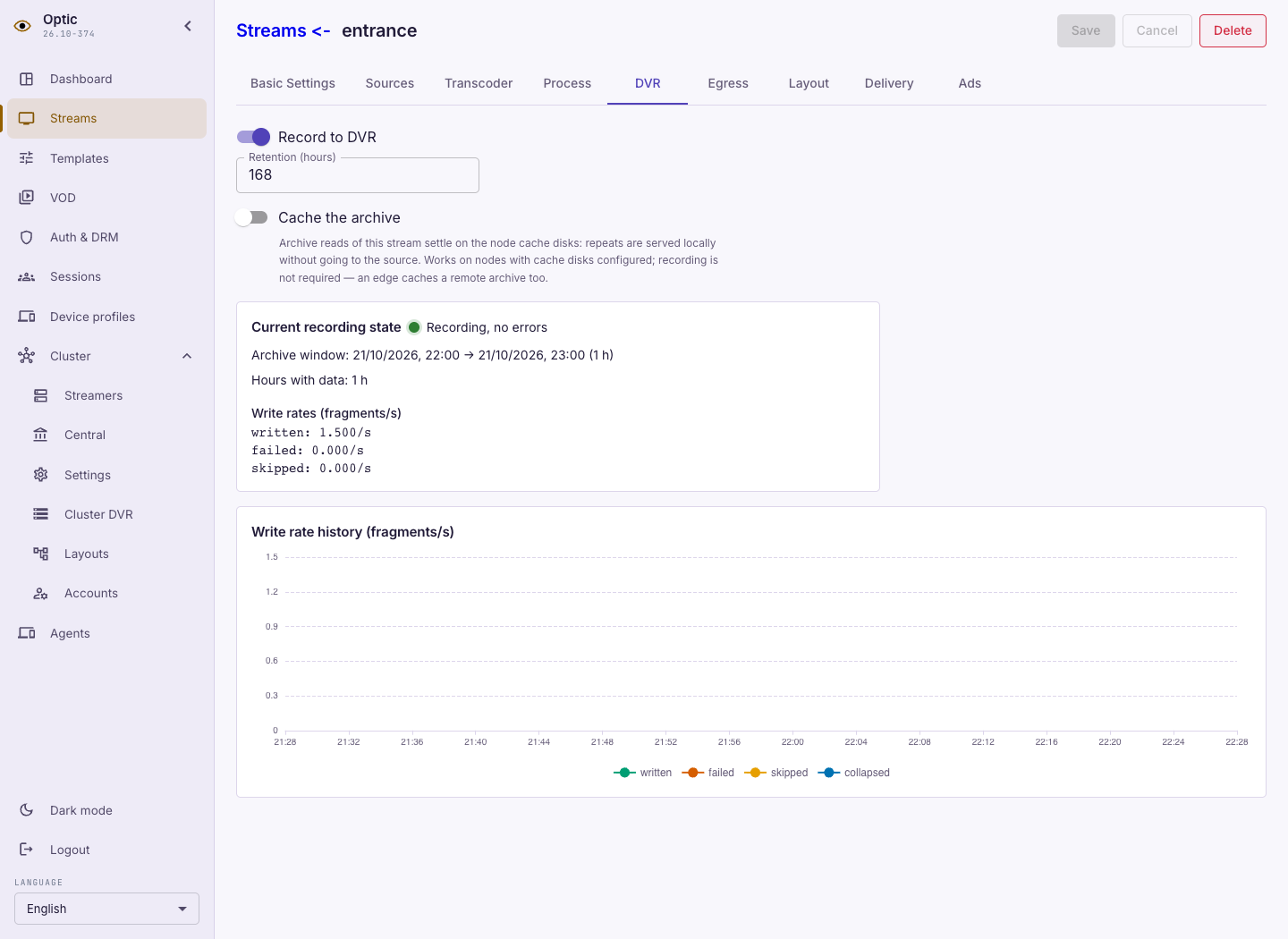
- Open the camera in Streams, then Basic Settings with the embedded player.
- Find a recorded interval on the player's timeline. Move the timeline to the desired time and click a point inside an available recording.
- Start playback. Check the selected time and picture; select a moment before the live edge to verify archive playback.
- Click Go live to return to live video.
The player can only play intervals that have been recorded. If no recording is available, check the source and recording status on DVR, then disk availability and free space in Cluster DVR. For write errors, check mounts and the service's directory permissions.