Adding a user
Create a separate Optic console account for each employee. Only a superadmin can manage accounts.
Prepare access
Sign in as an existing superadministrator. On a new installation with no named accounts, sign in with the installation's static credentials and follow the console's prompt to create the first user. That user receives superadmin. Use this account to create further accounts.
Create an account
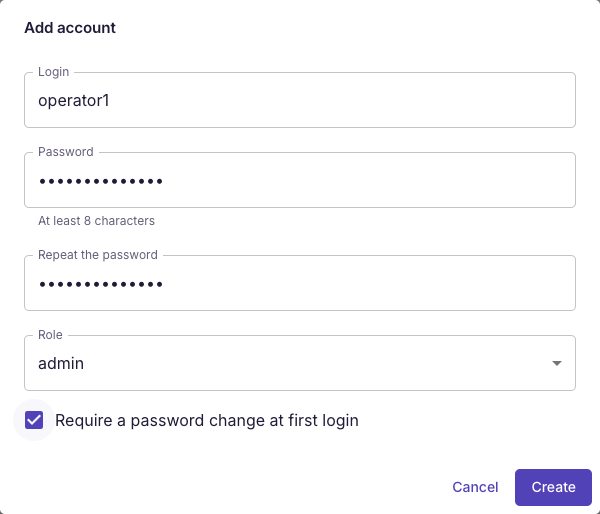
- Open Accounts and click Add account.
- Enter a unique employee login, for example
operator1, and a temporary password of at least 8 characters. Repeat the password in the confirmation field. - Choose a role from the table below. Select admin for an employee who adds cameras and works with the archive through the console.
- Enable Require a password change at first login and save the account.
- Give the employee the console address and credentials. At first login, they must set their own password.
| Role | Access |
|---|---|
superadmin |
Full management, including accounts and the license |
admin |
Camera and streamer configuration, archive and playback access; no account management or license replacement |
viewer |
System status and sessions; no access to configuration documents |
security |
Audit log and own session |
player |
Playback tickets for integrations; no installation management |
The viewer role monitors system status; it does not provide access to camera settings or their embedded player. The player role is used by a portal or application to obtain playback permissions.
Verify login and revoke access
Ask the employee to sign in in a separate browser window and change the temporary password. For admin, check access to a camera and the archive.
To revoke access, open Edit for the account, enable Disabled, and save. Existing sessions are closed. To reset a forgotten password, set a new one in the same form; the employee will change it at the next login.