Session Statistics
The Sessions stats dashboard is a log of completed and active viewing sessions. Unlike the input monitoring, DVR, or transcoder dashboards, it does not diagnose stream health — it analyzes viewer behavior: which channel was watched, through which protocol, and how much time and traffic was consumed.
Filters
At the top of the dashboard are variables that narrow the dataset before the query runs. All filters except Limit support multi-select and the All value (no restriction on that field).
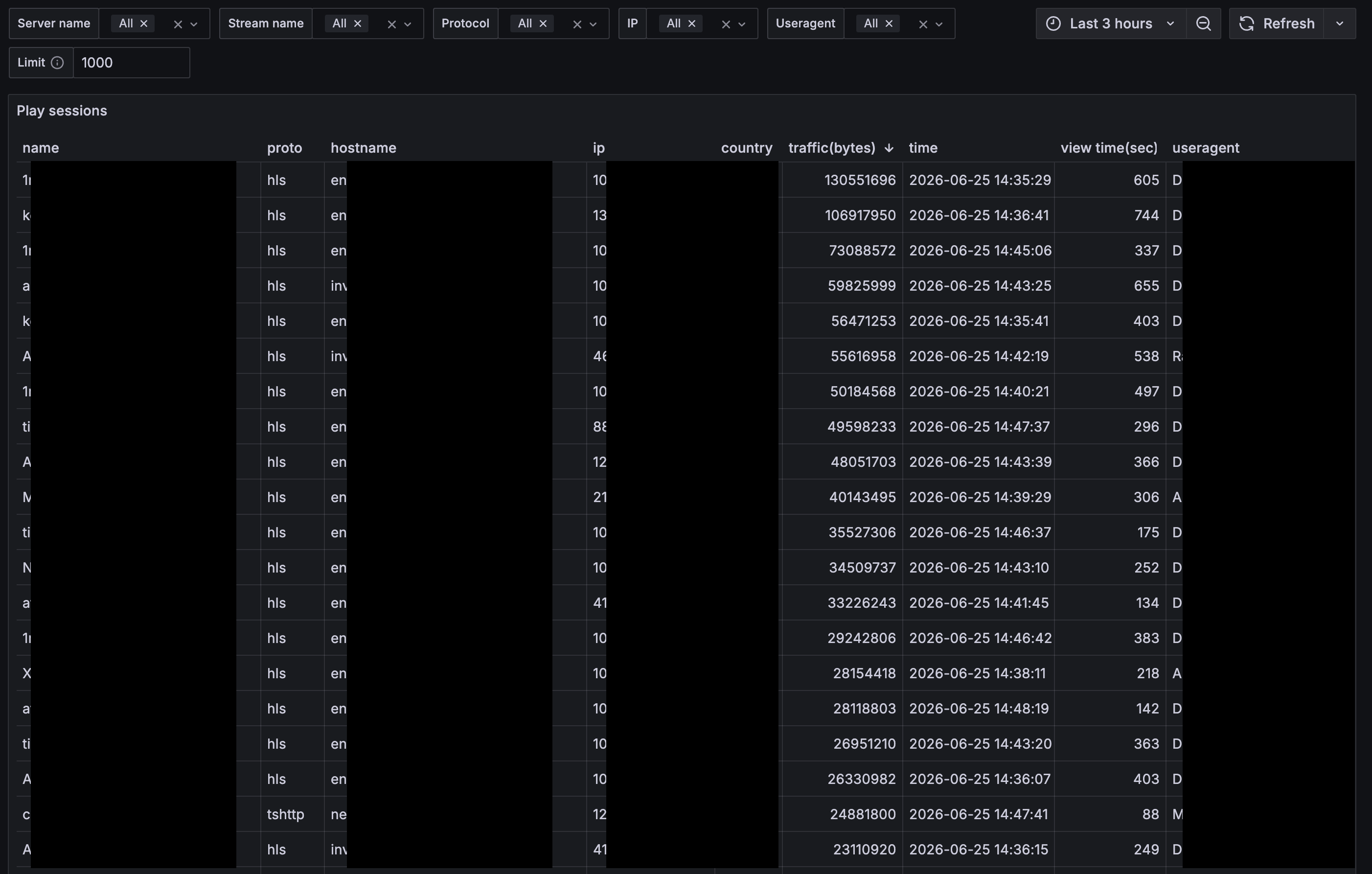
Server name
Filter by server (server_hostname). Lists servers that send session data.
Use when you need to view playback on a single cluster node only or compare load between servers. Selecting a server also narrows the list of available streams in Stream name.
Stream name
Filter by stream name (name). Depends on the selected Server name — only streams that have sessions on that server appear in the list.
The main filter when investigating a "channel X did not work" complaint: select the stream and check whether any sessions existed in the relevant interval, from which IP, and via which protocol.
Protocol
Filter by playback protocol (proto): hls, tshttp, dash, and other values your service uses.
Use when playback fails only for one client type: for example, HLS works in the browser but tshttp does not. Correlate protocol with useragent in the table.
IP
Filter by viewer IP address (ip).
Use to investigate a specific subscriber or CDN node complaint: enter or select an IP and see all their sessions for the period. Works well together with a narrow time range in the top-right corner of Grafana.
Useragent
Filter by the client User-Agent string (useragent) — browser, app, set-top box, device model.
Helps find mass issues on one platform: "Samsung won't open", "broke after app update". You can select multiple user agents at once.
Limit
Text field for the maximum number of rows returned (default 1000, upper bound 50000).
The query is always capped at this number: with high traffic, not all sessions appear in the table — only the first N matching the query conditions. If rows are not enough — narrow filters (server, stream, IP, time) or increase Limit, but very large values slow down the dashboard.
Time range
Top right — standard Grafana time picker (default last 3 hours). Sessions are shown for the selected interval. For a complaint like "it did not work yesterday at 8 PM", narrow the range to that hour.
Play Sessions Table
A single panel — a table with details for each session. Columns can be sorted by clicking the header (the screenshot shows sort by traffic(bytes) descending — heaviest views at the top).
name
Name of the stream the viewer watched.
proto
Protocol used for playback: hls, tshttp, etc.
hostname
Hostname of the server that served the session. Useful in a cluster when one stream may be delivered from different nodes.
ip
Client IP address.
country
Viewer country determined from IP. Empty value means geolocation is unavailable or the IP is local.
traffic(bytes)
Volume of data transferred during the session, in bytes. An indirect indicator of duration and quality: a long watch at high bitrate produces more traffic. Unusually low traffic with high view time(sec) may mean an early disconnect or buffering issues.
time
Session record time (when the metric was written). A reference for "when it happened", in the Grafana browser timezone.
view time(sec)
Viewing duration in seconds (duration_seconds). How long the viewer actually watched, not how long the TCP connection lasted.
useragent
User-Agent string — browser, OS, app, or set-top box. Correlate with proto: the same issue on one user-agent across different protocols points to the client; on one protocol across different user-agents — to the protocol or stream.
Use Cases
Subscriber complaint "channel would not open"
Select Stream name, narrow time to the complaint interval, set IP if needed. If there is no session — the viewer never reached the server (issue before Flussonic: network, authorization, DNS). If a session exists but view time(sec) is only a few seconds — check input monitoring and protocol.
Finding heavy viewers or leaks
Sort by traffic(bytes). Long sessions with high traffic from one IP may indicate archive downloading, repeated viewing, or a non-standard client.
Problem on one device only
Filter by useragent or find recurring user agents in the table with short view time(sec) while other devices have normal sessions.
Comparing protocols
Same Stream name, different proto values — compare average duration and drop-offs. If HLS is stable but tshttp is not — investigate tshttp settings or the specific player.
Server audit
Server name + wide time range + sort by stream: overview of node activity without tying to a single channel.
Important: the dashboard shows sessions within Limit and the selected time range. For a full audit over 24 hours on a popular channel, All alone may not be enough — combine filters and increase Limit as needed.