Subscribers and access
A subscriber in Lumika is an organization. Their cameras and their users go into it, and the limits and the allowed plans hang on it. This page walks the whole way: from creating the organization to the moment the subscriber watches their video on a phone.
What a domain, an organization and a plan are is explained on Getting started with Lumika. Once you have so many subscribers that creating them by hand takes too long, the same steps are done over the API — see Lumika billing integration.
Create the organization
Open Organizations and click +. Enter the title and click Save.
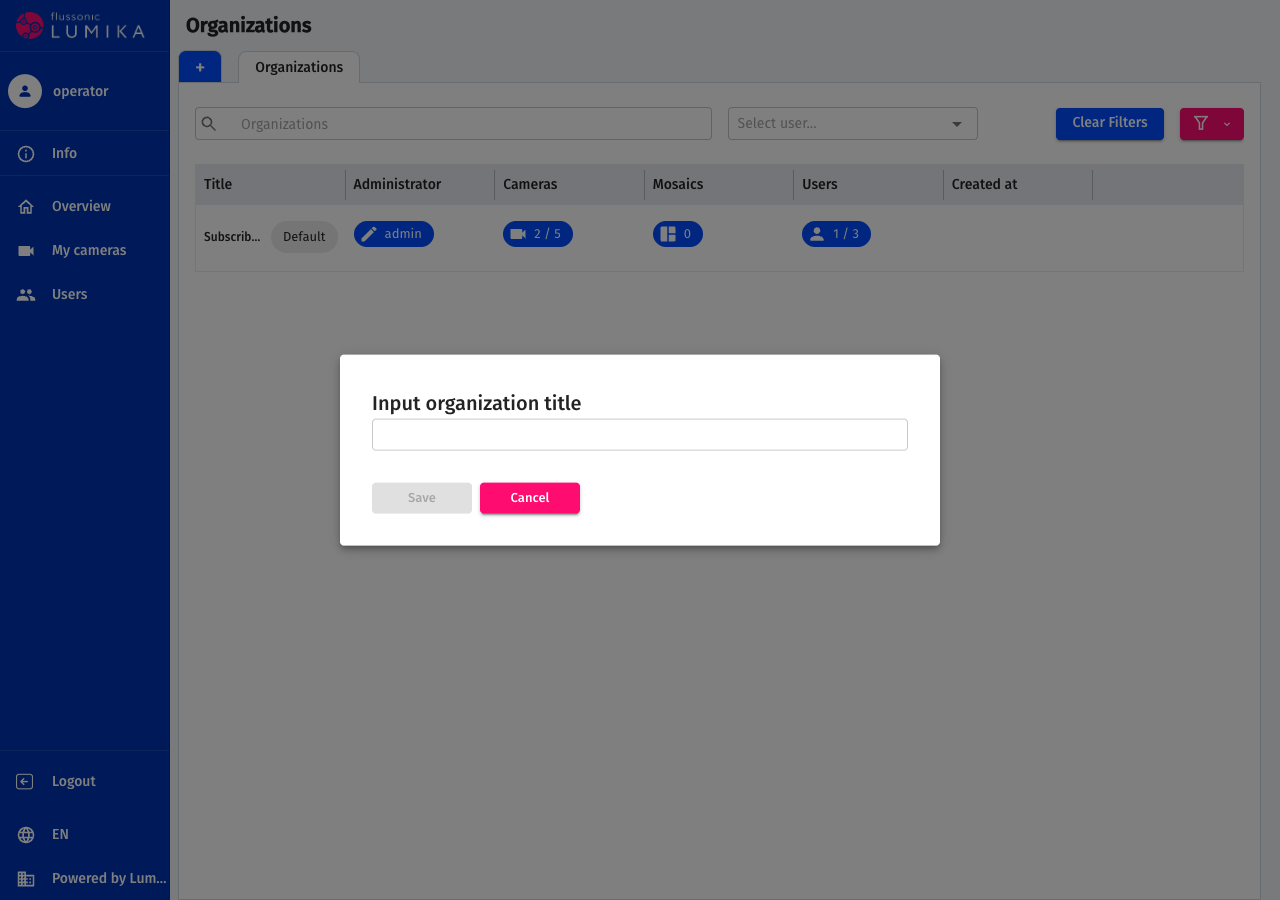
Both you and the subscriber see the title, so use the one that lets you find the subscriber in your own records: the contract number, the account number, the site address.
Open the new organization and set the limits on the Global settings tab:
- Camera limit — how many cameras the organization may have.
- User limit — how many accounts the organization may have.
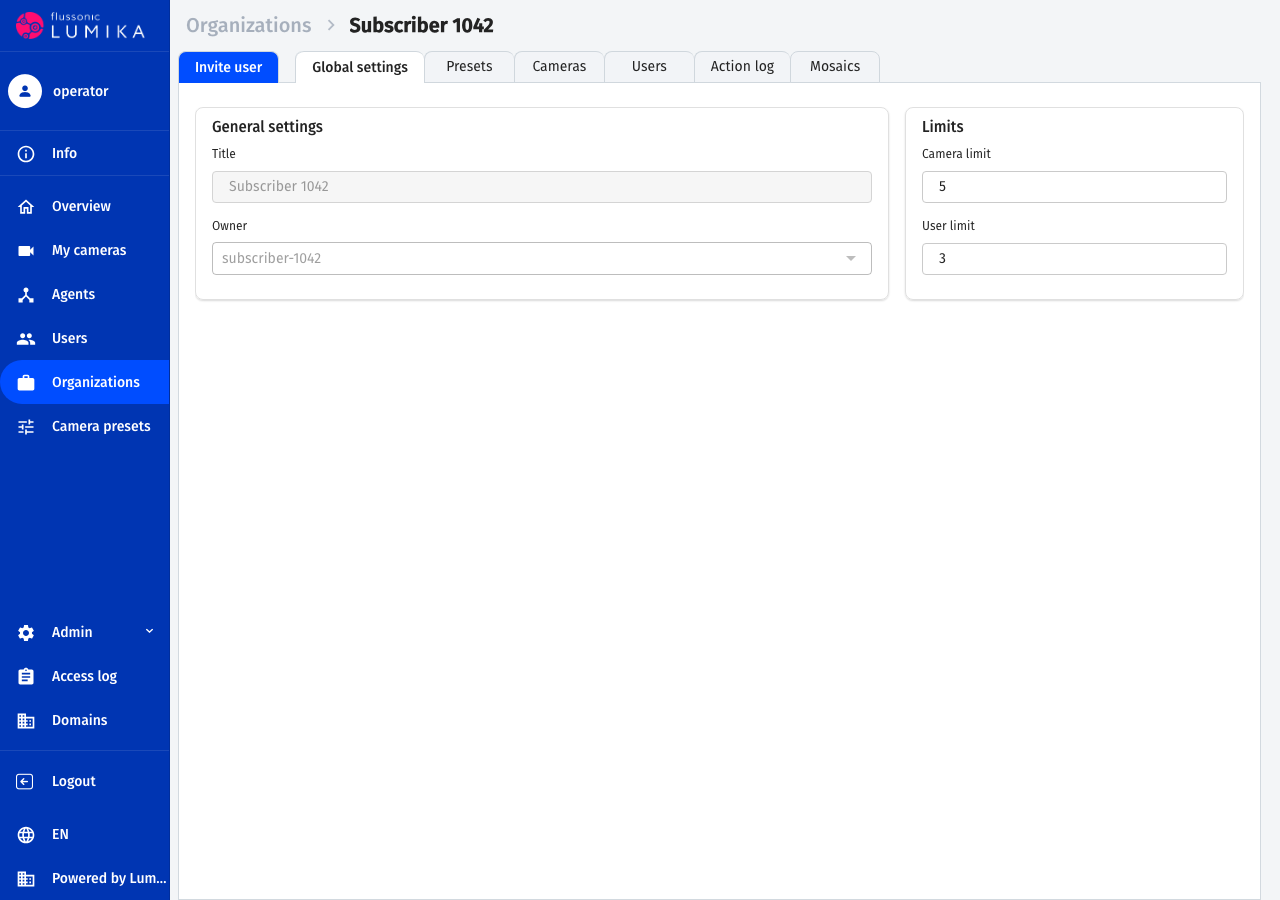
Limits stop the subscriber from adding more than they paid for. Lowering a limit does not delete the cameras and users that already exist.
Allow the plans
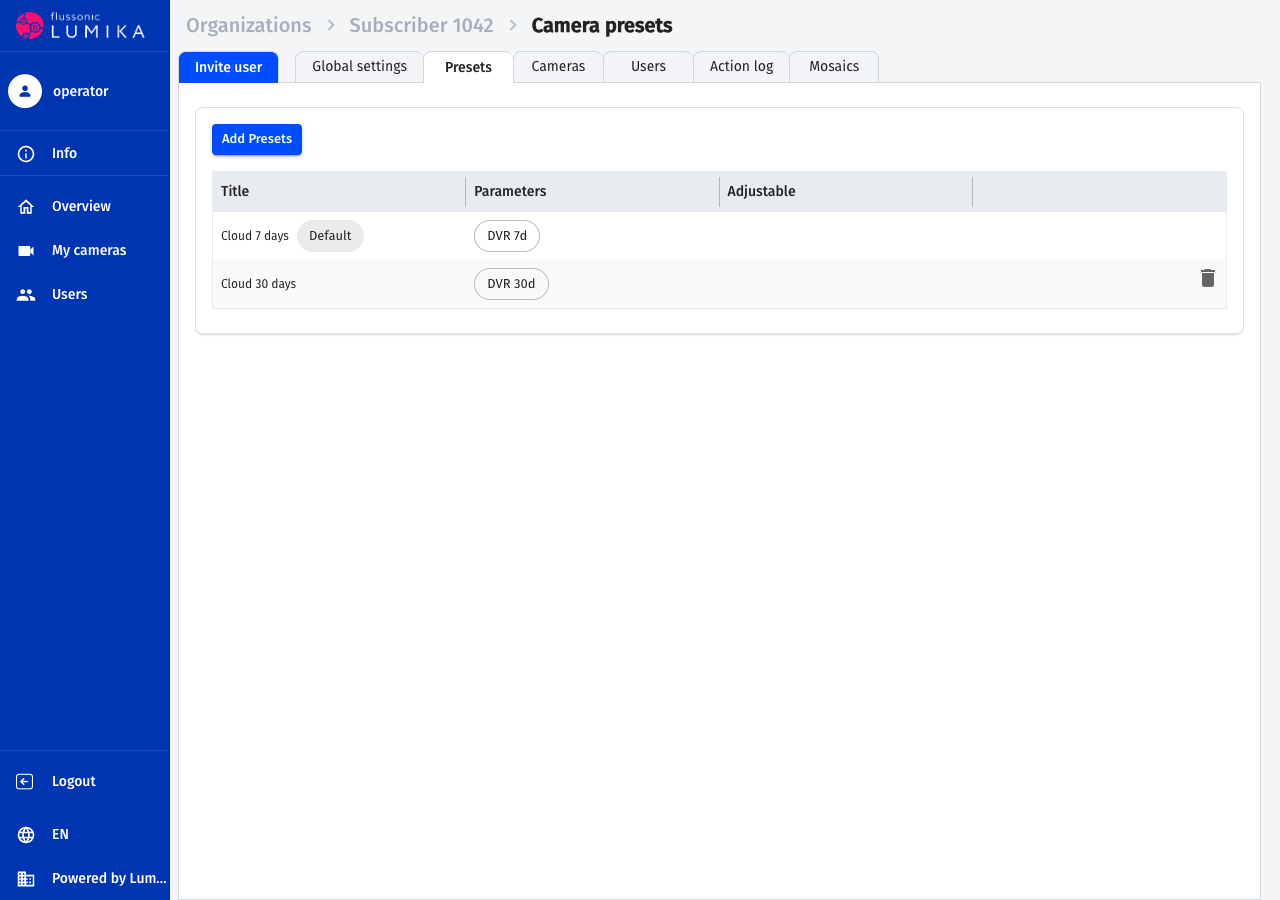
An organization does not see every plan of the domain, only the ones allowed to it. Open the Presets tab and click Add presets. The bin icon revokes a plan from the organization.
Note
A plan marked Default is available to every organization of the domain on its own, you do not have to add it. It is the plan a camera gets when no plan is chosen while adding it.
Create the user
Open Users and click +.
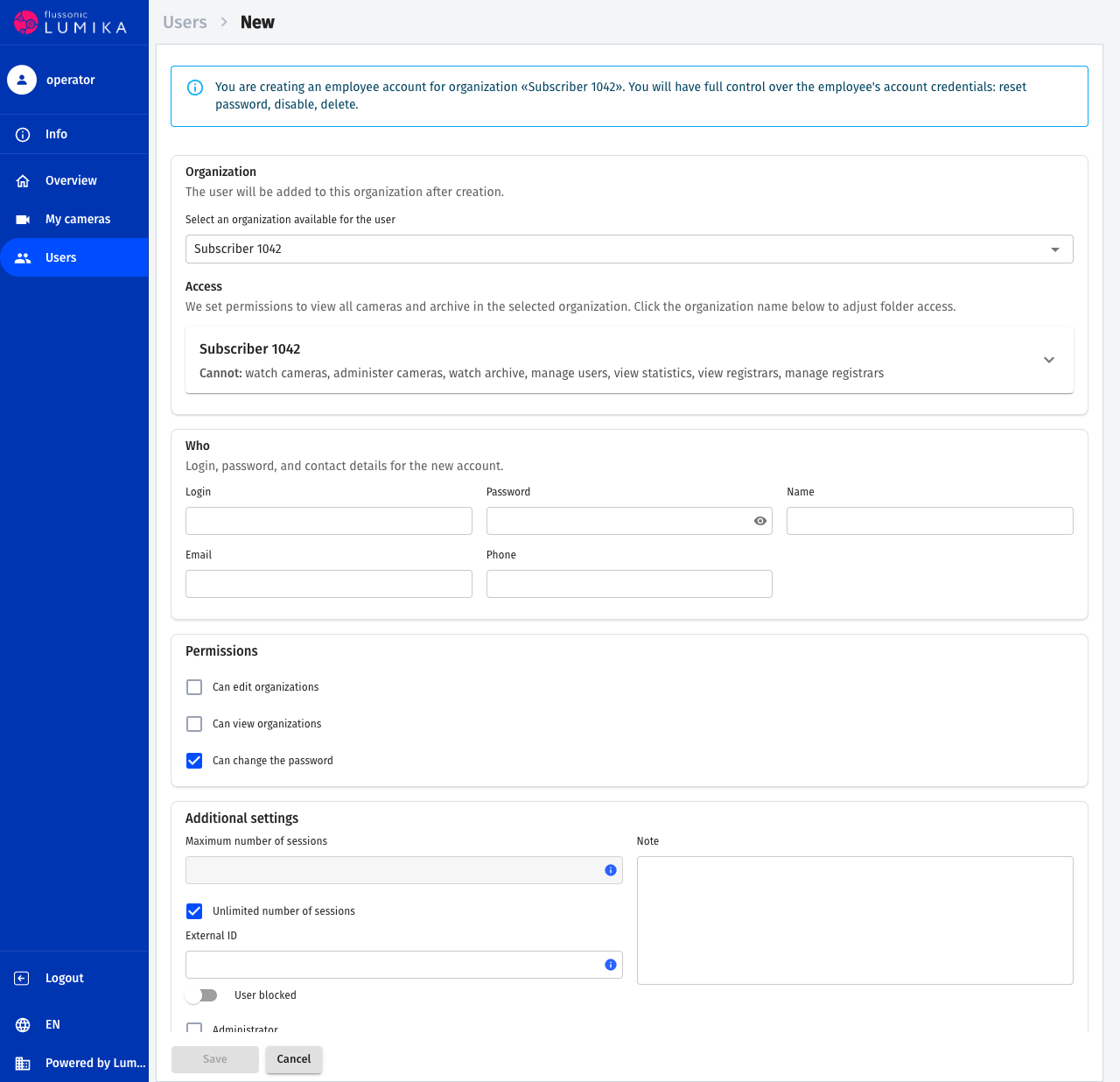
- In the Organization block choose the subscriber's organization. The Access block with the permissions in that organization appears below — set them now or later.
- In the Who block fill in Login and Password. The login is unique within the domain; Email is a contact address, it cannot be used to sign in.
- In the Permissions block leave Can change the password on. The Can view organizations and Can edit organizations checkboxes are not for a subscriber — they are for your own staff.
- Click Save and copy the password: it is not shown again afterwards.
Now make this user the owner of the organization — see Changing the owner. The owner gets every permission in their organization, and without an owner the subscriber cannot activate cameras from the mobile application.
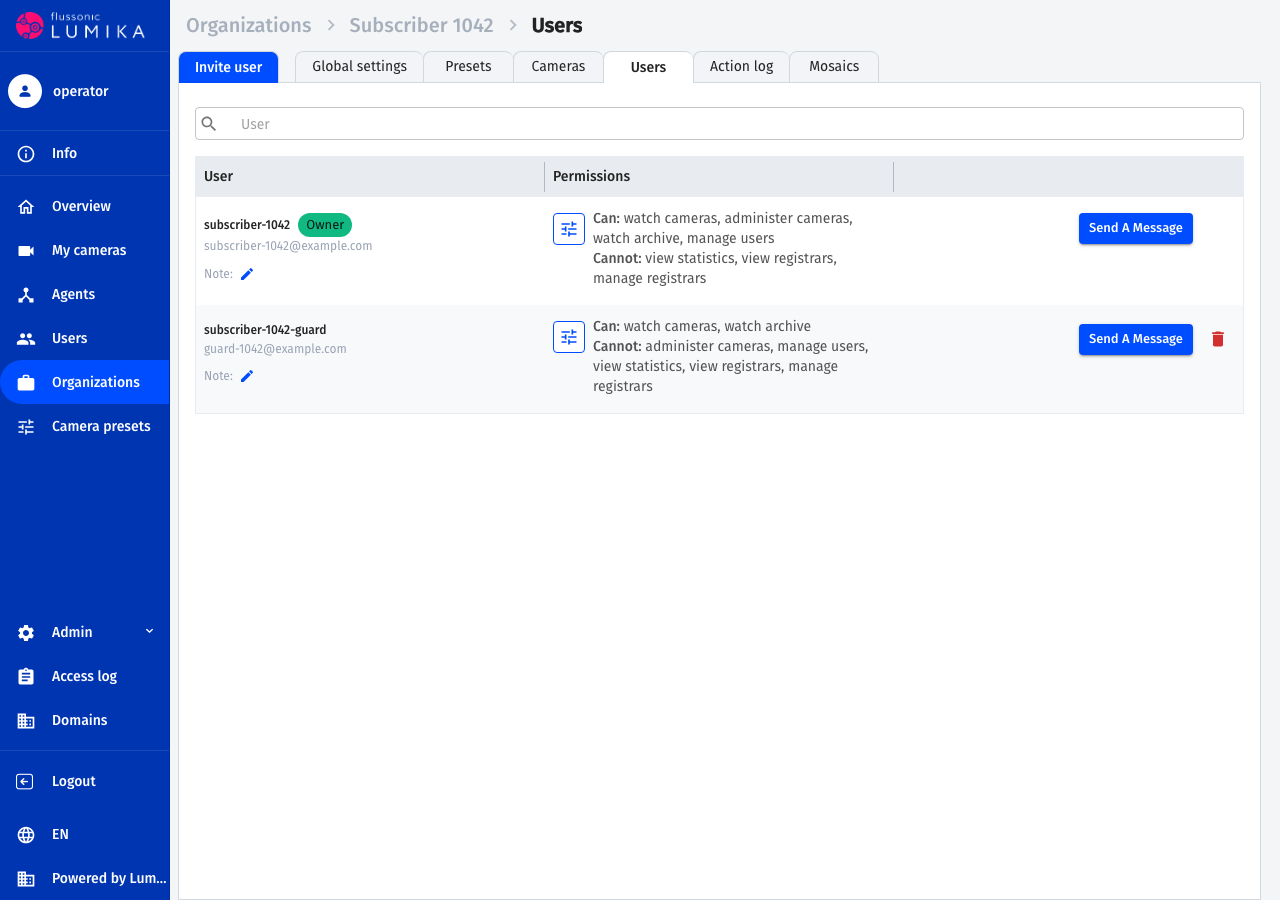
The users of an organization are listed on its Users tab. The owner is marked Owner, and for the rest the list says what they can and cannot do.
What to give the subscriber
- The domain address —
https://<your-domain>.vsaas.io. - The login and the password — the ones you set when creating the user.
- The Operator ID — the identifier of your domain. It is needed to sign in to the mobile application and is the same for all of your subscribers.
The Operator ID is in the Info menu item:
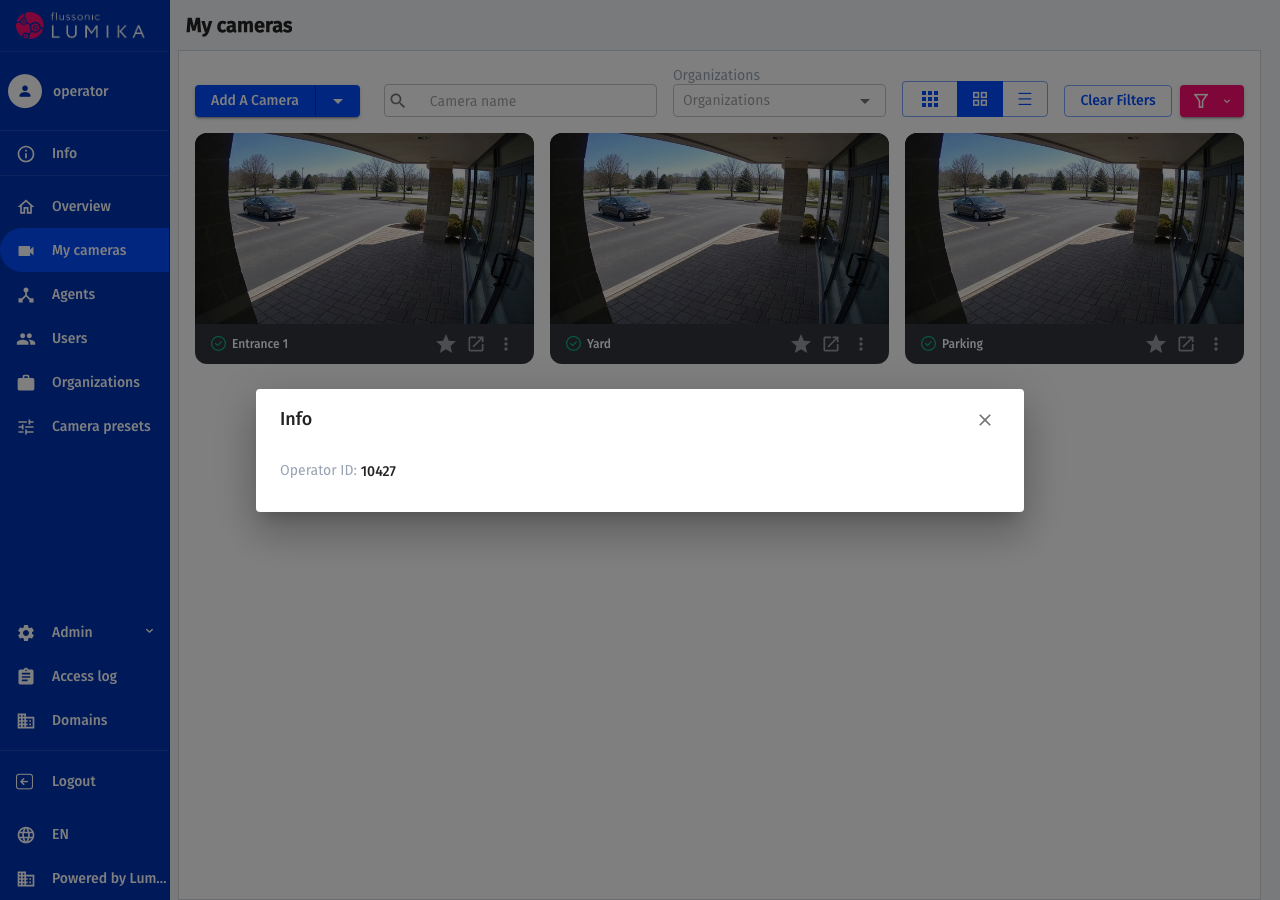
Pass the Operator ID exactly, with no extra spaces at the beginning or the end.
On the first sign-in the system asks the subscriber to change the password. After that they work under their own password and you do not know it; if the subscriber forgets it, set a new one in their card on the Users page.
What the subscriber sees
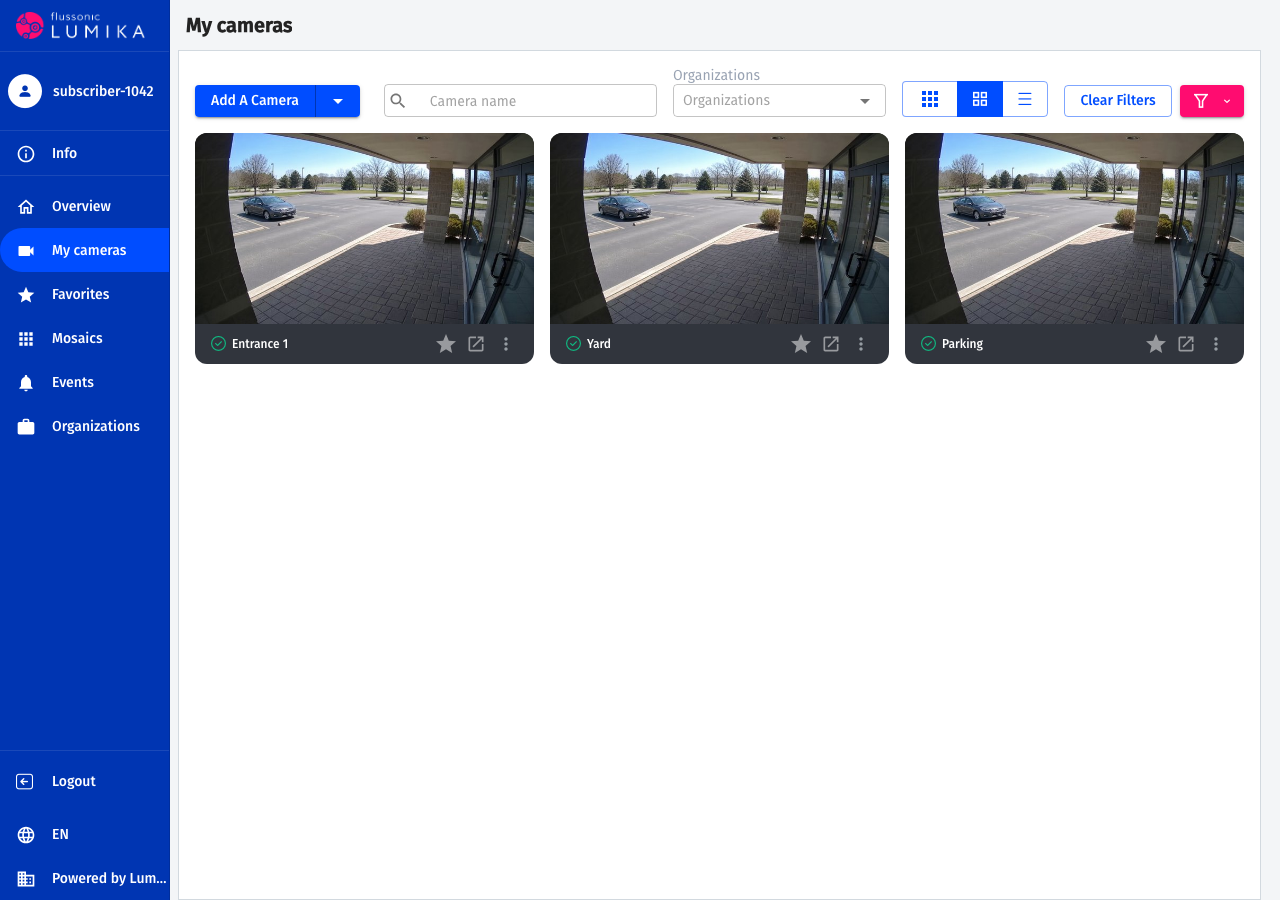
The subscriber signs in to the same domain and gets a shorter menu: their cameras, favorites, mosaics, events and their organization. The domain settings, the list of all organizations and the plans are not there.
Camera and archive permissions
Permissions are granted separately in each organization. Open Users → user → Permissions in the organizations and expand the organization.
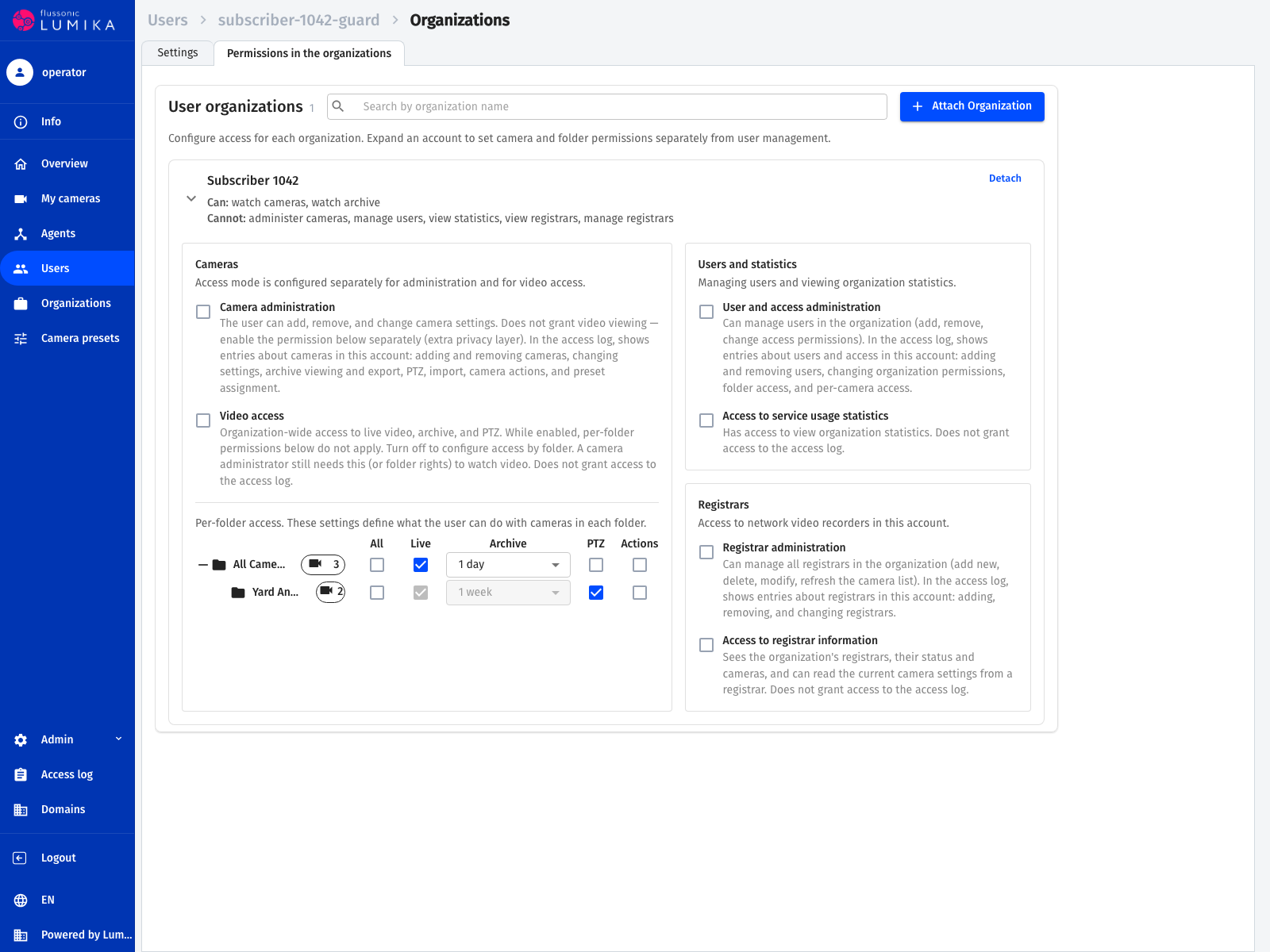
Two camera permissions are granted at the organization level:
- Camera administration — add, delete and change cameras, including changing the plan. This permission does not grant watching video.
- Video access — watching live, archive and PTZ on every camera of the organization.
Below is the table of camera folders. It grants access folder by folder:
- Live — watching live video from the cameras of the folder.
- Archive — access to the recordings. The drop-down list in the same column limits the depth: the camera keeps a week of archive, say, while the subscriber only gets the last day.
- PTZ — controlling a PTZ camera.
- Actions — creating and running actions on the camera page.
Warning
While Video access is on, the folder permissions have no effect: the user sees every camera of the organization. To grant access folder by folder, turn Video access off.
The owner of an organization has every permission on its cameras and they cannot be taken away. The archive depth limit does not apply to the owner either — it is set for the other users only.
Session limit and blocking
Open Users and click a login — the user card opens on the right.
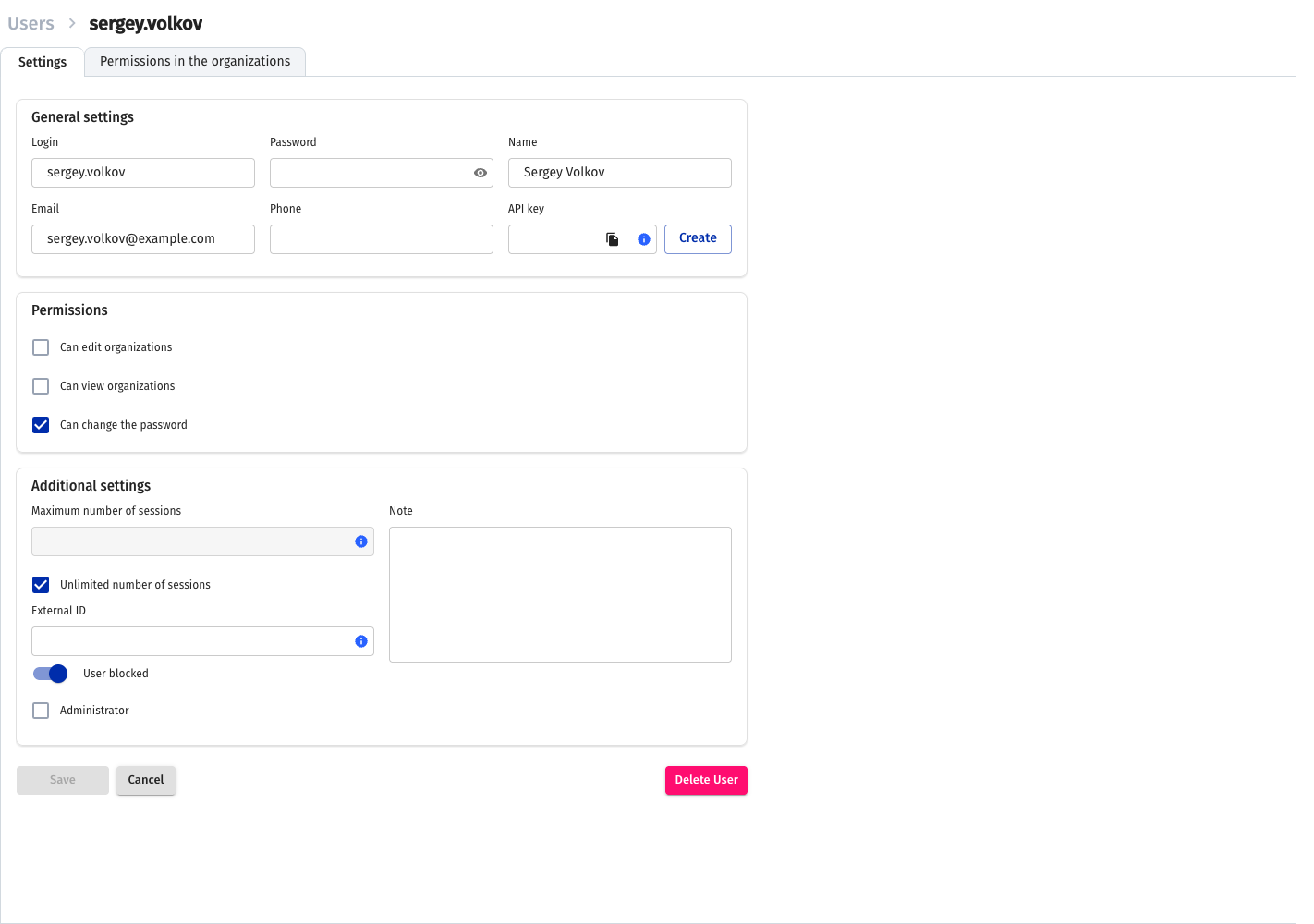
- Maximum number of sessions — from how many devices the subscriber may be signed in at the same time. When the limit is exceeded, the oldest session is stopped. Clear the Unlimited number of sessions checkbox to enter a number.
- User blocked — the switch that suspends the service.
What blocking does:
- Active sessions are deleted immediately.
- Signing in stops working.
- Watching video stops within a few minutes.
The organization, the cameras and the archive are kept. Unblocking is the same switch back.
Warning
Blocking does not stop the charges: the cameras keep their plans. To avoid paying the full price for a suspended service, move the subscriber's cameras to a cheap plan or delete them — see Connecting cameras.
Changing the owner
Open Organizations and click the pencil icon next to the owner name in the Administrator column. Select a user and click Save.
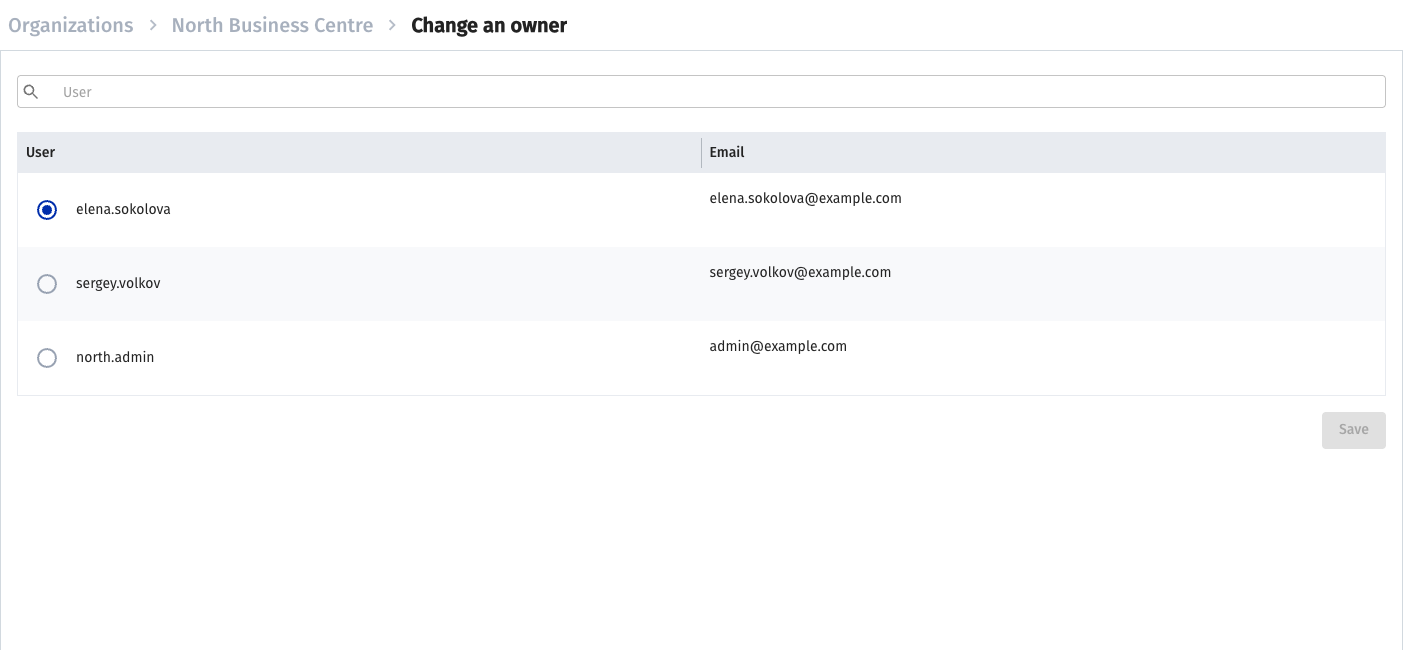
The new owner does not have to be in the organization beforehand — the assignment adds them. The previous owner loses ownership but is not removed from the organization.
How the subscriber watches video
- In a browser — at
https://<your-domain>.vsaas.iowith the login and the password. - In the mobile application — Flussonic Watcher for iOS and Android, signing in with the login, the password and the Operator ID.
The domain interface also works as a PWA: the subscriber opens the domain in a mobile browser and picks Add to home screen in its menu. Signing in to the PWA needs no Operator ID.
If it did not work
- The subscriber cannot sign in. Check that they enter the Login and not the email address: signing in by email does not work. Then open the user card and look at the User blocked switch.
- The subscriber signed in but sees no cameras. They have no camera permissions in the organization: turn Video access on or tick the folders in the table — see above. Check as well that the cameras are in their organization and not in someone else's.
- The subscriber signed in on one device and was thrown out on another. The Maximum number of sessions limit fired. Raise the number or turn Unlimited number of sessions on.
- Activating a camera from the application returns "Need specify the organization ID". The account has no organization it may add cameras to. Make the user the owner of their organization — see above — and activate the camera again.
- The installer activated a camera for the wrong subscriber. Grant the installer temporary access to the intended subscriber's organization following the separate instructions. They use their own login and select that organization during activation. Revoke access after installation. A camera can be moved to another organization in its settings — see Connecting cameras.