Getting started with Lumika
Lumika is cloud video surveillance that an internet service provider sells to its subscribers. You buy a license, get your own domain at <your-domain>.vsaas.io and set up subscribers, cameras and plans in it. The Flussonic cloud receives, stores and delivers the video; to start, you need no servers and no disks. Your own storage server can be connected later through technical support.
This page explains what the system is made of and where things are in the interface. Connecting cameras is covered on Connecting cameras, granting access to subscribers on Subscribers and access.
What the system is made of
Lumika has five objects. All of them live inside your domain and are not visible outside it.
- Domain — your isolated Lumika instance: the address
<your-domain>.vsaas.io, your organizations, users, cameras and plans. The domain is created together with the license. - Organization — a subscriber. Everything the subscriber has lives in their organization: their cameras, their users, their plans and their archive.
- User — an account with a login and a password used to sign in to the interface.
- Camera — the unit of service. A camera is what you charge for, and a camera has a plan and an archive.
- Plan — the set of camera settings that determine the cost of the service: archive depth, storage type, video analytics. The interface calls a plan a Preset.
Here is how it works. A subscriber named Ivanov has ordered surveillance for three cameras. You create the organization "Subscriber 1042" for him, put three cameras in it, assign a plan to each one and create a single user — Ivanov himself. Ivanov signs in to the domain with his login and sees only those three cameras. If Ivanov wants to give access to his wife, he creates a second user in his organization — the cameras stay the same.
The rule to start from: one subscriber — one organization. Put several sites of the same subscriber (home, office, warehouse) in one organization and arrange the cameras into folders.
Who sees what
- Domain administrator — your account, created together with the domain. Sees the list of organizations, the domain plans, all users and the branding settings. It does not see subscriber video until it is granted permissions in their organizations.
- Organization manager — your employee who has been granted permissions in a specific organization. Can add cameras and users to it and change camera plans. Other organizations are not visible to them.
- Subscriber — the owner of their own organization. Sees their cameras and their archive, and can add a camera and create extra users within the limits you set.
Note
The permission to edit cameras also grants watching video from them. If your staff must not see subscriber video, do not grant them permissions in subscriber organizations: lists, limits, plans and blocking work without it.
The first sign-in
The domain administrator signs in to the domain from the Flussonic personal account, without a login and a password:
- Open your personal account at
https://my.flussonic.com/and go to the licenses section:https://my.flussonic.com/?#/licenses. - Find the Lumika license. Its Lumika domain column holds the Login in <your-domain> link.
- Click the link. The domain opens in a new tab, and you are already in it as the domain administrator.

How the license is issued and the domain is created is described on Lumika Registration and License Issuance.
The login and password page at https://<your-domain>.vsaas.io is for subscribers. Other users you create in the domain, such as organization managers, sign in there too:

Warning
Do not sign in through this form as the domain administrator. Your way into the domain is the Login in <your-domain> link in the personal account.
The domain interface
The main menu is on the left. What it contains depends on permissions: the items below are the ones a domain administrator sees. A subscriber gets a shorter menu — see What the subscriber sees.
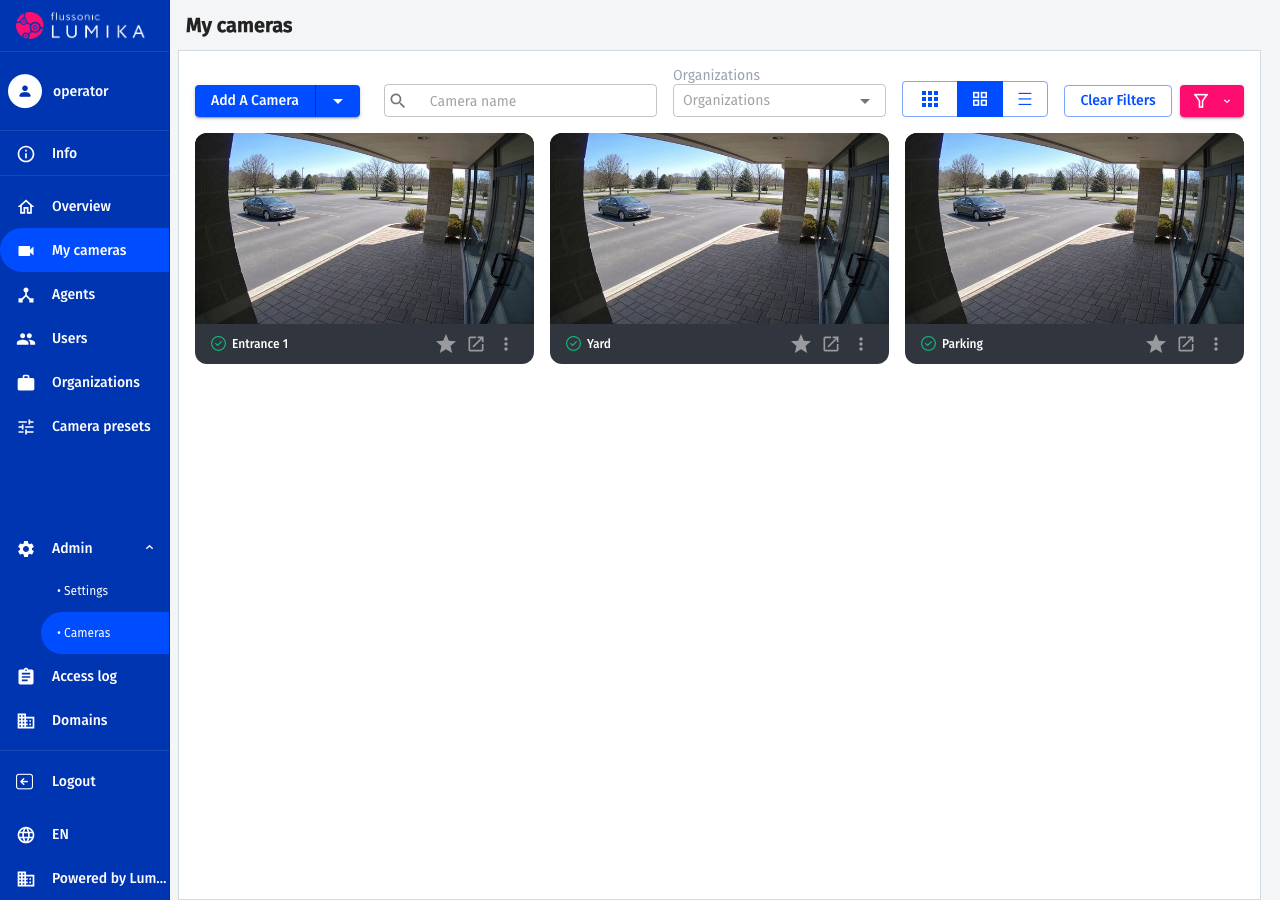
| Menu item | What is behind it |
|---|---|
| Info | A dialog with the Operator ID — subscribers enter it in the mobile application |
| Overview | The start page: recently watched cameras, today's events and the overall camera status |
| My cameras | The cameras available to your account, and adding new ones |
| Agents | Cameras with a built-in Flussonic Agent: status, model, serial number and IP address |
| Users | Every user of the domain, user creation, permissions and blocking |
| Organizations | Every organization of the domain, its limits, plans, cameras and users |
| Camera presets | The domain plans and how many cameras and organizations use each of them |
| Admin → Settings | Domain settings, branding, mobile application, languages |
| Access log | Who did what in the domain |
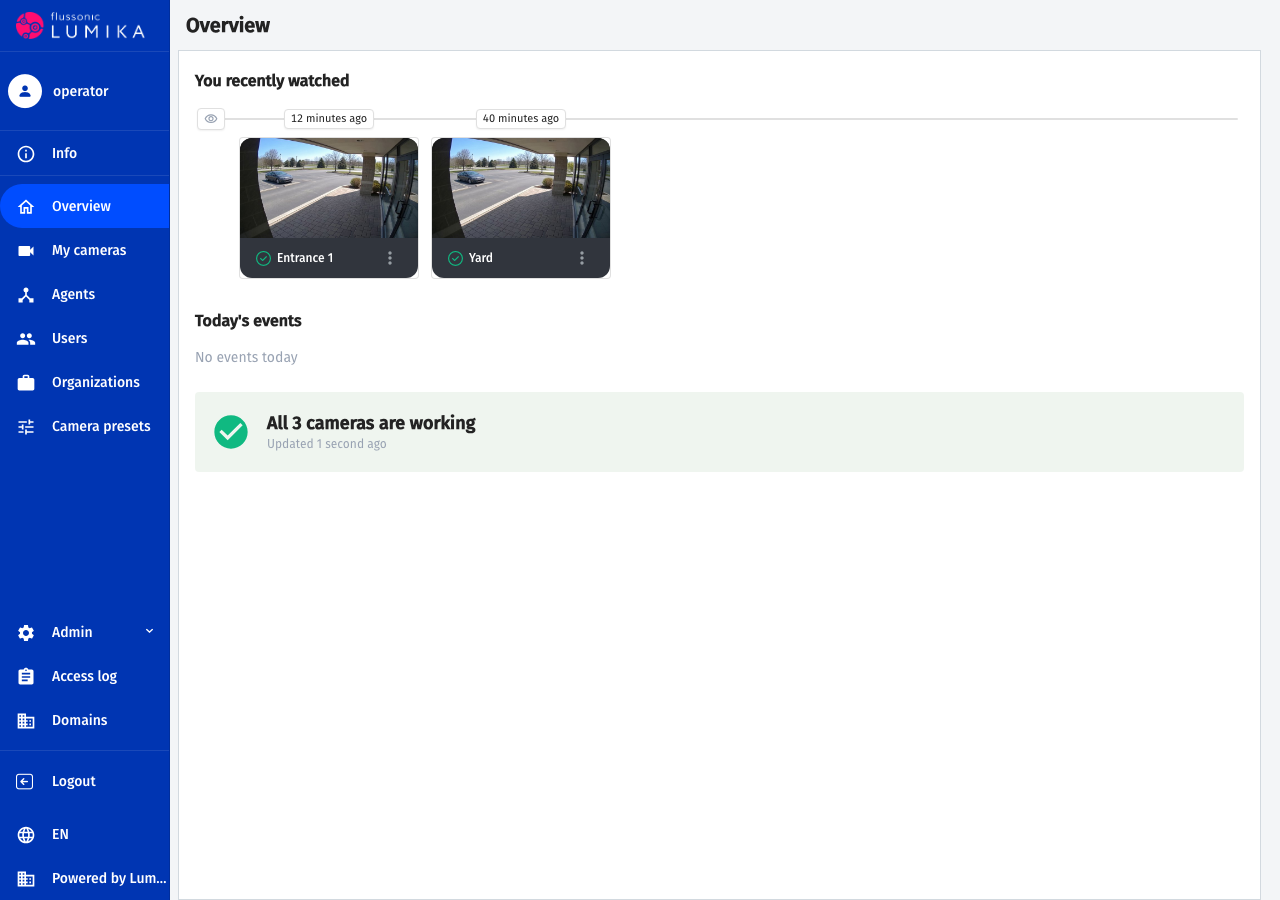
Overview
The page that opens on sign-in. The status line at the bottom answers the main question: are all the cameras working.
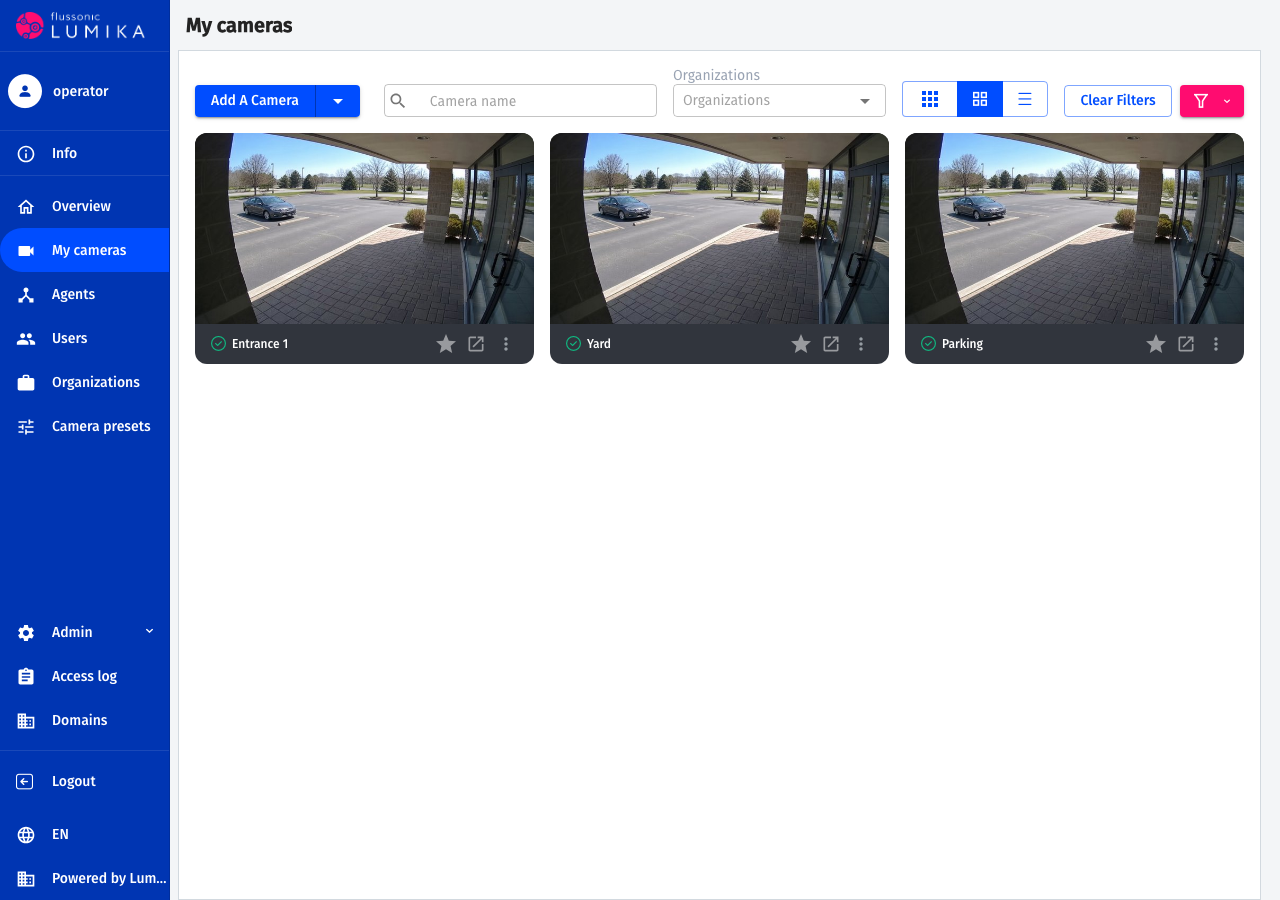
My cameras
The cameras your account has access to. A green indicator next to the name means the camera is delivering video. The Add a camera button opens the form covered on Connecting cameras.
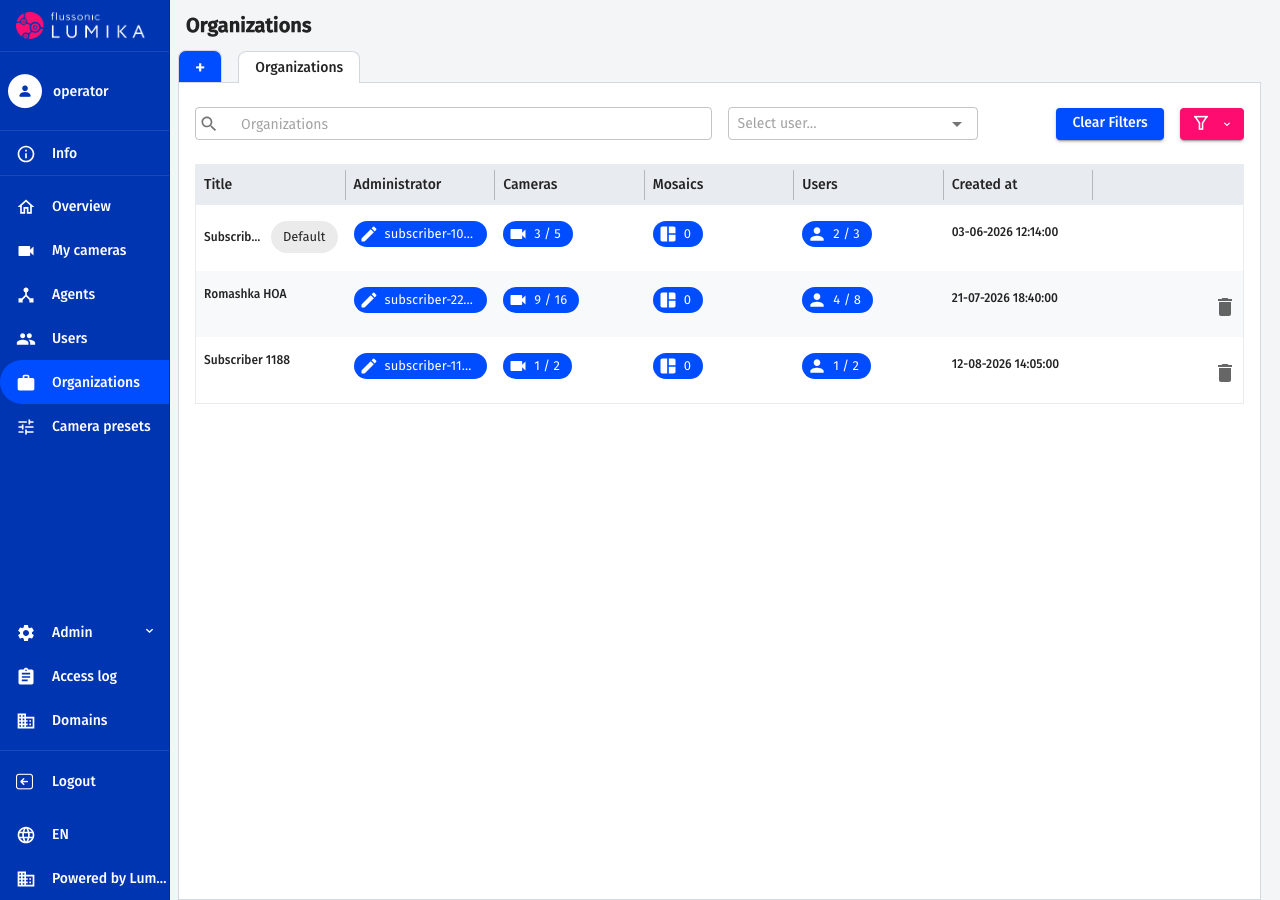
Organizations
The list of subscribers. A row shows who owns the organization, how many cameras and users it has and how many the limit allows — 3 / 5, for example. The + button creates a new organization.
Users
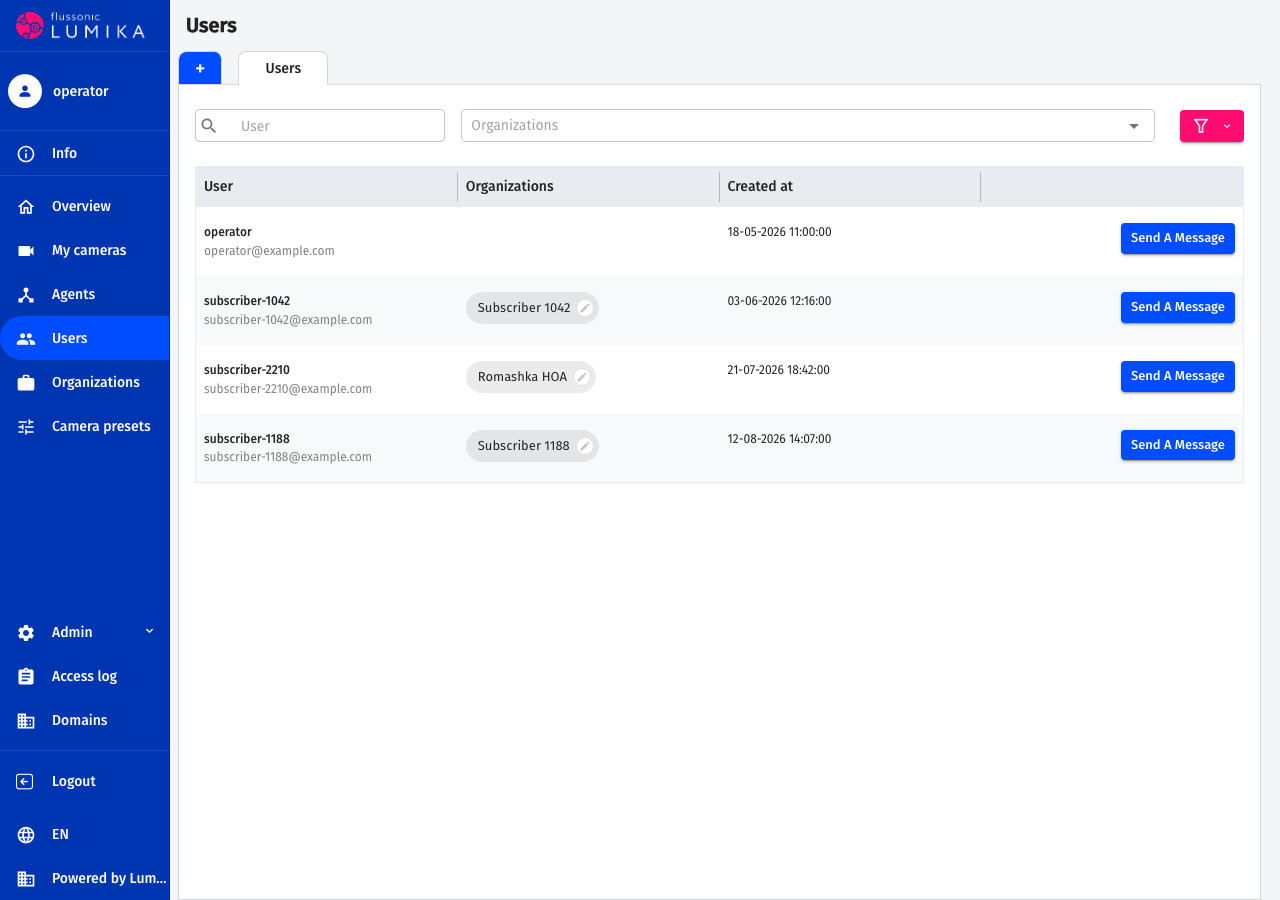
Every account of the domain and the organizations it belongs to. The organization a user owns is marked with a pencil icon.
Camera presets
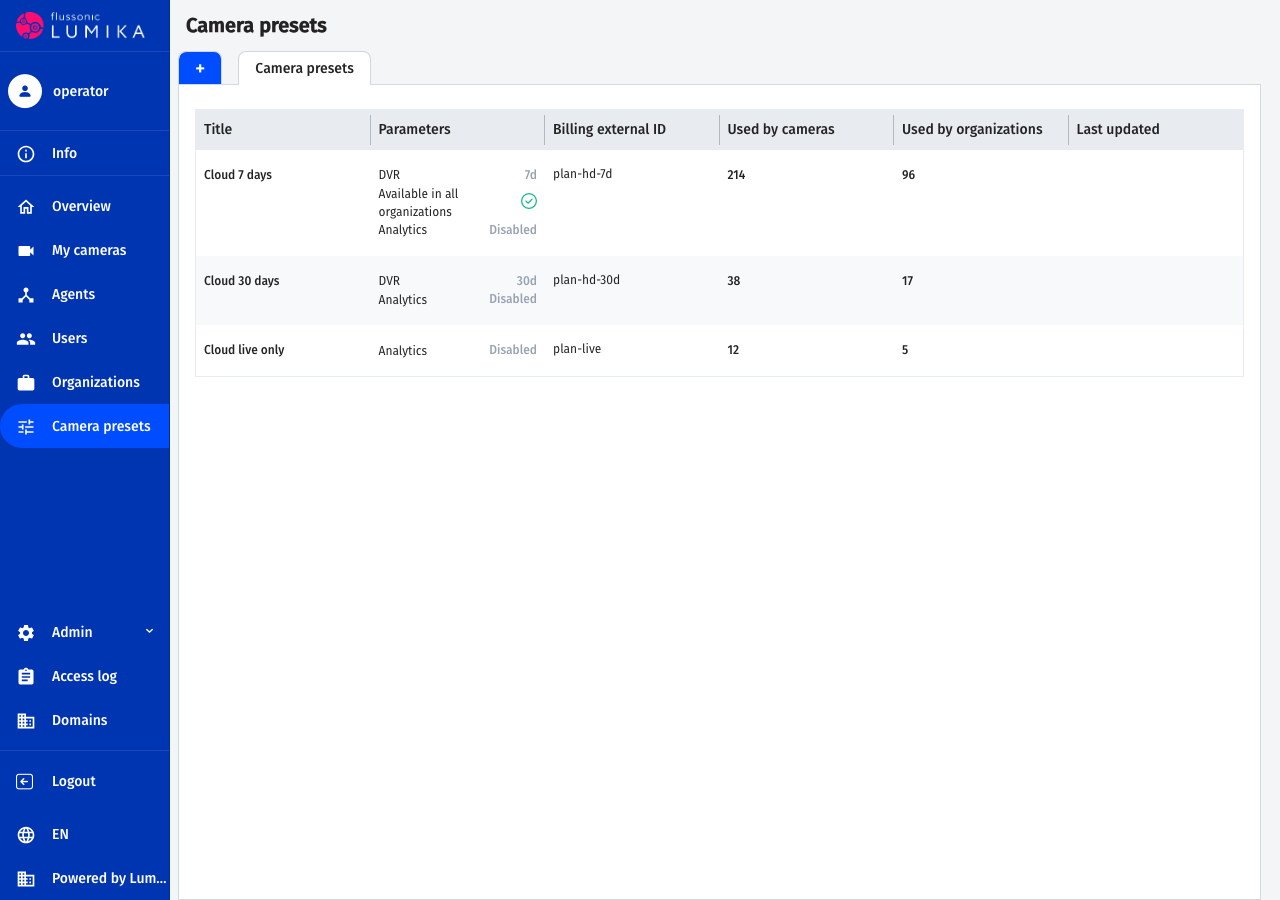
The plans of your domain. A plan row shows the archive depth, the "available in all organizations" flag, analytics, and how many cameras and organizations are on that plan right now.
Warning
You do not change the set of plans yourself: the starting set is created together with the domain, and only technical support can add, remove or reconfigure a plan. Agree on the set of plans before you connect the first subscribers.
Branding the domain
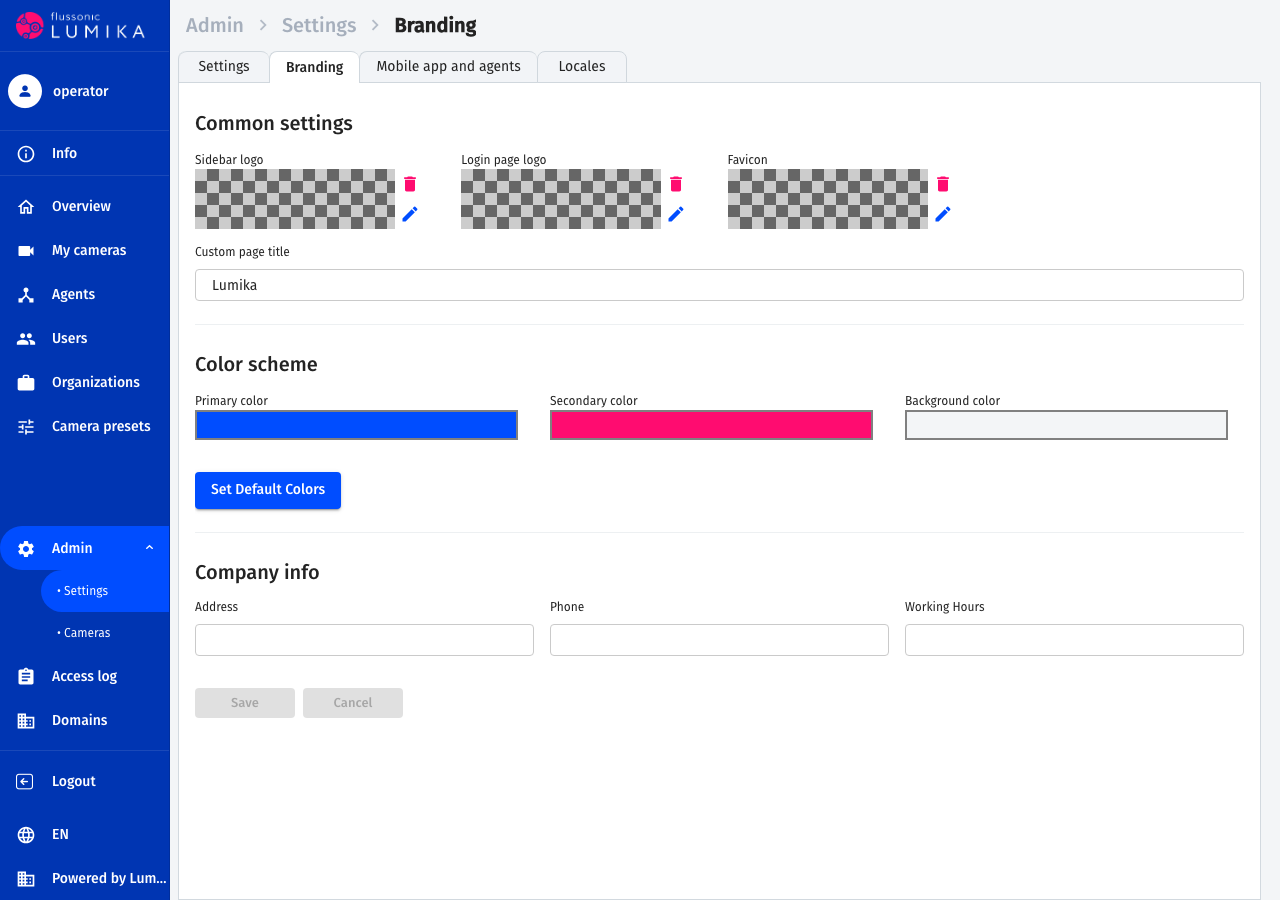
Subscribers see the domain under your brand. Open Admin → Settings → Branding and set:
- Sidebar logo — the picture in the top left corner of the interface.
- Login page logo — the picture above the sign-in form.
- Favicon — the browser tab icon.
- Custom page title — the name of the browser tab.
- Color scheme — Primary color, Secondary color and Background color.
- Company info — the address, phone and working hours that subscribers see.
What to do first
- Sign in to the domain from your personal account and set the branding — see above.
- Check the set of plans on the Camera presets page and ask technical support for the ones you miss.
- Set up the first subscriber: an organization, a plan and a user — see Subscribers and access.
- Connect their cameras — see Connecting cameras.
- Give the subscriber the domain address, the login, the password and the Operator ID — see Subscribers and access.
Once you have many subscribers, creating them by hand takes too long. Connect your billing system to Lumika over the API then: subscriber provisioning, plan changes, suspension for non-payment and the data export for invoices are described on Lumika billing integration.
Where to ask
Flussonic technical support is support@flussonic.com. Support handles questions about the set of plans, connecting your own storage server, enabling the billing integration and anything you cannot do from the domain interface.