Your own online cinema: from a movie file to playback with Catena
Your own online cinema: from a movie file to playback with Catena
You are building an online cinema under your own brand. You know how the movie pages will look, which subscriptions to sell and what to recommend to viewers. The next task is turning the Play button into playback that works on a home television and a phone, handles demand for a premiere and stays manageable as the library grows.
Behind that button are several connected operations. A movie must be uploaded, prepared in suitable renditions, placed on servers, made available to an authorized viewer and served from a ready copy. As you add movies and servers, those operations need to remain repeatable.
Catena's VOD catalog brings this workflow together on your hardware. Your team works with a movie in the catalog, while Catena manages its files, processing jobs, copies and playback. Your storefront and business logic connect to the streaming layer through APIs.
How your cinema and Catena work together
A movie has two records with different purposes. Your storefront holds its title, synopsis, poster, age rating and purchase conditions. Catena holds the files, their readiness, storage locations and player links. A permanent asset identifier connects the two.
| Task | Where it is handled |
|---|---|
| Collections, genre search, recommendations and movie pages | Your storefront and content management system |
| Subscriptions, payments and deciding who can watch | Your service and billing system |
| Uploading video and preparing renditions | Catena's VOD catalog and jobs |
| Storing copies and selecting a playback server | The Catena cluster |
| Viewing interface | The player in your website or app, receiving HLS/DASH video from Catena |
This lets you develop your own service while using a shared system for video preparation and delivery. Your cinema team can manage uploads, encoding jobs and file locations through Catena instead of maintaining separate scripts and server inventories.
Upload a movie and keep the catalog organized
In Catena, a movie is represented by an asset: a catalog record containing one or more files. A key such as movies/drama/first-film helps operators find it in the folder tree. Every asset also has an immutable asset id, which you can store in the corresponding movie record in your storefront.
You can rename the readable key or move it under a different prefix. Files stay in place and links based on the asset id continue to work. Editors can reorganize the library while preserving the connection to published movie pages.
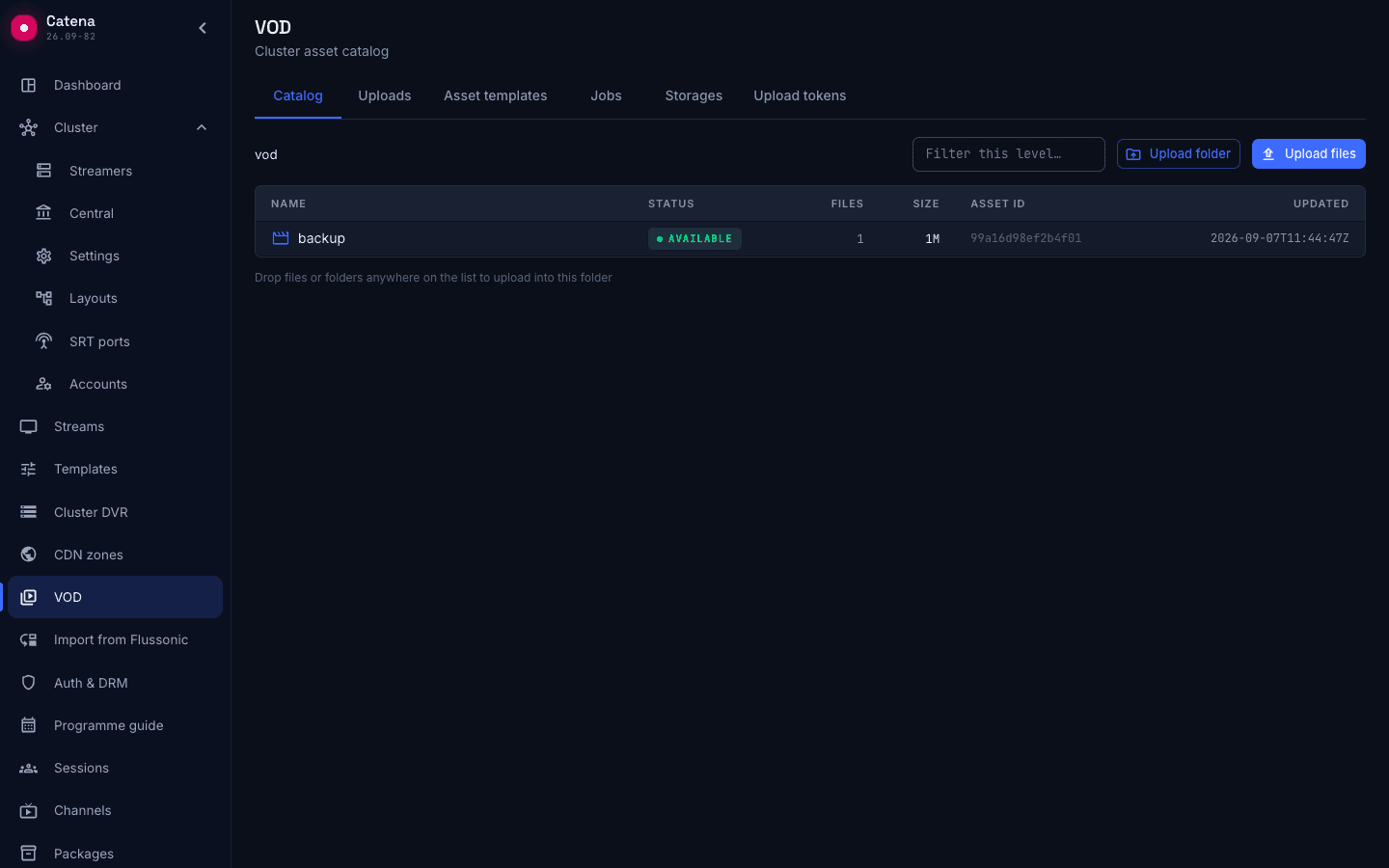
For the first movies, use the console: select files or drag them into the catalog. Before uploading, set the asset name and processing template. Catena selects an available storage location with the most free space; bytes travel directly from the browser to the streamer. The upload panel shows progress and lets you move to another console section while uploading. Keep that browser tab open.
When content arrives through your own editorial portal, integrate uploads through the API. A restricted upload token stays on the portal's server, while the browser receives permission for a specific upload. This brings file ingestion into your team's existing workflow.
Prepare renditions once and repeat the process across the library
A large source file is inconvenient for universal delivery. You can prepare a high resolution for televisions and smaller renditions for phones and slower connections. A player supporting adaptive playback can choose a suitable variant from the ladder you provide.
In Catena, an asset template defines the resolution, codec and bitrate of each rendition. A pilot might use 1080p, 720p and 360p; the actual settings depend on your sources, devices and image quality requirements. The template also determines whether to retain the original or delete it after processing.
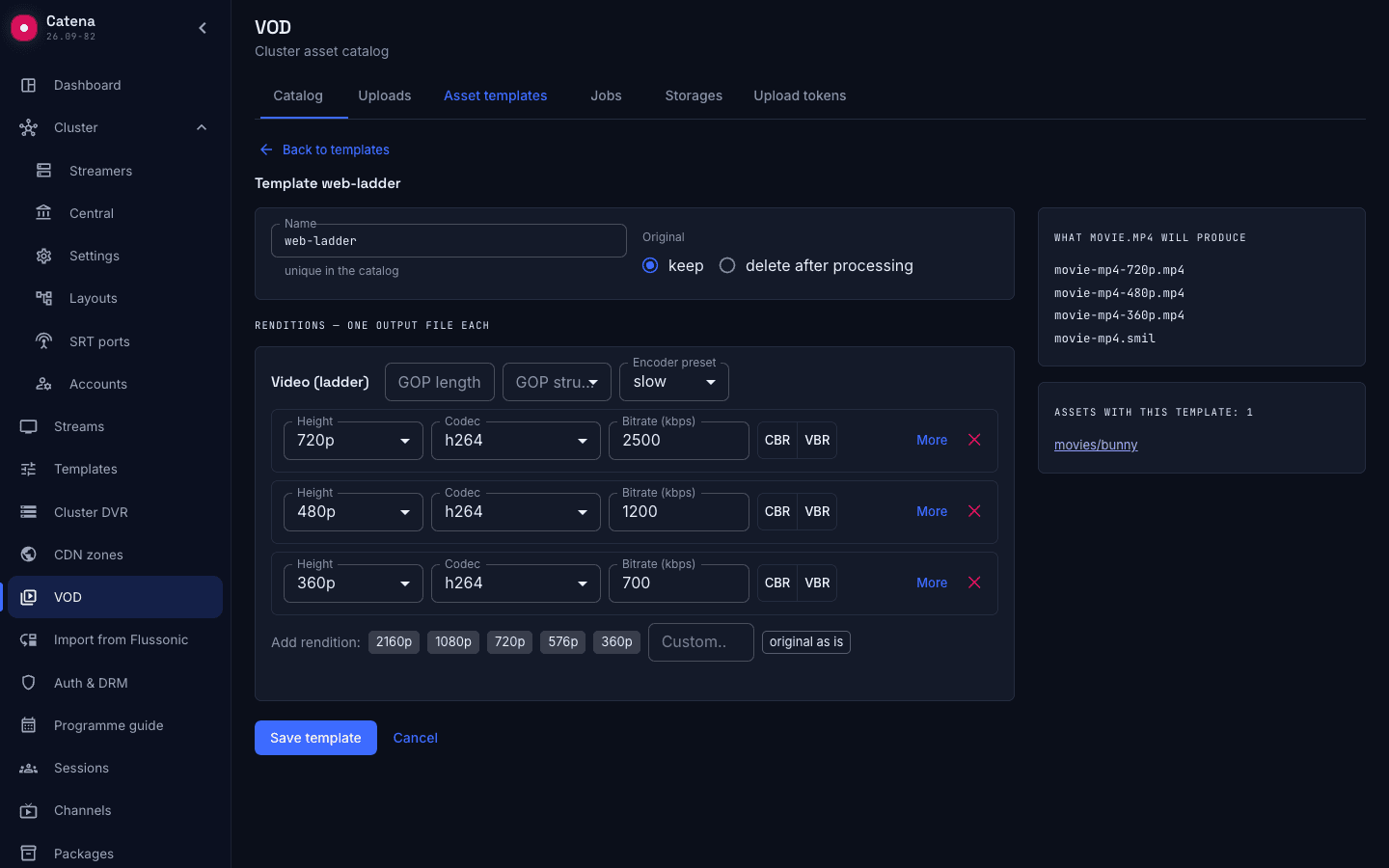
Select the template during upload and leave the video's template-processing option enabled. Catena creates a job when the upload completes. The operator sees the queue, executor, progress and result, or a reason for failure. The outputs appear in the same asset, alongside the original if it is retained.
The job also creates a .smil descriptor: the playback entry point for the entire ladder. The player receives an HLS or DASH manifest containing the prepared variants. Your storefront links the movie to this entry point, while Catena maintains the underlying file list.
The standard ladder encodes the source's audio tracks to AAC and preserves language labels. If the source contains several dubbed versions, they remain in the output renditions; language selection depends on your player.
Connect the Play button to permission to watch
The asset page lets you test a file in the console's player and copy HLS, DASH or RAW links. This helps verify the upload and playback. Console links contain temporary tickets; your service issues tickets for its viewers through the integration.
The viewer selects a movie, your service checks their subscription or purchase, then requests a playback ticket from Catena and passes the ticket-bearing URL to the player. VOD access can be scoped to a specific asset. Catena validates the ticket during playback, while your service owns the sales conditions.
The ticket lifetime is set when it is issued. Account for the movie's duration and expected pauses: a session cannot continue after the ticket expires. Playback authorization and content encryption are separate concerns; the ticket described here controls access to the video.
Add copies and distribute viewers across servers
One server is enough to test the workflow. To keep a movie available after a machine failure and distribute the audience, create copies on other streamers.
Set the number of copies in the same template. One copy means the original plus another server containing the files. Catena selects a suitable streamer with free space and creates a copy job. A copy-only template can replicate prepared content without encoding it again.
Files are received and verified on the destination server. Until the complete asset is ready, that location is not considered a ready copy. The asset page shows the original and copies, their status and viewer counts.
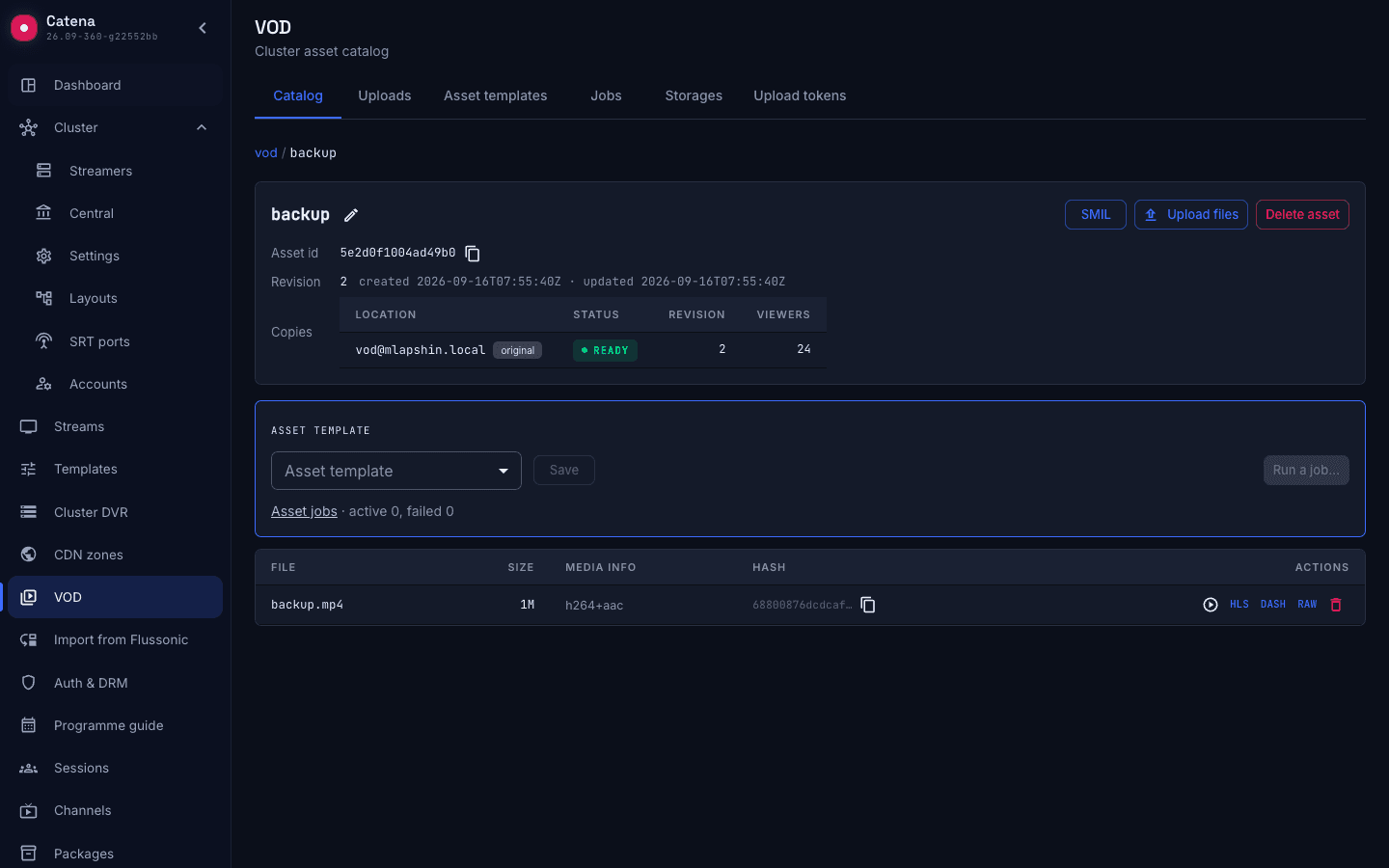
The movie link stays the same. For a new request, Catena chooses a server with fewer sessions among available, ready locations, taking configured delivery zones into account. Once a server is marked unavailable, new requests go to the remaining copies. Existing playback is not automatically transferred: after a server failure, the player needs to reconnect.
For a premiere, this gives you a practical tool: prepare copies in advance and serve the audience from several servers. Plan copy count, network capacity and disk performance together; balancing uses session counts rather than measured disk IOPS. Replicas support availability, while content backups are maintained separately: deleting an asset applies to all its locations.
What the team can see after launch
Operators can answer everyday questions in the console:
- Why is the movie not ready? Jobs show processing, an error or a reason for waiting, such as insufficient space or no suitable copy server.
- Where are the files? The asset page lists the original and copies, their readiness and revisions.
- How are viewers distributed? Locations show viewer counts; VOD sessions also contribute to the dashboard's audience picture.
- How do we apply a new template to an existing movie? Save the asset's template, then explicitly start a job. Changing the template alone does not re-encode existing files.
This shortens the path from “the movie will not play” to checking a specific file, job or server. The streaming team can see the library's state even when its files are spread across several machines.
Test your cinema with the first movie
- Install Catena using the quick start. Configure VOD storage on the streamer and an address that browsers can reach for uploads and playback.
- Create a rendition template and upload a test movie with it. Wait for the outputs and verify playback of the ladder.
- Connect the asset id and
.smilfilename to your storefront's movie record. Integrate ticket issuance after checking the viewer's entitlement. - Test playback in your player on target devices and connections, including quality and language selection if the movie has multiple audio tracks.
- Add a second streamer, set one copy and start a job. Once the copy is ready, check how new viewers are distributed and how your player recovers when one server is taken offline.
The pilot takes one movie through the whole workflow: from its source file to authorized playback from multiple servers. The same templates and integration can then serve the rest of your library.
Tell us how many movies you plan to store, which devices you need to support and how many concurrent viewers you expect. We can help plan your online cinema's streaming layer with Catena.