License plate recognition events
Watcher detects vehicles in IP camera images and stores recognized plate text in episodes. This is known as ANPR (automatic number plate recognition) or LPR (license plate recognition).
Install the video analytics module and configure the camera. Watcher/watcher-streamer receives and records video; the analytics service processes it.
Results can be used for:
- Episode viewing — find a vehicle and watch its video in Watcher.
- Plate search — select episodes with a recognized number.
- Integration — retrieve episode data through the API.
Support for a particular plate format depends on installed models. Single-line and two-line plates use separate recognition models. A two-line model does not guarantee recognition of every square plate or all formats in a country.
Before connecting a site, prepare sample video covering the required countries and plate formats. Include daytime and nighttime passages, intended angles and speeds. Evaluate the selected model version against this sample; specify required formats when contacting support. A detector's presence does not imply a fixed recognition percentage for all cameras.
Prepare the image
Position the camera so plates are fully visible, sufficiently large and readable in motion. Human readability helps assess image quality but does not guarantee recognition.
Check:
- Plate size — individual characters must be distinguishable. Reduce the field of view or choose a suitable lens if plates are too small.
- Sharpness — set focus and exposure so moving vehicles do not produce blurred plates.
- Lighting — avoid overexposure from headlights and infrared illumination; check night mode separately.
- Angle — reduce tilt and perspective distortion; strong side angles make recognition harder.
- Obstructions — remove wires, signs and other objects obscuring plates from the view.
Test at typical vehicle speeds, with oncoming light and bad weather. For problems, contact support with analytics versions, camera settings and times of failing examples. Do not send only a successful still: the original video stream matters for diagnosis.
Configure plate recognition
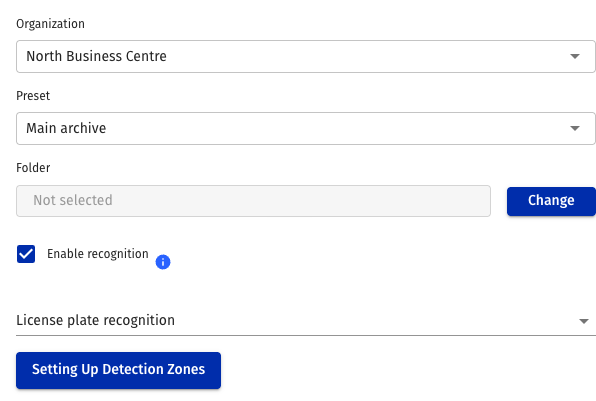
You need camera editing permission.
- Open My cameras, find the camera and open its settings.
- On the administration settings tab, enable Enable recognition.
-
Select License plate recognition.
-
Adjust exact thumbnail retention if needed. See Camera settings.
-
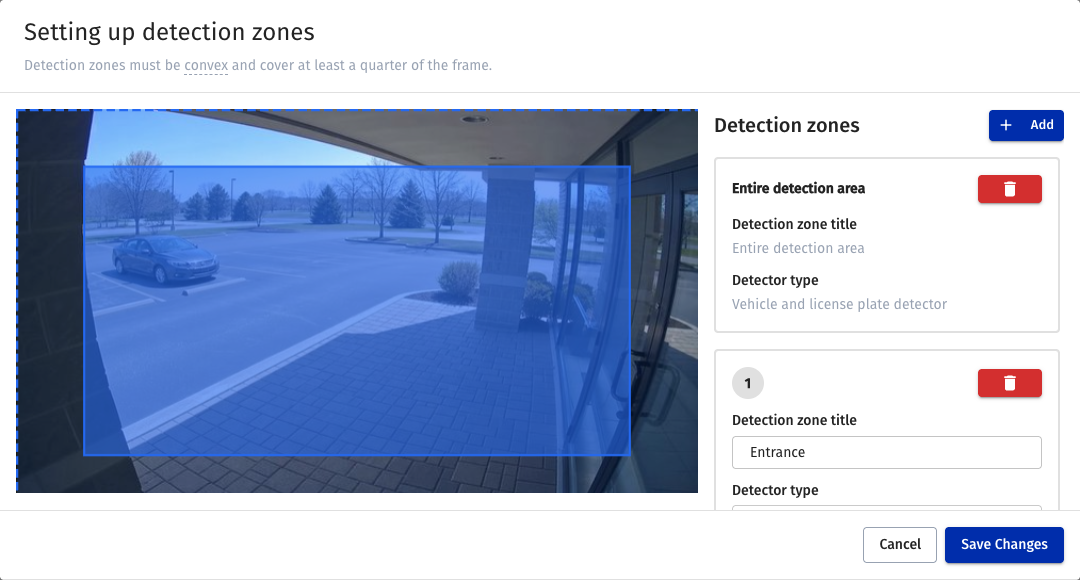
Click Setting Up Detection Zones for separate analysis areas.
-
Save the zone dialog, then save camera settings.
With a non-adjustable preset, general recognition parameters come from the preset. Detection zones can be configured separately for the camera.
Detection zones
By default the detector processes the whole frame, represented by a separate card in the zone dialog. Adding a polygon retains full-frame processing; to analyze selected areas only, remove the full-frame card and configure the polygons.
Click Add, name the area and select its detector type. Use the vehicle detector for plates. Move the area and its vertices over the image. To delete it, click the trash icon on its card.
You can create up to five polygon areas. Each must be convex and cover at least a quarter of the frame. A convex area has no inward corners or crossing edges. If validation fails, correct the highlighted geometry before saving.
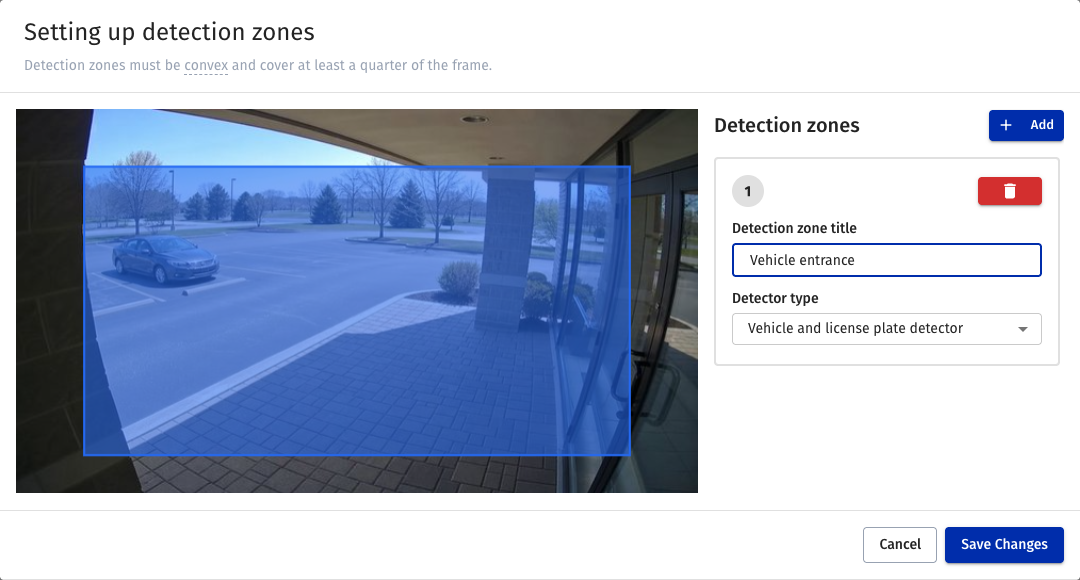
A named vehicle detection polygon with the full-frame card removed.
Each area has its own detector type. If results differ from expectations after changing zones, check detector types and whether the full-frame card remains.
View vehicle episodes
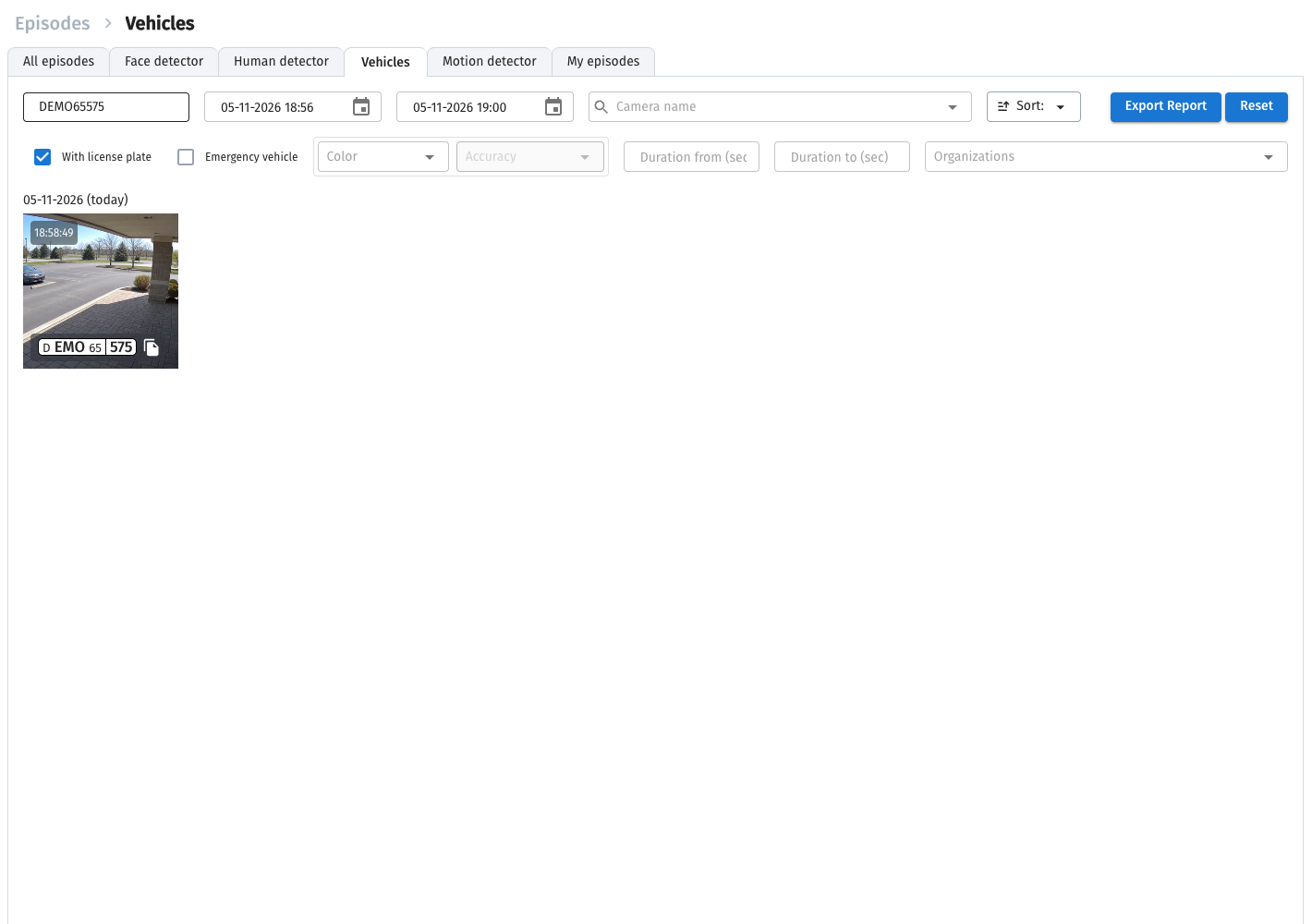
- Open Events → Vehicles.
-
Open Filter and select cameras, organizations and a time interval. To find a vehicle, enter its plate text in search.
-
Enable With license plate to retain recognized-number episodes. When disabled, episodes without recognized plates are also shown.
- Select an episode to open video and details.
Plate search restricts the list to matching episodes:
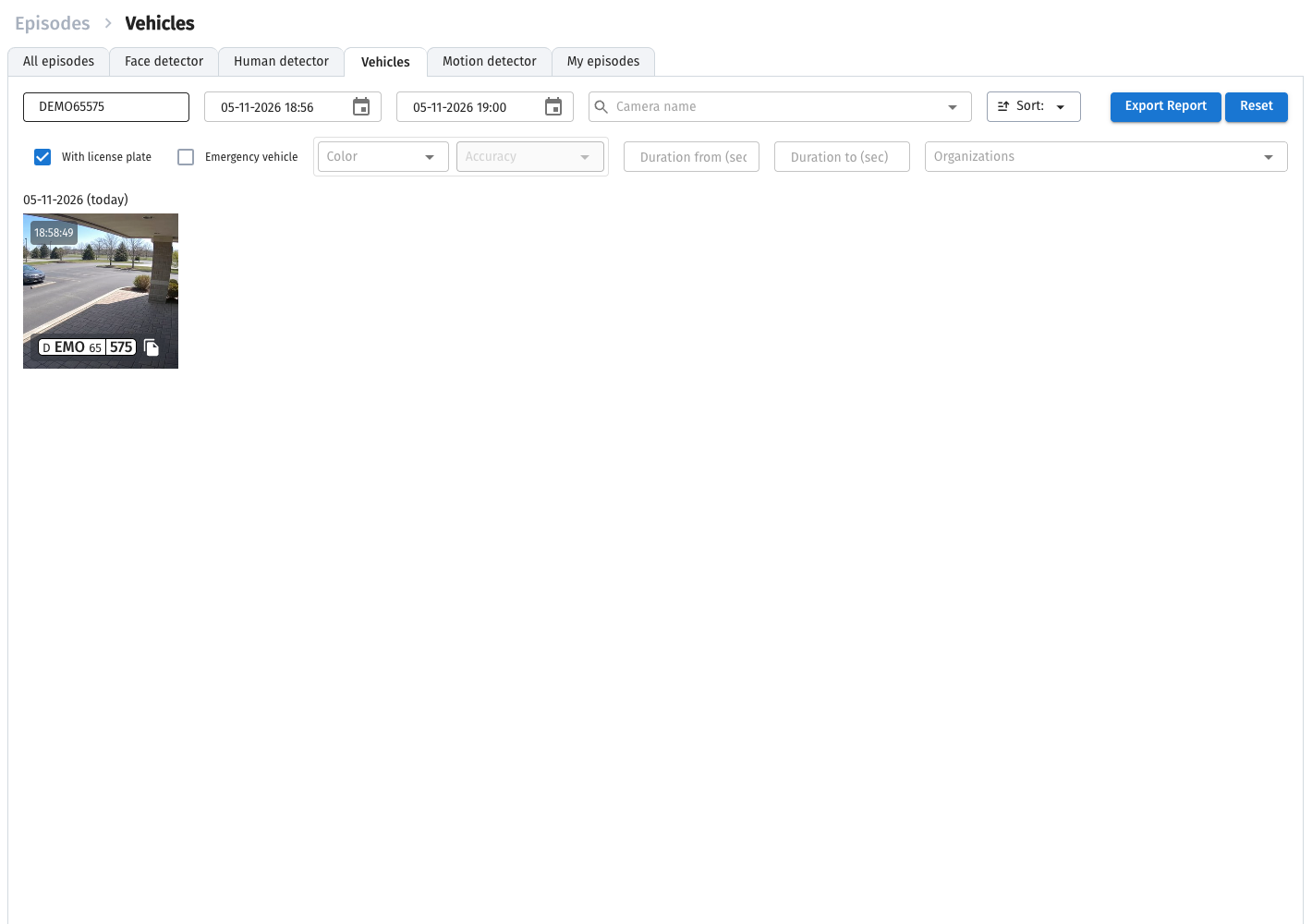
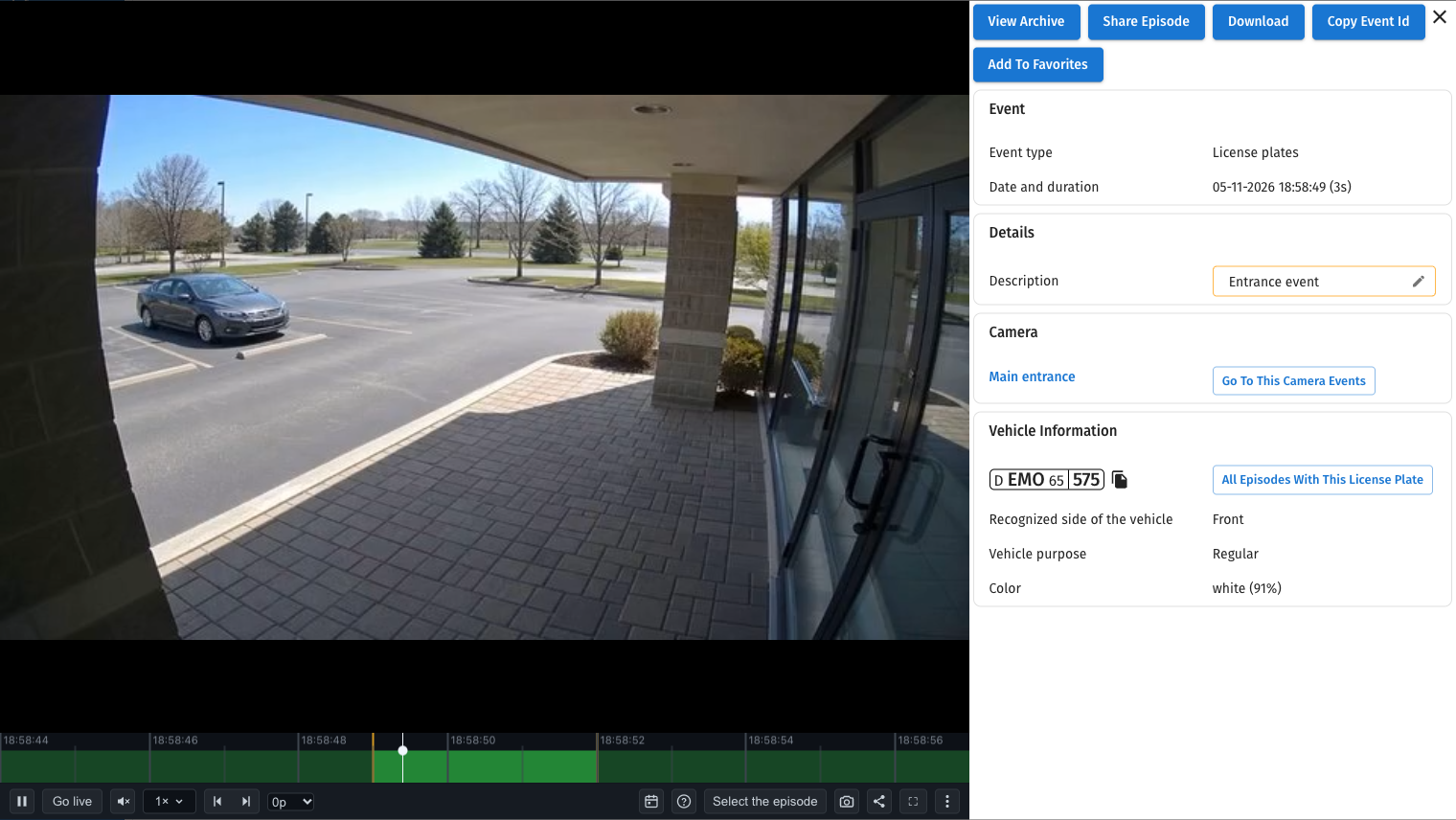
Episode card: recognized number, time and vehicle details.
An episode contains the object's observation interval rather than separate arrival and departure rows. Video playback requires available recording and archive viewing permission. An episode thumbnail does not replace an archive recording.
See Events and Detecting vehicles without a plate number for more search and playback details.