Flussonic Agent in the Watcher web interface
The Agents page shows Agents associated with cameras in your Watcher. To access the administrative list, sign in with a Watcher administrator account.
Agent list
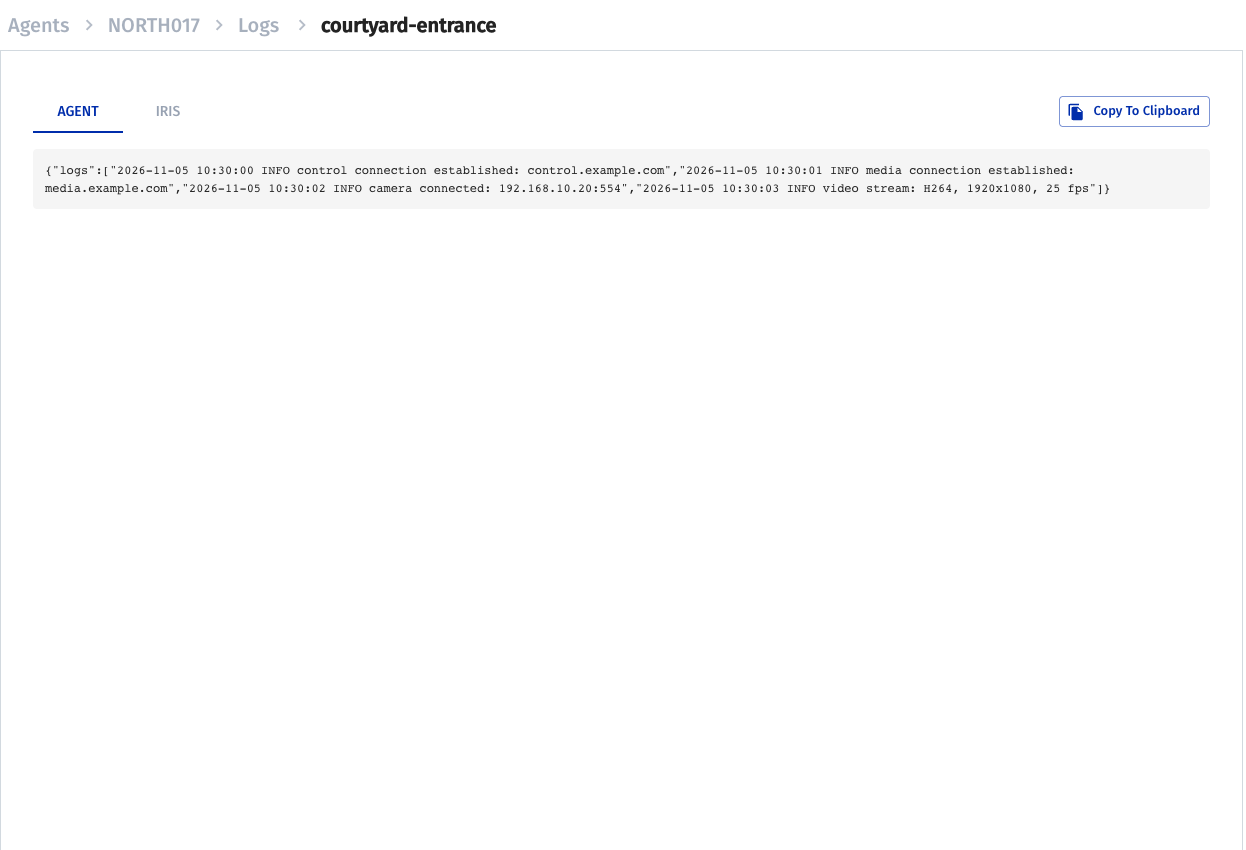
The list provides:
- Status — separate E indicators for the endpoint connection and S indicators for the streampoint connection. Green means the corresponding connection is active; red means it is inactive. The counter next to the indicator measures time since the connection opened; it is not the duration of the current red state.
- Agent ID — the identifier you can click to open the Agent card.
- Camera — associated cameras and their Organizations. Click a camera name to open it.
- Model — model and Agent version information received from the device.
- Serial Number — the device serial number, if sent by the Agent.
- IP address — the local address and the address from which the Agent connected to the server.
Use the search field and Organization filter to narrow the list. An Agent appearing in the list does not by itself establish video availability: check both connections and open the associated camera.
The E and S indicators let you check the control connection and stream transmission separately.
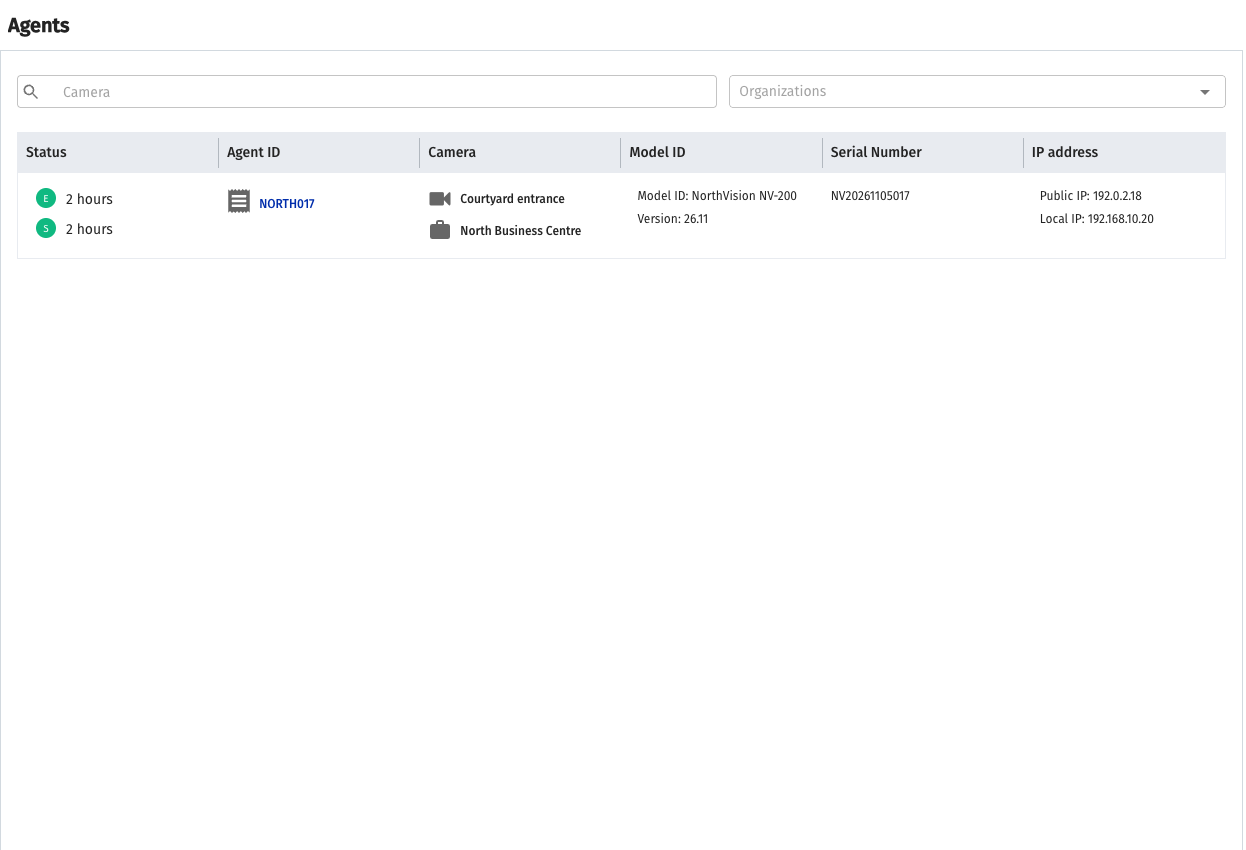
If the Agent list is empty
An Agent may come already paired with an operator or require pairing. Operator ID is the operator identifier associated with the Watcher address. See Mobile apps.
If the Agent is already paired, connect the camera to the Internet and check that it appears in the list. If it is not paired, add the camera through the Watcher mobile app.
Card and logs
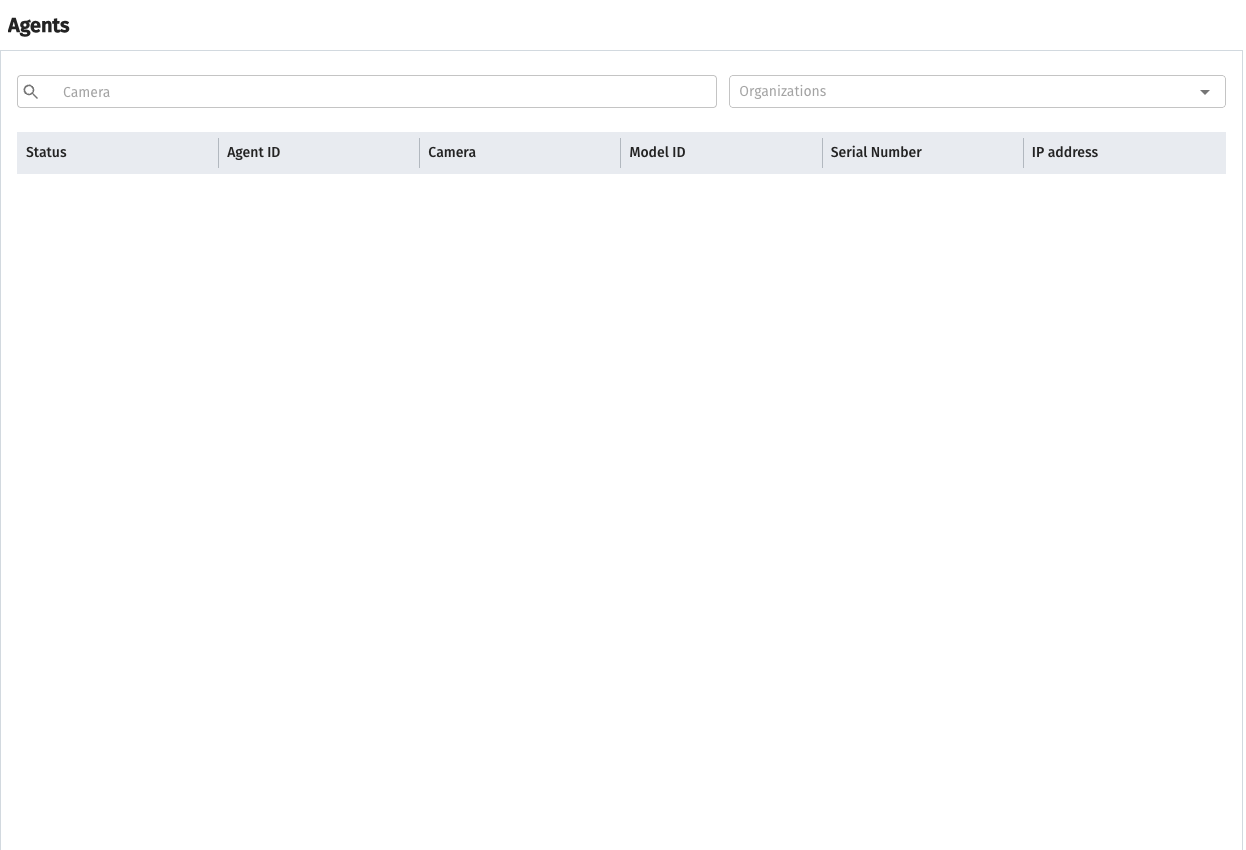
Click the Agent ID to view connection details. The card contains the node address, connection opening and state change times, and sent and received byte counters, when this data is available.
The log icon next to the ID opens logs for the corresponding camera. Available logs can be viewed and copied for diagnosis. If the Agent cannot be reached from Watcher, retrieve its status and logs on the camera local network.
The card shows connection information; the log provides records for camera diagnosis.
Agent and Iris logs
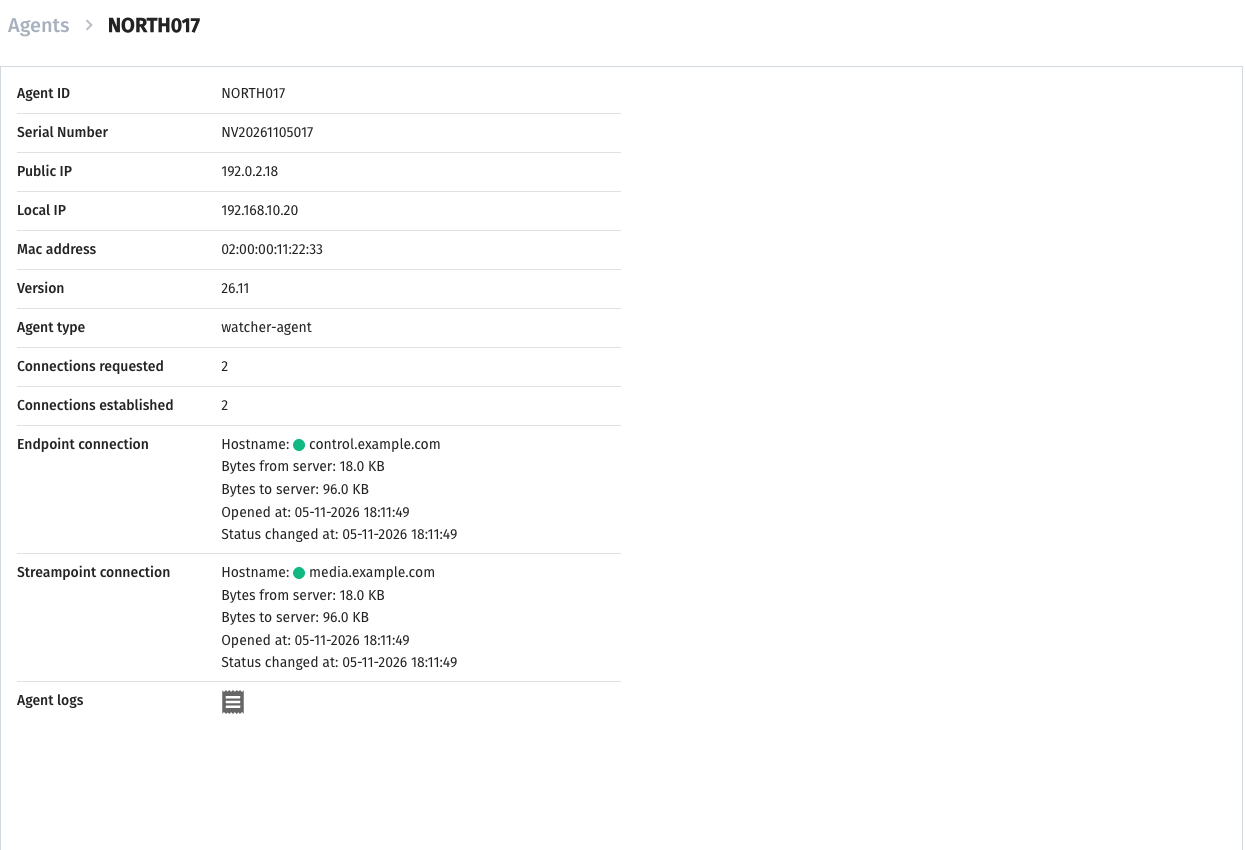
On the logs page, select the Agent or Iris tab to view the corresponding part of the device response. A tab without available records is disabled; the interface selects the first available tab. Copy to clipboard copies only the content of the selected tab. Before sharing a log, check it for confidential data.
Retrieving logs requires Watcher administrator rights or camera editing rights in the relevant Organization. If a message says the data cannot be loaded, check your permissions and retrieve the log locally.